> ## Documentation Index
> Fetch the complete documentation index at: https://gcore-doc-1894.mintlify.site/llms.txt
> Use this file to discover all available pages before exploring further.
# Set up a CDN resource to follow origin redirects
Redirection from Origin is a CDN resource option that controls how the CDN handles HTTP 3xx redirect responses from the origin.
## About redirection from origin
The Redirection from Origin option controls whether the CDN follows redirects returned by the origin. By default, this option is disabled, which means that when the origin returns an HTTP 3xx status code, the CDN caches and serves this response to the end user. When the option is enabled, the CDN automatically retrieves the target content from the new location, which is then cached and returned to the end user.
Enabling or disabling this option may cause users to receive an outdated version of the content. [Purge the cache](/cdn/clear-cdn-resource-cache-by-url-pattern-or-all) after making changes.
## Configuration
Configure origin redirection via the Customer Portal or REST API.
To configure origin redirection using the [Gcore Customer Portal](https://portal.gcore.com/cdn/resources/list):
1\. Navigate to **CDN** and select the CDN resource to configure.
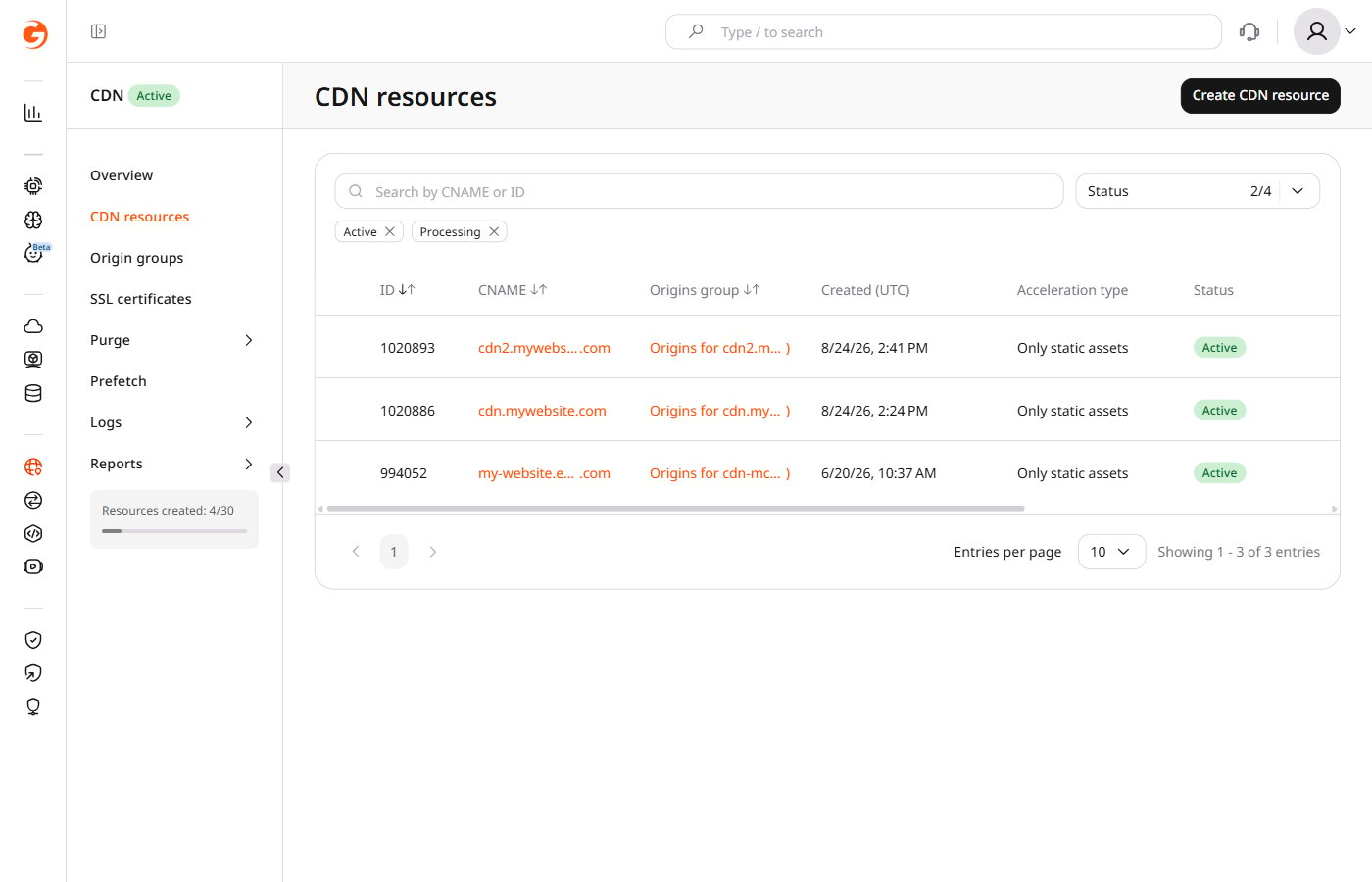 2\. In the sidebar, under the **Cache** section, select **Redirection from origin**.
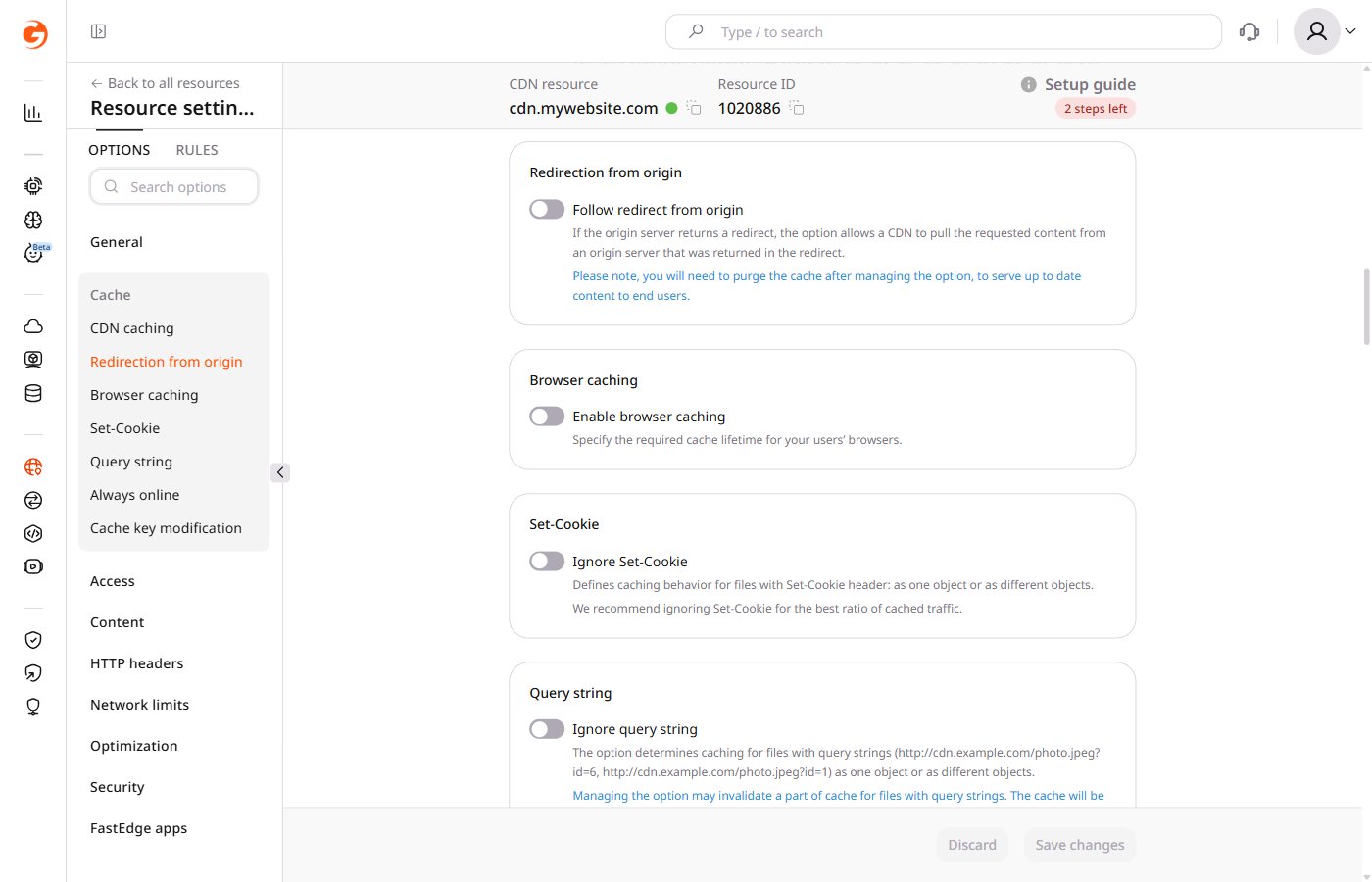 3\. Toggle **Follow redirect from origin** on.
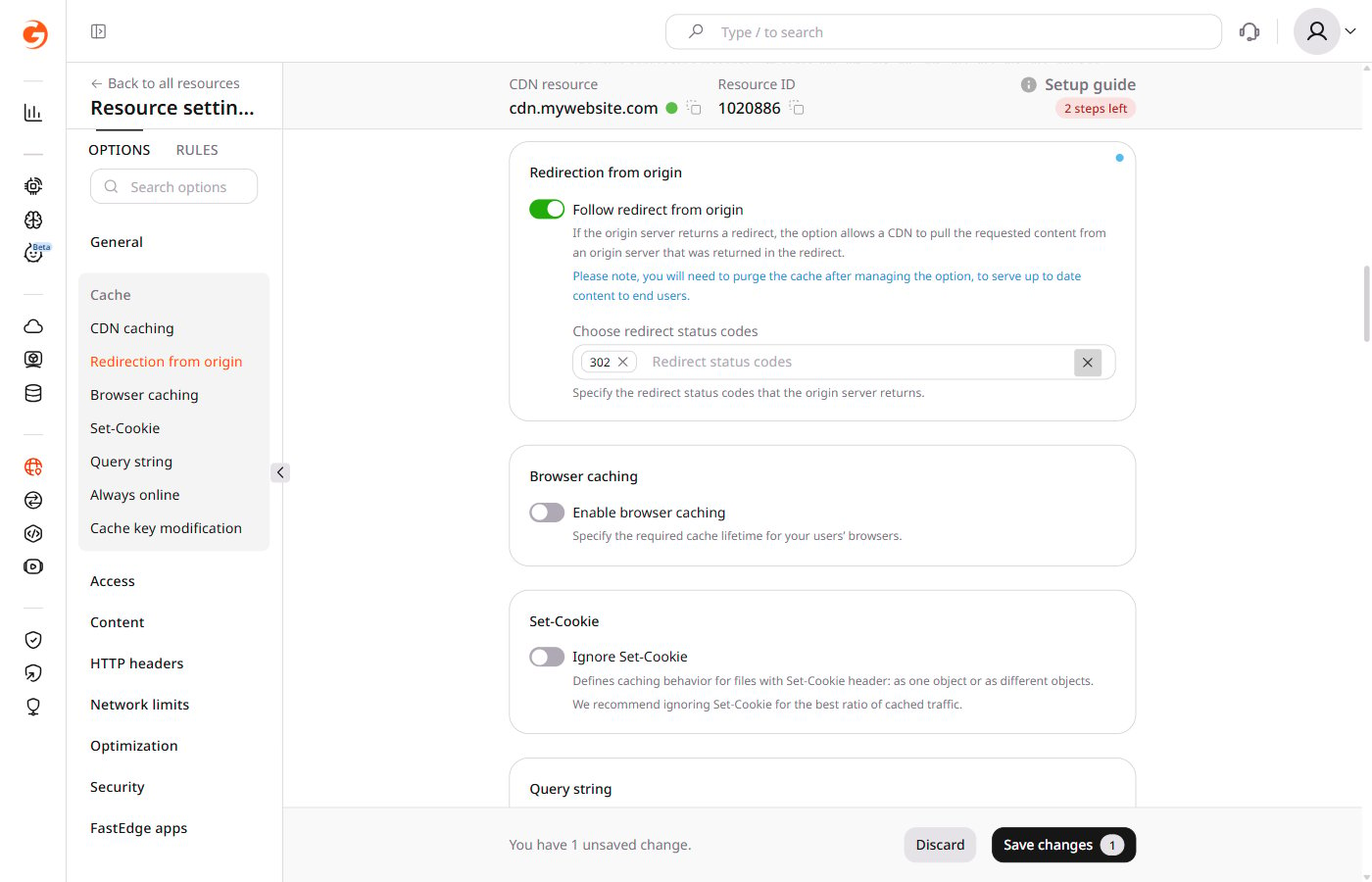 4\. Select one or more status codes in the **Choose redirect status codes** field. The options are:
* 301 — to follow redirect for status code HTTP 301
* 302 — selected by default; follows redirect for status code HTTP 302
* 303 — to follow redirect for status code HTTP 303
* 307 — to follow redirect for status code HTTP 307
* 308 — to follow redirect for status code HTTP 308
4\. Select one or more status codes in the **Choose redirect status codes** field. The options are:
* 301 — to follow redirect for status code HTTP 301
* 302 — selected by default; follows redirect for status code HTTP 302
* 303 — to follow redirect for status code HTTP 303
* 307 — to follow redirect for status code HTTP 307
* 308 — to follow redirect for status code HTTP 308
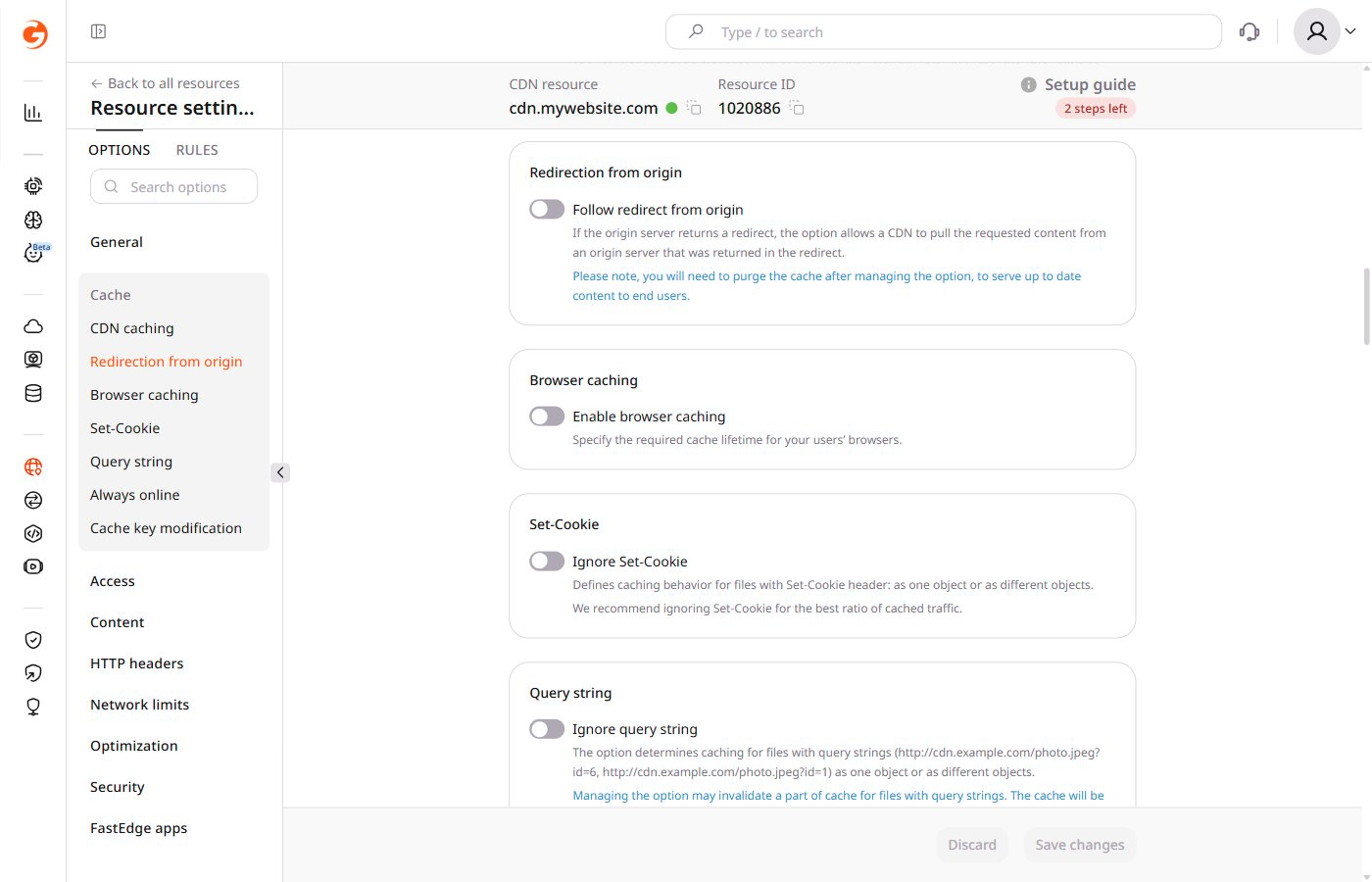 5\. Click **Save changes**. Allow at least 15 minutes for the changes to take effect.
After saving, [purge the cache](/cdn/clear-cdn-resource-cache-by-url-pattern-or-all) so that end users receive updated content.
To configure origin redirection using the API, include the `follow_origin_redirect` object in the request body. The following is a sample code for the object:
```
"options": {
"follow_origin_redirect": {
"enabled": true,
"codes": [
302,
308
]
}
}
```
**Request properties**
The `follow_origin_redirect` object passes the following information:
| **Property** | **Description** |
| ------------ | --------------------------------------------------------------------------------------------------------------------------------------------------------------------------------------------------------------- |
| enabled | This property indicates whether to enable Redirection from Origin.
5\. Click **Save changes**. Allow at least 15 minutes for the changes to take effect.
After saving, [purge the cache](/cdn/clear-cdn-resource-cache-by-url-pattern-or-all) so that end users receive updated content.
To configure origin redirection using the API, include the `follow_origin_redirect` object in the request body. The following is a sample code for the object:
```
"options": {
"follow_origin_redirect": {
"enabled": true,
"codes": [
302,
308
]
}
}
```
**Request properties**
The `follow_origin_redirect` object passes the following information:
| **Property** | **Description** |
| ------------ | --------------------------------------------------------------------------------------------------------------------------------------------------------------------------------------------------------------- |
| enabled | This property indicates whether to enable Redirection from Origin.
Possible values:
- true enables the option
- false disables the option |
| codes | This property is an array of HTTP status codes that will cause the CDN to follow a redirect. The array must contain a minimum of one and a maximum of five items.
Possible values: 301, 302, 303, 307, 308 |
**Example**
This example shows a [CDN update request](/api-reference/cdn/cdn-resources/change-cdn-resource-1) that activates the Redirection from Origin and instructs the CDN to follow redirects for status codes 301, 302, and 303.
```json theme={null}
PUT /cdn/resources/{id}
{
"options": {
"follow_origin_redirect": {
"enabled": true,
"codes": [301, 302, 303]
}
}
}
```