> ## Documentation Index
> Fetch the complete documentation index at: https://gcore-doc-1894.mintlify.site/llms.txt
> Use this file to discover all available pages before exploring further.
# Specify cache lifetime on a CDN resource or origin
Files cannot be stored in CDN servers' cache indefinitely. The CDN caching feature controls how long files from an origin server are stored in the CDN server's cache. When users request these files, they are served from cache without additional requests to the origin, reducing delivery time, costs, and origin server load.
Files users have not requested within 36 hours will be removed from the CDN servers' cache, regardless of the feature settings.
When the specified timespan for storing files in the cache has expired, CDN servers send requests to the origin to compare the HTTP [ETag](https://developer.mozilla.org/en-US/docs/Web/HTTP/Headers/ETag) header and determine if the files have changed.
If the values of the `ETag` header for previous and current versions do not match, CDN servers load a new version and cache it for the time specified in the feature. If the values match, the storage time of the file in the cache is extended for the specified time.
## Configure CDN caching
The CDN caching feature has two options: Origin controlled (enabled by default) and CDN controlled. Select one to set the caching time either in the origin server's HTTP `Cache-Control` header or in the CDN settings.
### Origin controlled
Set the `Cache-Control` header on the origin server, then configure the fallback cache expiry in the portal.
1\. Depending on the web server (Apache or Nginx), add the `Cache-Control` header with the *max-age* and *public* parameters to the .htaccess (for Apache) or nginx.conf (for Nginx) file.
The following Apache configuration caches .gif and .ico files (the *public* parameter) for 4 days (*max-age=345600* in seconds):
```
Header set Cache-Control "max-age=345600, public"
```
The following Nginx configuration caches all ico, css, js, gif, jpeg, and png files (the *public* parameter) for about 1 day (*max-age=88000* in seconds):
```
server {
#...
location ~* \.(?:ico|css|js|gif|jpeg|png)$ {
add_header Cache-Control "max-age=88000, public";
}
#...
}
```
2\. In the [Gcore Customer Portal](https://portal.gcore.com), navigate to **CDN** > **CDN resources** and click the CNAME of the resource where the `Cache-Control` header is configured.
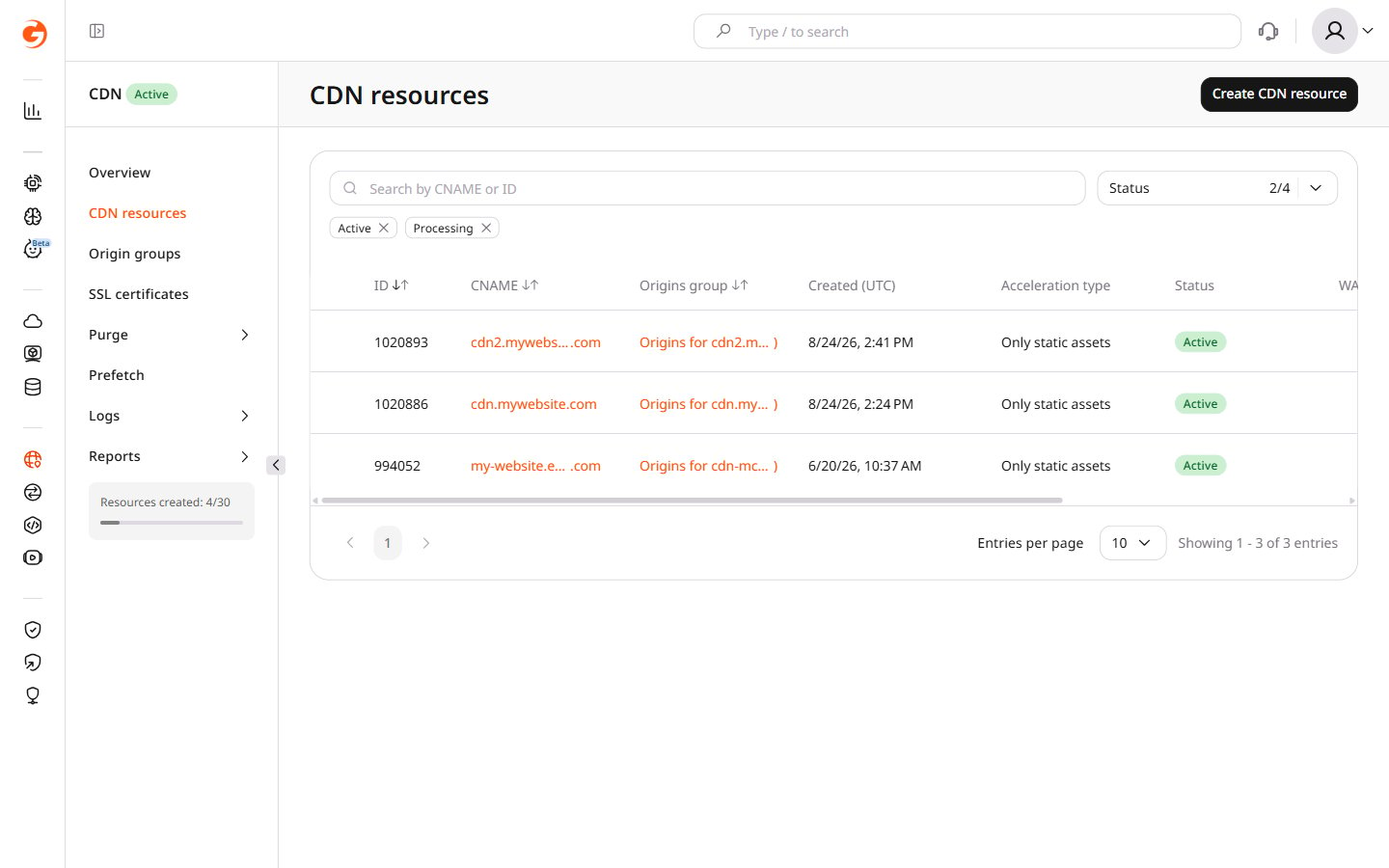 3\. Navigate to **Cache** > **CDN caching**.
4\. Confirm that **Origin controlled** is selected in the dropdown.
5\. Specify the timespan in the **Default cache expiry** field. Select a predefined value from the list or select **Custom value** and enter the time in seconds. This value is used as a fallback when the origin does not send caching HTTP headers.
For Origin controlled mode, CDN servers cache responses with codes 200, 201, 204, 206, 301, 302, 303, 304, 307, and 308. Responses with other codes are not cached.
3\. Navigate to **Cache** > **CDN caching**.
4\. Confirm that **Origin controlled** is selected in the dropdown.
5\. Specify the timespan in the **Default cache expiry** field. Select a predefined value from the list or select **Custom value** and enter the time in seconds. This value is used as a fallback when the origin does not send caching HTTP headers.
For Origin controlled mode, CDN servers cache responses with codes 200, 201, 204, 206, 301, 302, 303, 304, 307, and 308. Responses with other codes are not cached.
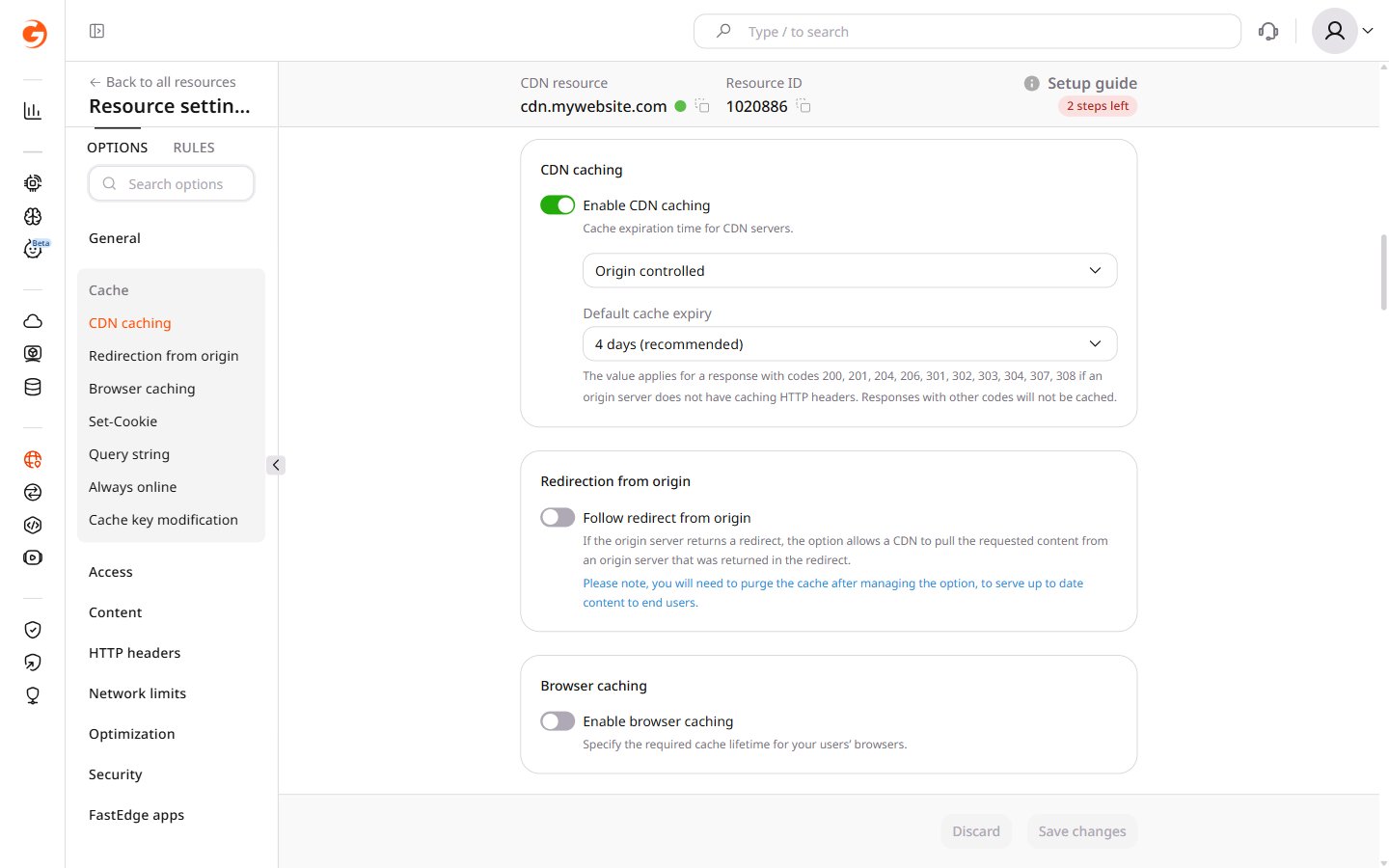 6\. Click **Save changes**.
### CDN controlled
CDN caching can be configured at two levels:
* For the whole resource
* At the advanced caching rule level in the resource
These settings are independent — CDN caching can be set to **Do not cache** in the main settings while enabled in an advanced rule, and vice versa.
CDN caching applies only to responses with status codes 200, 206, 301, and 302. Responses with 4xx and 5xx status codes are not cached by default. To cache 404 or other non-default status codes, configure an advanced caching rule under the **Enable CDN caching via advanced caching rules** tab below.
1\. In the Customer Portal, navigate to **CDN** > **CDN resources**.
2\. Click the CNAME of the required resource to open its settings.
3\. Navigate to **Cache** > **CDN caching**.
4\. Confirm the **Enable CDN caching** toggle is enabled. If not, click the toggle to enable it.
5\. Select **CDN controlled** from the dropdown.
6\. Click **Save changes**.
### CDN controlled
CDN caching can be configured at two levels:
* For the whole resource
* At the advanced caching rule level in the resource
These settings are independent — CDN caching can be set to **Do not cache** in the main settings while enabled in an advanced rule, and vice versa.
CDN caching applies only to responses with status codes 200, 206, 301, and 302. Responses with 4xx and 5xx status codes are not cached by default. To cache 404 or other non-default status codes, configure an advanced caching rule under the **Enable CDN caching via advanced caching rules** tab below.
1\. In the Customer Portal, navigate to **CDN** > **CDN resources**.
2\. Click the CNAME of the required resource to open its settings.
3\. Navigate to **Cache** > **CDN caching**.
4\. Confirm the **Enable CDN caching** toggle is enabled. If not, click the toggle to enable it.
5\. Select **CDN controlled** from the dropdown.
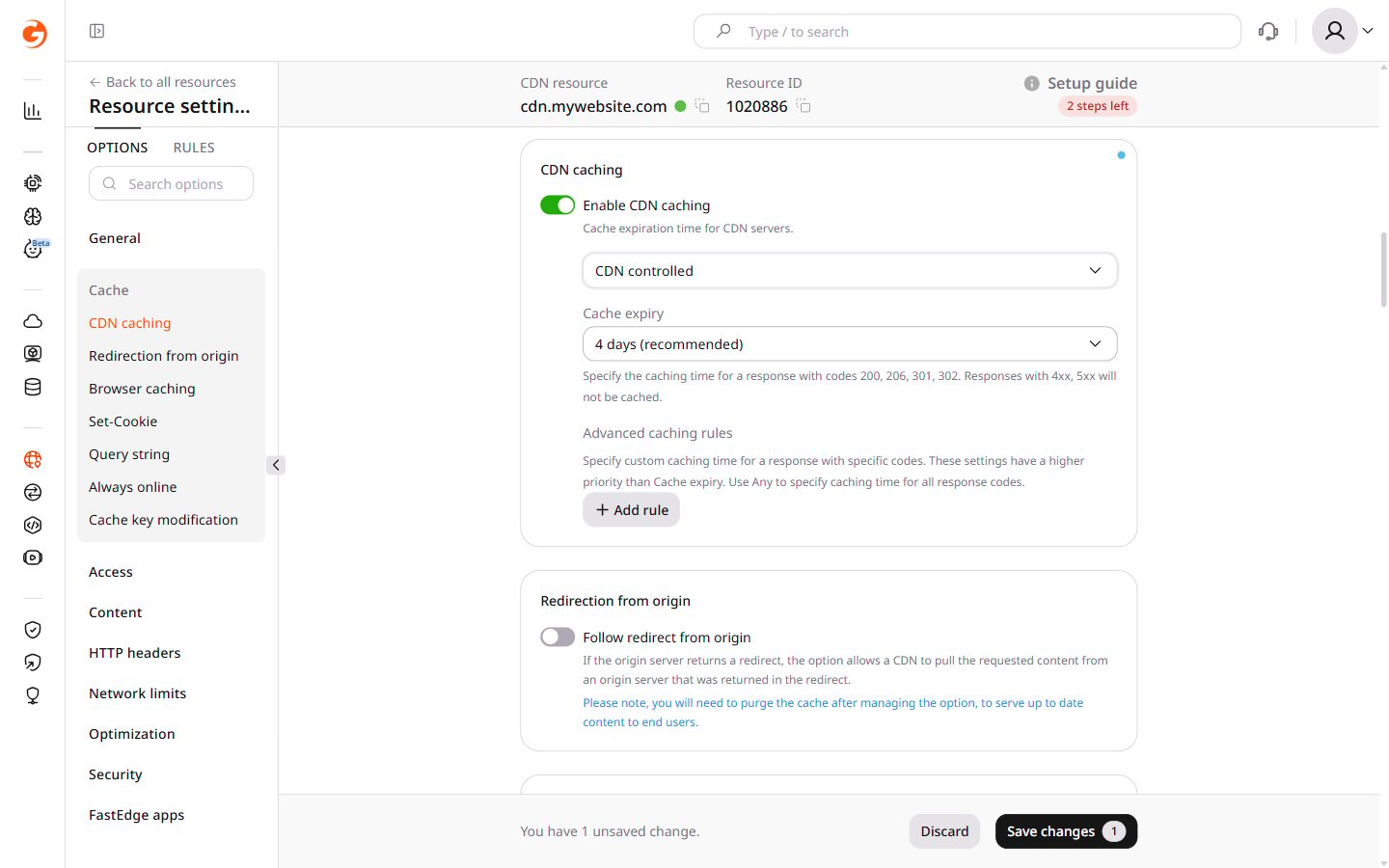 6\. Specify the caching timespan in the **Cache expiry** field. Select a predefined value from the list or select **Custom value** and enter a time in seconds.
Note that this caching time applies to response codes 200, 206, 301, and 302. Responses with 4xx and 5xx are not cached.
If the **Do not cache** option is selected, caching is disabled even when the **Enable CDN caching** toggle is enabled.
7\. (Optional) Configure advanced caching rules for different caching times by response code.
8\. Click **Save changes**.
1\. In the CDN resource settings, navigate to the **Cache** section.
2\. Confirm the **Enable CDN caching** toggle is enabled. If not, click the toggle to enable it.
3\. Select **CDN controlled** from the dropdown.
4\. Click **Add rule** and configure it as follows:
* **Response code**: enter the HTTP response code to apply caching to.
* **Caching time**: specify how long the data will be stored in the cache before it expires.
6\. Specify the caching timespan in the **Cache expiry** field. Select a predefined value from the list or select **Custom value** and enter a time in seconds.
Note that this caching time applies to response codes 200, 206, 301, and 302. Responses with 4xx and 5xx are not cached.
If the **Do not cache** option is selected, caching is disabled even when the **Enable CDN caching** toggle is enabled.
7\. (Optional) Configure advanced caching rules for different caching times by response code.
8\. Click **Save changes**.
1\. In the CDN resource settings, navigate to the **Cache** section.
2\. Confirm the **Enable CDN caching** toggle is enabled. If not, click the toggle to enable it.
3\. Select **CDN controlled** from the dropdown.
4\. Click **Add rule** and configure it as follows:
* **Response code**: enter the HTTP response code to apply caching to.
* **Caching time**: specify how long the data will be stored in the cache before it expires.
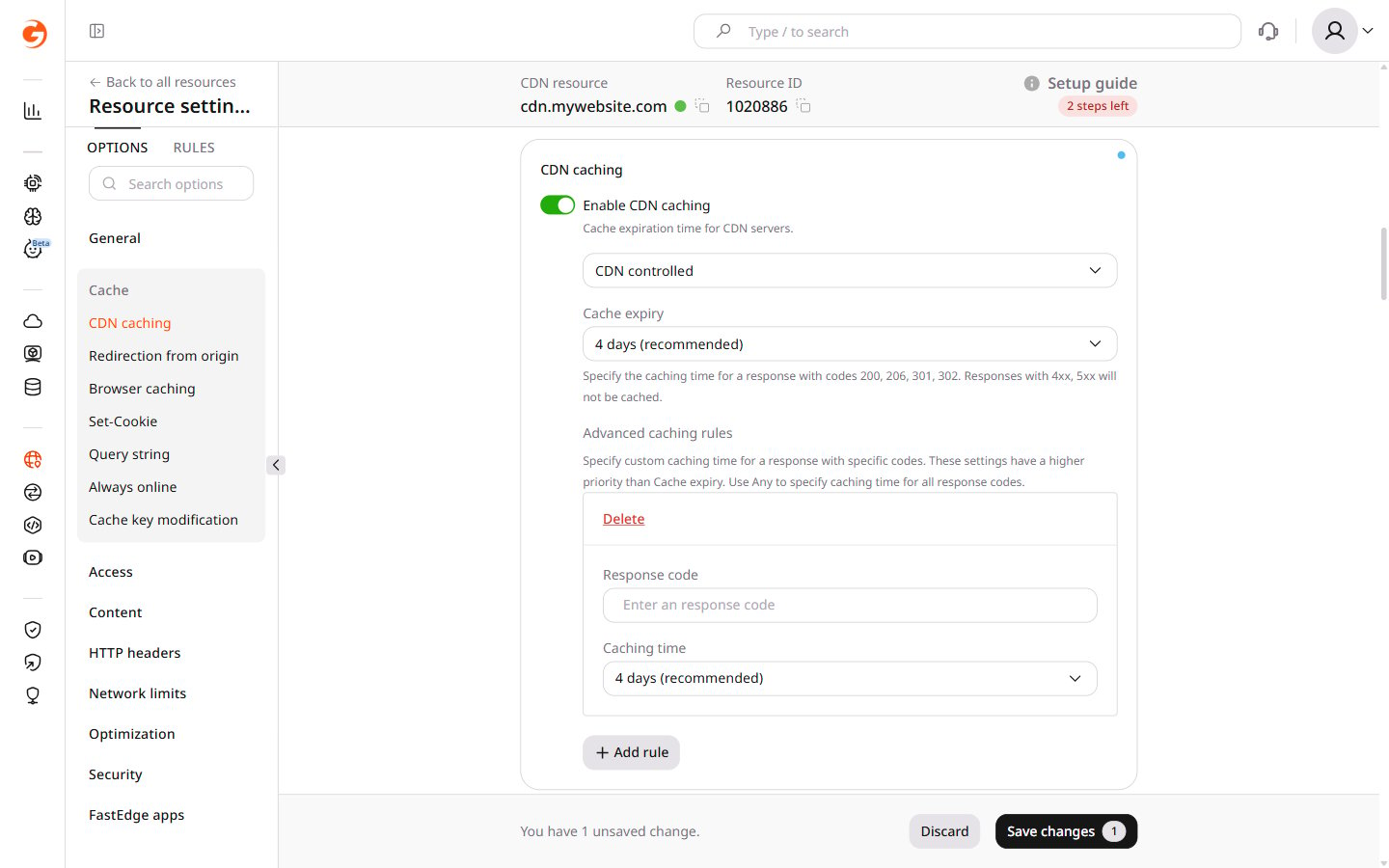 5\. Click **Save changes** to apply the settings.
The Caching time in advanced rules takes priority over the general Cache expiry.
With a Cache expiry of four days and two advanced rules — one for the 200 response code configured for 10 minutes and another for 404 configured for one minute — requests are cached as follows:
* Requests with response code 200: cached for 10 minutes.
* Requests with response code 404: cached for one minute.
* Requests with response codes 206, 301, and 302: cached for four days.
* Requests with response codes 4xx (except 404) and 5xx: not cached.
## Check CDN caching settings
To verify that CDN caching is working correctly, inspect HTTP response headers using cURL or browser DevTools.
### Check through cURL
Run a cURL request against a CDN-delivered URL and inspect the HTTP response headers.
1\. Open a terminal (macOS) or command prompt (Windows).
2\. Run the following command:
```sh theme={null}
curl -I http://cdn.testdomain.com/css/style.css
```
where `http://cdn.testdomain.com/css/style.css` is the URL of a file delivered via CDN.
The output includes HTTP response headers. The headers relevant for diagnosing cache behavior are described in the [caching HTTP headers](/cdn/cdn-resource-options/cache/specify-cache-lifetime-on-a-cdn-resource-or-origin#check-caching-http-headers) section.
```
HTTP/1.1 200 OK
Server: nginx/1.13.1
Date: Fri, 09 Jun 2017 12:54:24 GMT
Content-Type: image/jpeg
Content-Length: 124024
Connection: keep-alive
X-Image-Generated: 29
X-Image-Meta: 1024x768
X-Image-Read: 71
Expires: Wed, 06 Dec 2017 12:51:43 GMT
Access-Control-Allow-Origin: *
Last-Modified: Sun, 01 Jan 2017 12:00:00 GMT
Cache-Control: max-age=3153600, public
Cache: HIT
X-Cached-Since: 2017-06-09T12:51:43+00:00
X-ID: m9-up-e245
```
For content caching issues, verify the origin settings or contact [Gcore Support](https://support.gcore.com/hc/en-us/requests/new).
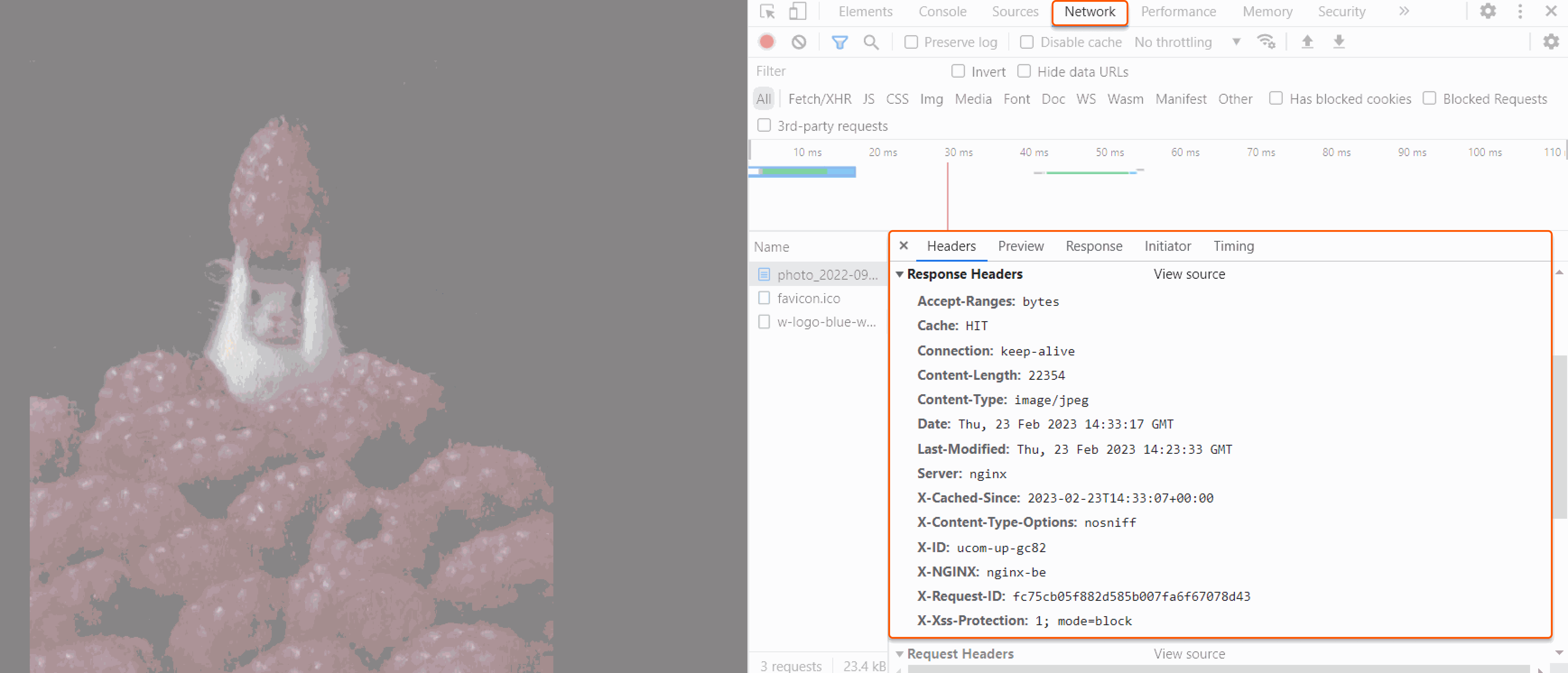
### Check with DevTools in a browser
Use browser DevTools to inspect the HTTP response headers for a CDN-delivered file.
1\. Open a web browser.
2\. Navigate to the website.
3\. Right-click and select **Inspect** to open DevTools.
4\. Select the **Network** tab.
5\. Refresh the page.
6\. Select any file from the list that is delivered via CDN.
7\. On the **Headers** tab, review the response headers. The key cache-related headers are described in the section below.
5\. Click **Save changes** to apply the settings.
The Caching time in advanced rules takes priority over the general Cache expiry.
With a Cache expiry of four days and two advanced rules — one for the 200 response code configured for 10 minutes and another for 404 configured for one minute — requests are cached as follows:
* Requests with response code 200: cached for 10 minutes.
* Requests with response code 404: cached for one minute.
* Requests with response codes 206, 301, and 302: cached for four days.
* Requests with response codes 4xx (except 404) and 5xx: not cached.
## Check CDN caching settings
To verify that CDN caching is working correctly, inspect HTTP response headers using cURL or browser DevTools.
### Check through cURL
Run a cURL request against a CDN-delivered URL and inspect the HTTP response headers.
1\. Open a terminal (macOS) or command prompt (Windows).
2\. Run the following command:
```sh theme={null}
curl -I http://cdn.testdomain.com/css/style.css
```
where `http://cdn.testdomain.com/css/style.css` is the URL of a file delivered via CDN.
The output includes HTTP response headers. The headers relevant for diagnosing cache behavior are described in the [caching HTTP headers](/cdn/cdn-resource-options/cache/specify-cache-lifetime-on-a-cdn-resource-or-origin#check-caching-http-headers) section.
```
HTTP/1.1 200 OK
Server: nginx/1.13.1
Date: Fri, 09 Jun 2017 12:54:24 GMT
Content-Type: image/jpeg
Content-Length: 124024
Connection: keep-alive
X-Image-Generated: 29
X-Image-Meta: 1024x768
X-Image-Read: 71
Expires: Wed, 06 Dec 2017 12:51:43 GMT
Access-Control-Allow-Origin: *
Last-Modified: Sun, 01 Jan 2017 12:00:00 GMT
Cache-Control: max-age=3153600, public
Cache: HIT
X-Cached-Since: 2017-06-09T12:51:43+00:00
X-ID: m9-up-e245
```
For content caching issues, verify the origin settings or contact [Gcore Support](https://support.gcore.com/hc/en-us/requests/new).
### Check with DevTools in a browser
Use browser DevTools to inspect the HTTP response headers for a CDN-delivered file.
1\. Open a web browser.
2\. Navigate to the website.
3\. Right-click and select **Inspect** to open DevTools.
4\. Select the **Network** tab.
5\. Refresh the page.
6\. Select any file from the list that is delivered via CDN.
7\. On the **Headers** tab, review the response headers. The key cache-related headers are described in the section below.
 ### Check caching HTTP headers
There are several HTTP header parameters that help analyze the state of the cache:
| HTTP header with parameters | Explanation |
| ----------------------------------------- | ---------------------------------------------------------------------------------------------------------------------------------------------------------------------------------------------------------------------------------------------------------------------------------------------------------------------------------------------- |
| CACHE: HIT | The file has been delivered from the CDN. Caching is working correctly |
| CACHE: MISS | The file has been delivered from the origin server. Appears on the first request after a cache purge, or when CDN settings force skipping the cache — `no-store` and `no-cache` `Cache-Control` directives prevent caching. If the asset is cacheable, subsequent requests return CACHE: HIT. If not cacheable, the status remains CACHE: MISS |
| CACHE: BYPASS | The file was requested directly from the origin. Appears on the first request after a cache purge by pattern or purge all. Subsequent requests should return CACHE: HIT once the content is re-cached |
| X-ID: ab-cd-d123 | Identifier of the Gcore CDN edge server that delivered the file. Resolve `{x-id}.fe.gc.onl` using `nslookup` or `dig` to get the server's IP address — useful for [cache diagnostics](/cdn/troubleshooting/cache-percentage-is-low-how-to-solve-the-issue) |
| X-Cached-Since: 2023-02-23T14:33:07+00:00 | The time when the file was cached in the CDN server in UTC |
## Video cache recommendations
Video files, VOD or Live, need different cache lifetimes by file type. Cache segments and single-file MP4 content longer, while keeping manifests short so players receive fresh live and playlist updates.
For video-specific values, apply the [caching rules](/cdn/getting-started/create-a-cdn-resource/create-a-cdn-resource-for-video-streaming#step-4-configure-caching-rules) used when creating a CDN resource for video streaming. They include recommended TTLs for MP4, HLS, MPEG-DASH, live manifests, and segment files.
### Check caching HTTP headers
There are several HTTP header parameters that help analyze the state of the cache:
| HTTP header with parameters | Explanation |
| ----------------------------------------- | ---------------------------------------------------------------------------------------------------------------------------------------------------------------------------------------------------------------------------------------------------------------------------------------------------------------------------------------------- |
| CACHE: HIT | The file has been delivered from the CDN. Caching is working correctly |
| CACHE: MISS | The file has been delivered from the origin server. Appears on the first request after a cache purge, or when CDN settings force skipping the cache — `no-store` and `no-cache` `Cache-Control` directives prevent caching. If the asset is cacheable, subsequent requests return CACHE: HIT. If not cacheable, the status remains CACHE: MISS |
| CACHE: BYPASS | The file was requested directly from the origin. Appears on the first request after a cache purge by pattern or purge all. Subsequent requests should return CACHE: HIT once the content is re-cached |
| X-ID: ab-cd-d123 | Identifier of the Gcore CDN edge server that delivered the file. Resolve `{x-id}.fe.gc.onl` using `nslookup` or `dig` to get the server's IP address — useful for [cache diagnostics](/cdn/troubleshooting/cache-percentage-is-low-how-to-solve-the-issue) |
| X-Cached-Since: 2023-02-23T14:33:07+00:00 | The time when the file was cached in the CDN server in UTC |
## Video cache recommendations
Video files, VOD or Live, need different cache lifetimes by file type. Cache segments and single-file MP4 content longer, while keeping manifests short so players receive fresh live and playlist updates.
For video-specific values, apply the [caching rules](/cdn/getting-started/create-a-cdn-resource/create-a-cdn-resource-for-video-streaming#step-4-configure-caching-rules) used when creating a CDN resource for video streaming. They include recommended TTLs for MP4, HLS, MPEG-DASH, live manifests, and segment files.