> ## Documentation Index
> Fetch the complete documentation index at: https://gcore-doc-1894.mintlify.site/llms.txt
> Use this file to discover all available pages before exploring further.
# Customize connection and read timeouts
Custom connection and read timeouts control how long Gcore edge nodes wait when communicating with an origin server.
* A custom connection timeout sets the maximum duration allowed for establishing a connection.
* A custom read timeout sets the maximum duration for receiving a response from the origin server. This timeout applies between two successive read operations, not to the entire response transmission.
When designated timeouts are exceeded, users receive a "504 Gateway Timeout" error.
## Configure custom timeouts
Timeouts are configured per CDN resource and apply to all requests handled by that resource.
1\. In the [Gcore Customer Portal](https://portal.gcore.com), navigate to **CDN** > **CDN resources**.
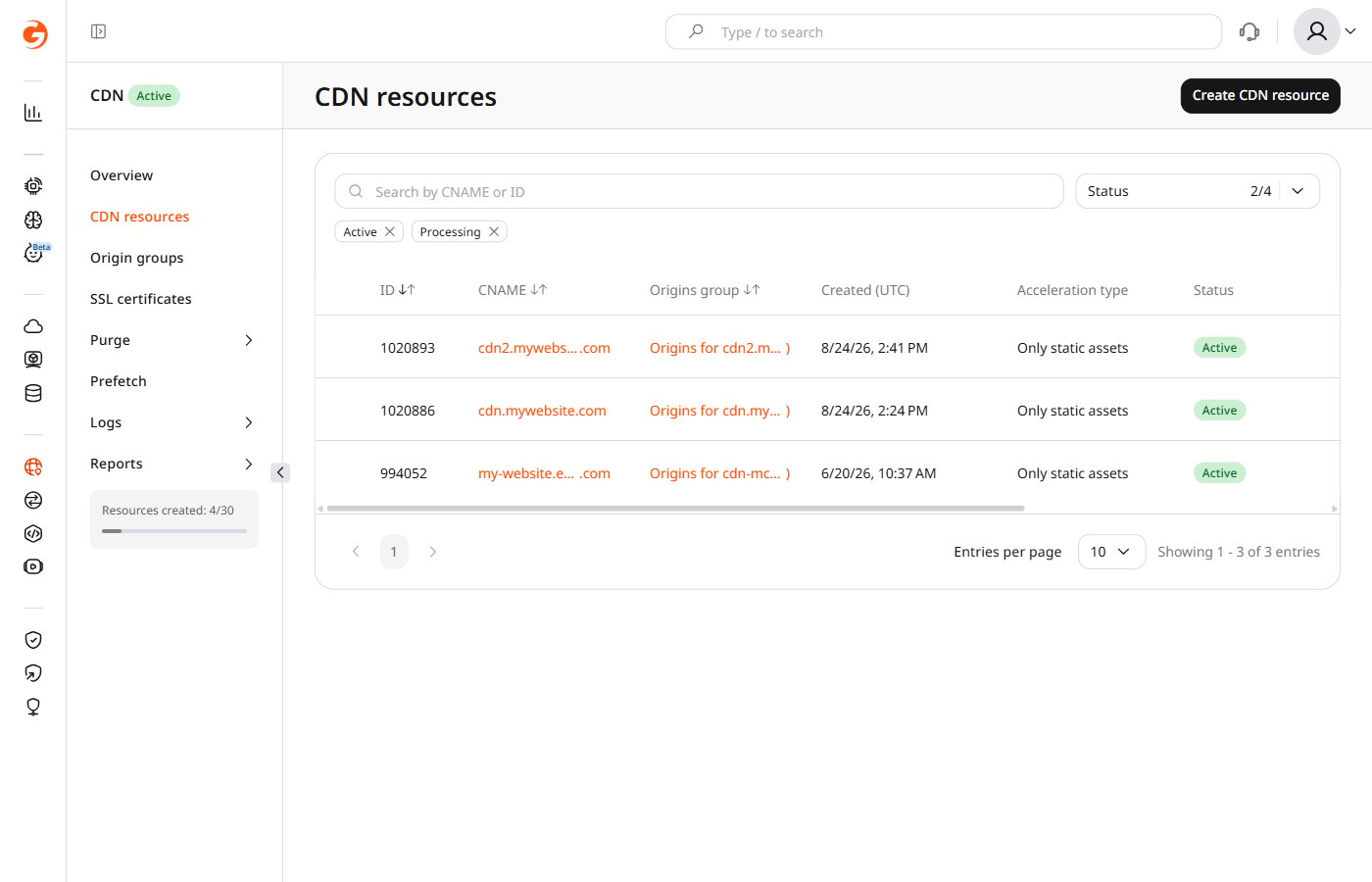 2\. Click the CNAME of the required CDN resource to open **Resource settings**.
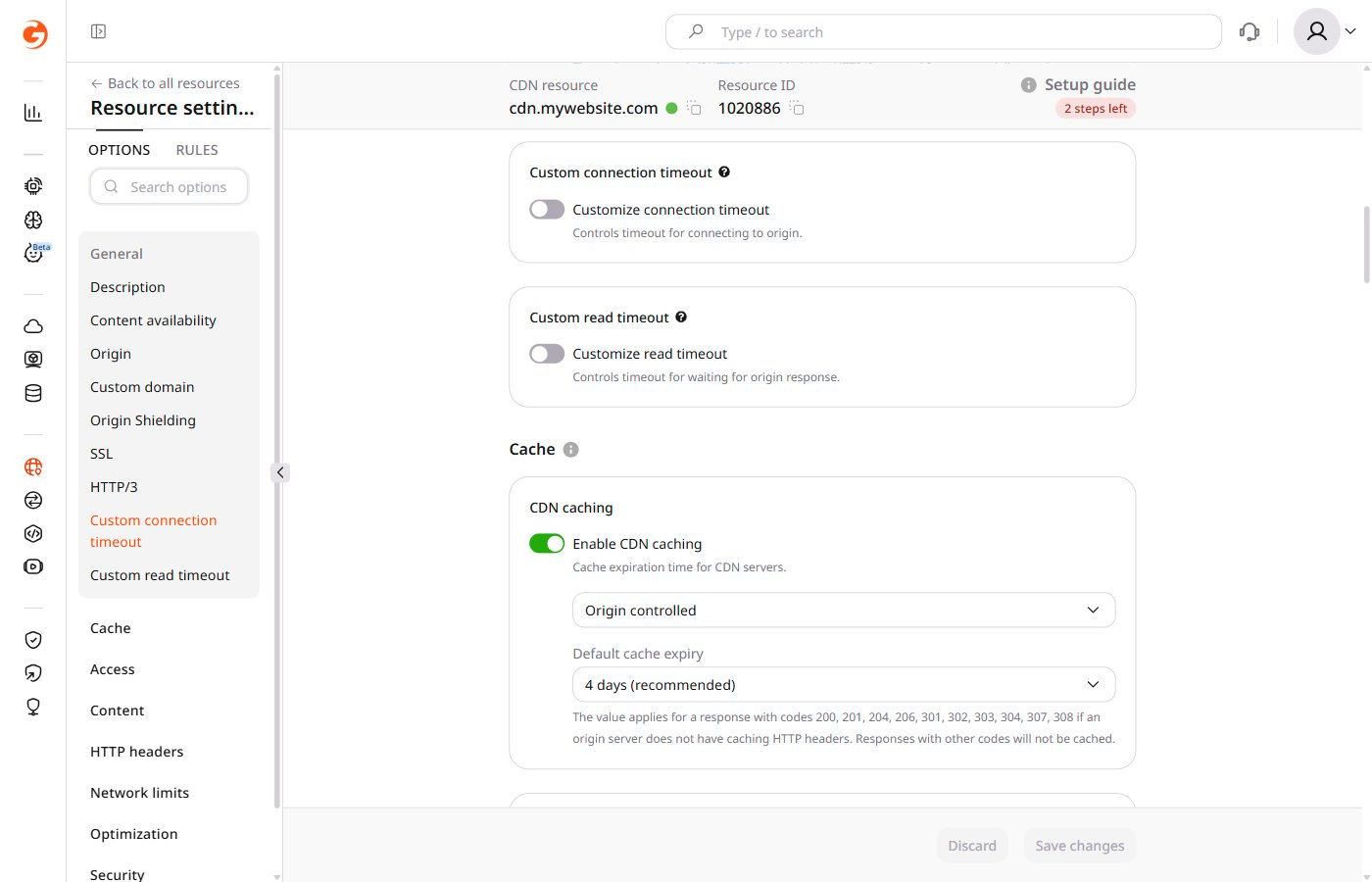 3\. Click **Custom connection timeout** or **Custom read timeout**, depending on the timeout to configure.
4\. Enable the **Customize connection timeout** or **Customize read timeout** toggle.
5\. Enter the timeout value. The allowed range is `1–5 seconds` for connection timeout and `1–30 seconds` for read timeout. To configure both timeouts, repeat steps 3–4 for the other option before saving.
For Enterprise plans, the upper limits can be raised beyond 5 seconds (connection) and 30 seconds (read). Contact [Gcore Support](https://support.gcore.com/hc/en-us/requests/new) to request higher values.
3\. Click **Custom connection timeout** or **Custom read timeout**, depending on the timeout to configure.
4\. Enable the **Customize connection timeout** or **Customize read timeout** toggle.
5\. Enter the timeout value. The allowed range is `1–5 seconds` for connection timeout and `1–30 seconds` for read timeout. To configure both timeouts, repeat steps 3–4 for the other option before saving.
For Enterprise plans, the upper limits can be raised beyond 5 seconds (connection) and 30 seconds (read). Contact [Gcore Support](https://support.gcore.com/hc/en-us/requests/new) to request higher values.
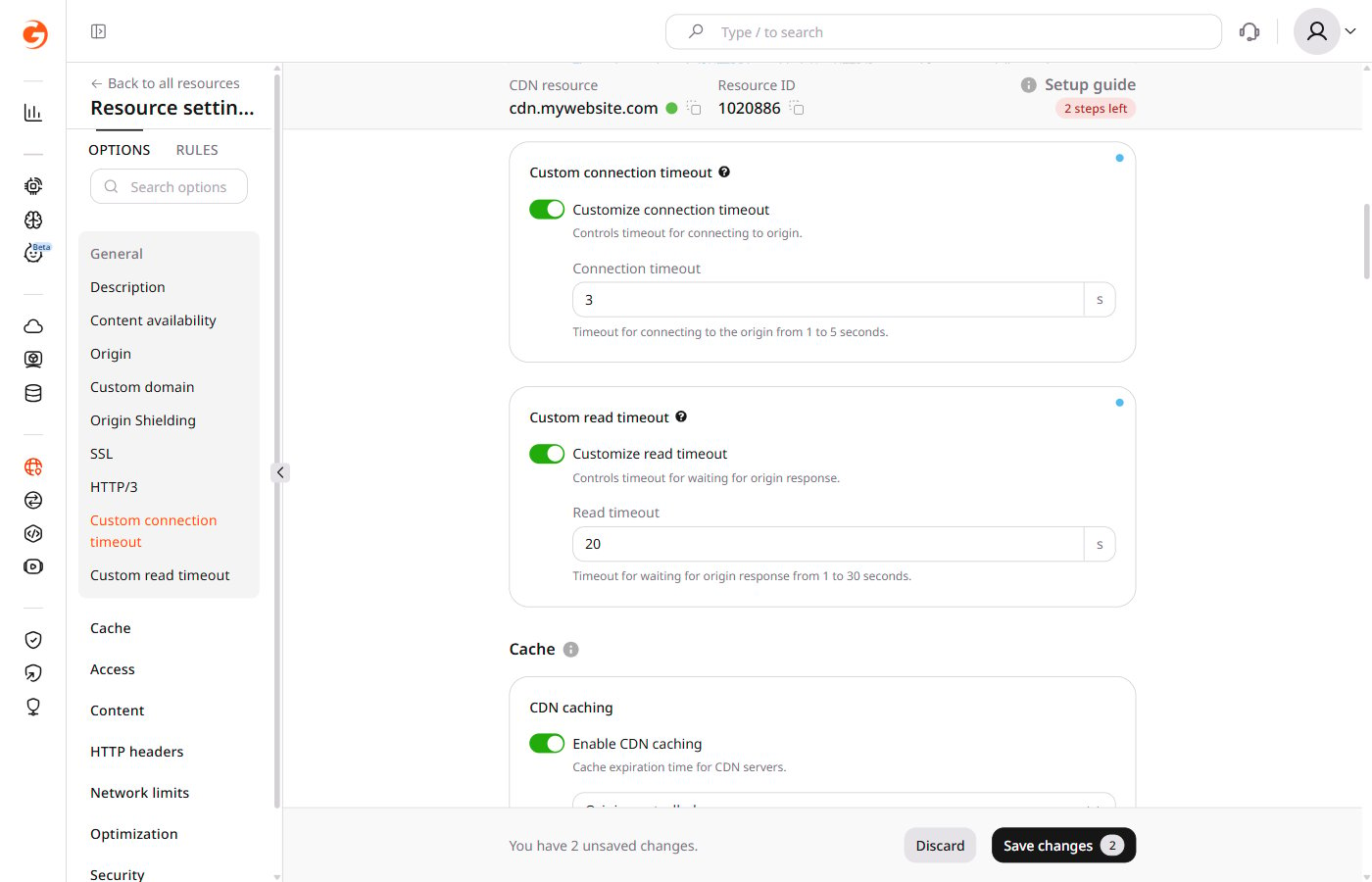 6\. Click **Save changes**.