> ## Documentation Index
> Fetch the complete documentation index at: https://gcore-doc-1894.mintlify.site/llms.txt
> Use this file to discover all available pages before exploring further.
# Suspend a CDN resource automatically or manually
CDN resources can be suspended automatically by the system after 90 days of inactivity, or manually at any time from the resource settings.
## Automatic CDN resource suspension
If a resource is active, but there has not been traffic in 90 days, it will be automatically suspended by the system.
All users with administrator and engineer roles will receive an email seven days before resource suspension, listing the resources scheduled for suspension.
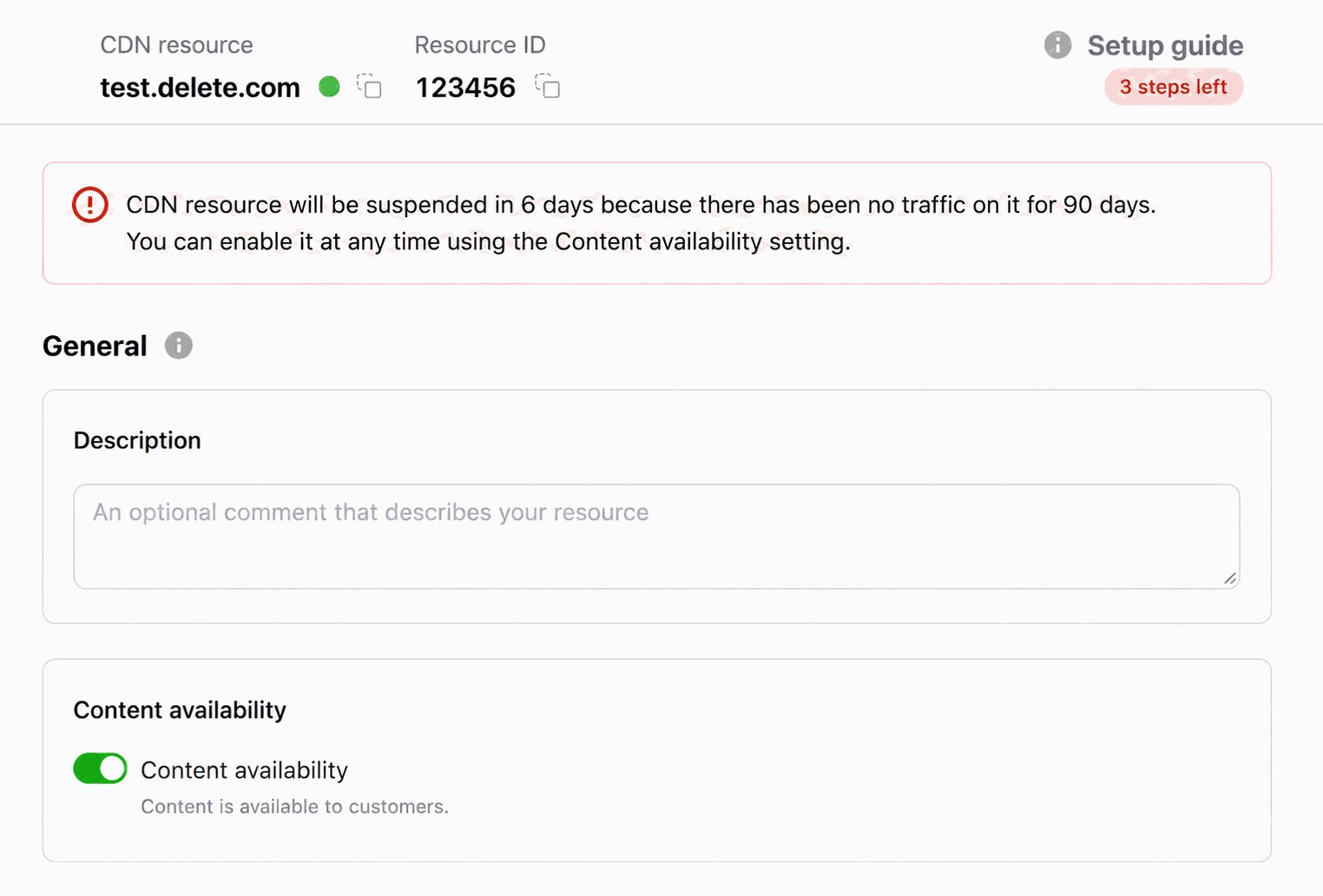
The resource settings display the scheduled suspension date and time:
 After the resource suspension, all users with the administrator and engineer roles will receive an email with a list of stopped resources.
If traffic resumes on the resource after receiving the first email:
* The second email about the suspension will not be sent.
* The resource will not be suspended.
After re-enabling an automatically suspended resource, a notice appears explaining that it was suspended due to 90 days without traffic.
If there is still no traffic after enabling the resource, it will be suspended again in seven days.
To disable automatic suspension for specific resources, contact [Gcore Support](https://support.gcore.com/hc/en-us/requests/new).
## Manual CDN resource suspension
In the [Gcore Customer Portal](https://portal.gcore.com/), navigate to **CDN** > **CDN resources**. Click the resource name to open its settings.
Disable the **Content availability** toggle.
After the resource suspension, all users with the administrator and engineer roles will receive an email with a list of stopped resources.
If traffic resumes on the resource after receiving the first email:
* The second email about the suspension will not be sent.
* The resource will not be suspended.
After re-enabling an automatically suspended resource, a notice appears explaining that it was suspended due to 90 days without traffic.
If there is still no traffic after enabling the resource, it will be suspended again in seven days.
To disable automatic suspension for specific resources, contact [Gcore Support](https://support.gcore.com/hc/en-us/requests/new).
## Manual CDN resource suspension
In the [Gcore Customer Portal](https://portal.gcore.com/), navigate to **CDN** > **CDN resources**. Click the resource name to open its settings.
Disable the **Content availability** toggle.
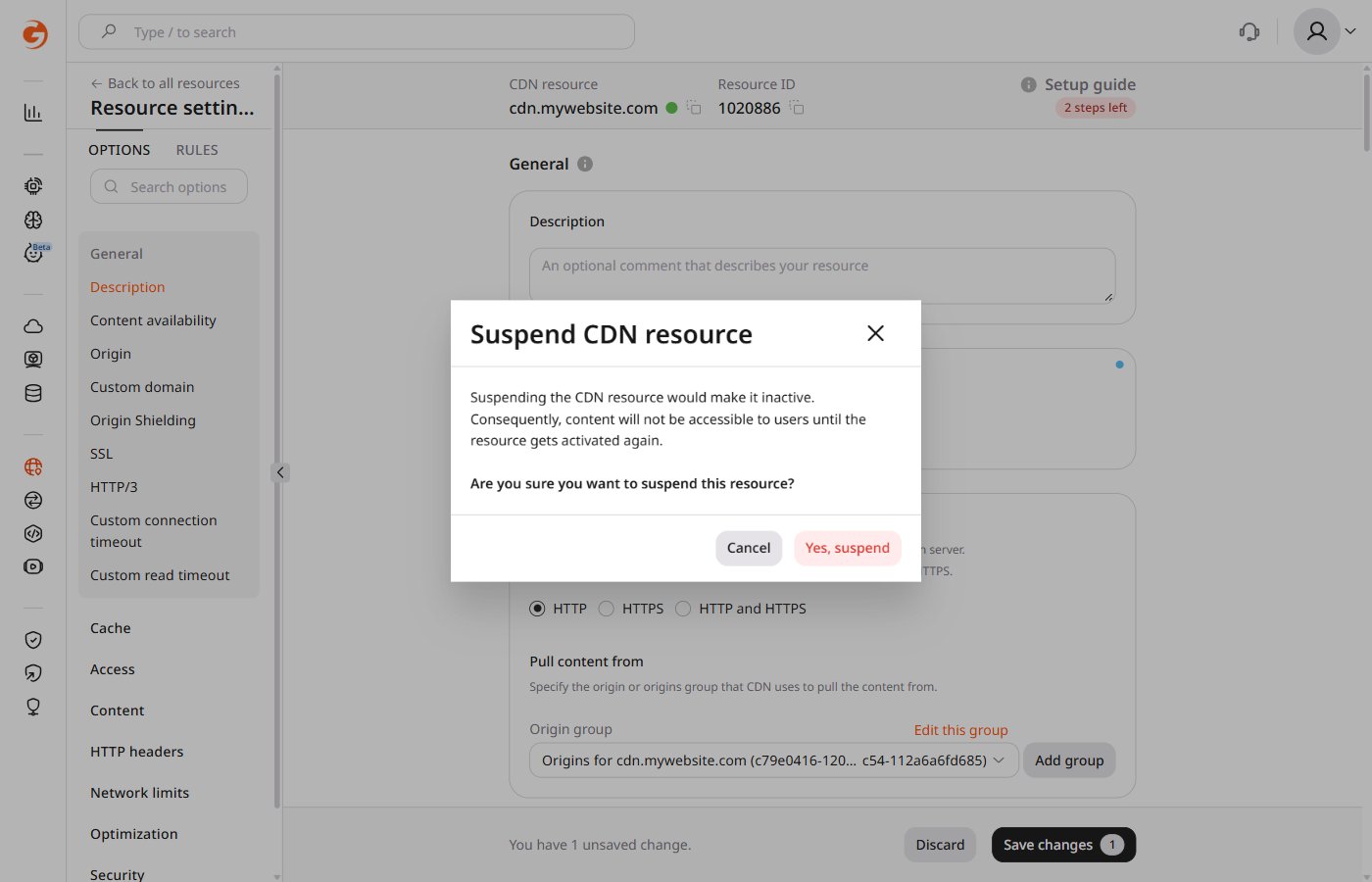
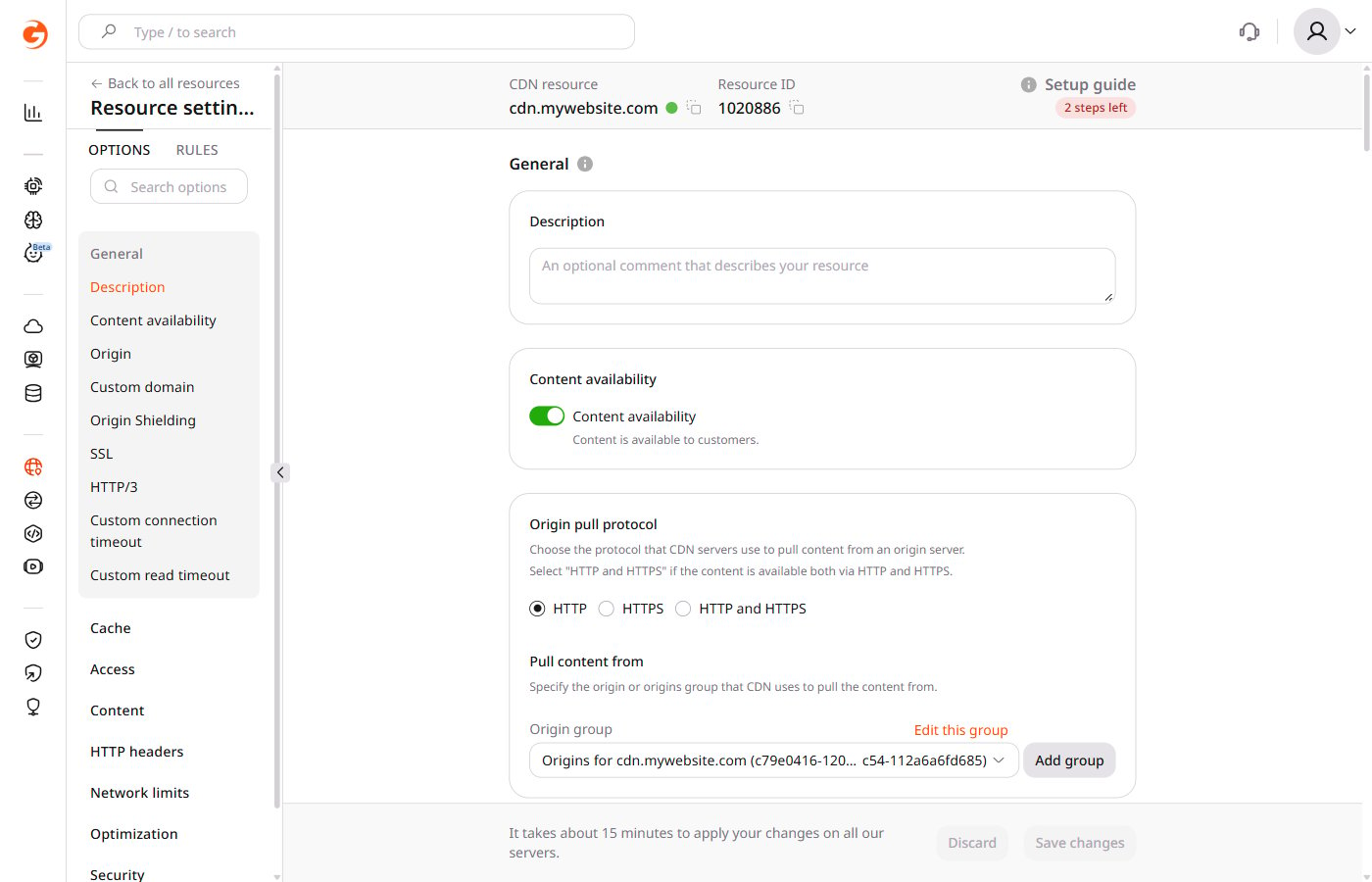 Then select **Yes, suspend**.
 It will display that the content is not available to customers.
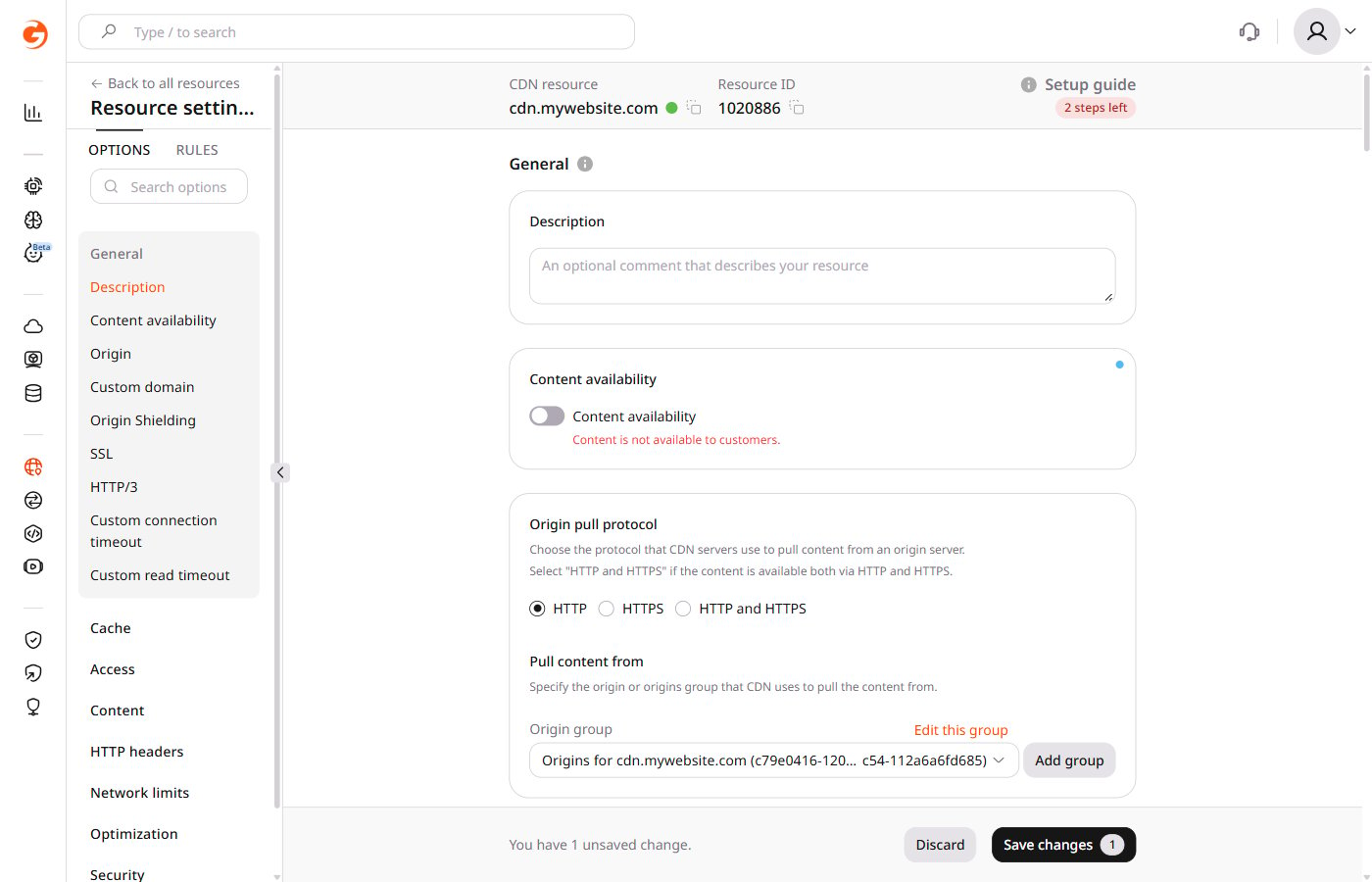 Click **Save changes**.
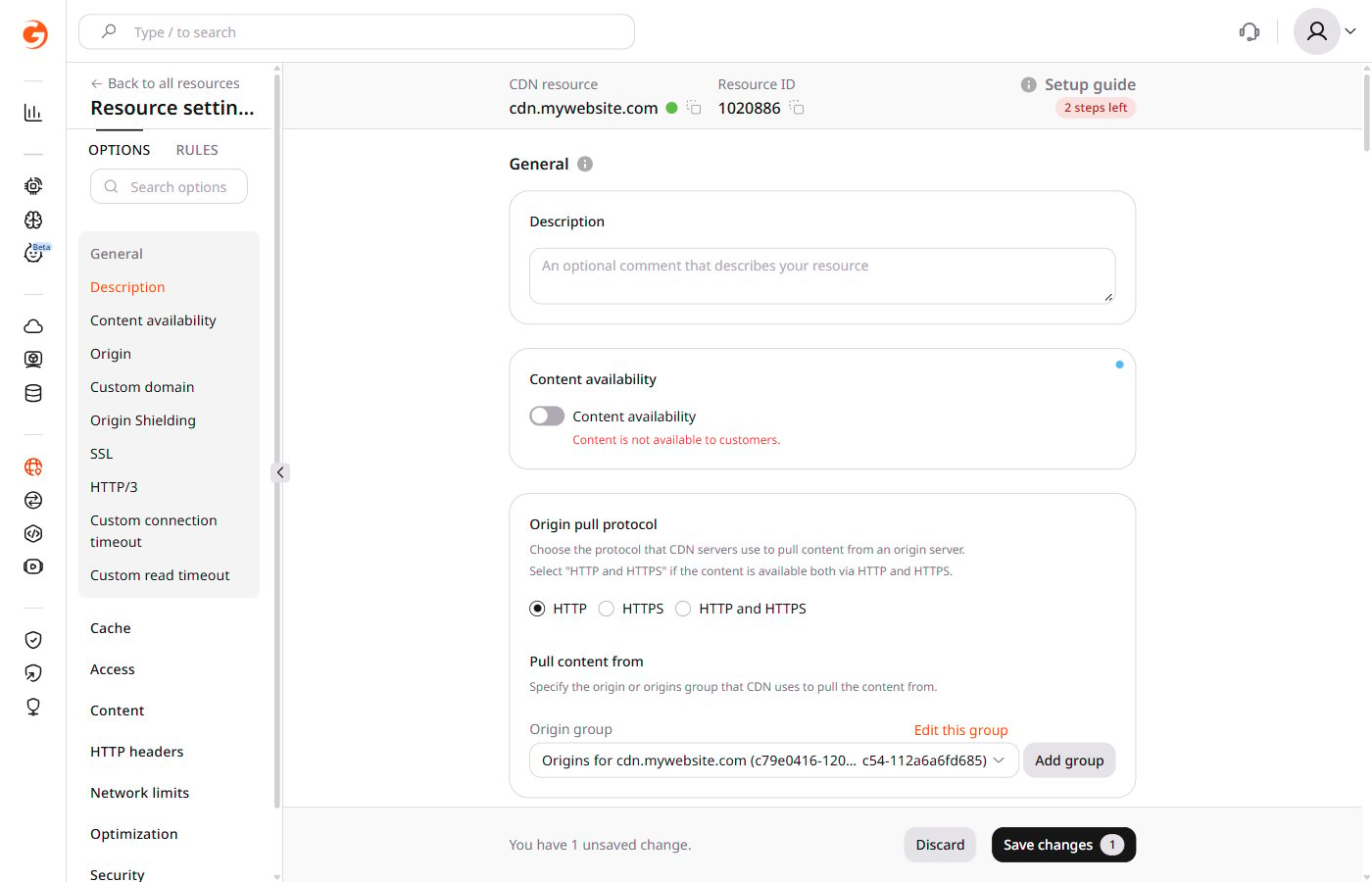 The settings will be applied within about 15 minutes.