> ## Documentation Index
> Fetch the complete documentation index at: https://gcore-doc-1894.mintlify.site/llms.txt
> Use this file to discover all available pages before exploring further.
# Use a private bucket as an origin
export const Caution = ({children}) => {
return ;
};
Private S3-compatible buckets — from Amazon or Gcore — can be used as a [CDN resource origin](/cdn/getting-started/create-a-cdn-resource/create-a-cdn-resource#origin). CDN servers authenticate with each bucket using AWS Signature V4, which requires an Access Key ID, Secret Access Key, Hostname, and Region. Origin groups support multiple origins with individual authentication settings per origin, and an optional Host header override per origin.
## Authentication data
The required authentication data is available in the S3 storage account.
All essential keys are in the [Managing access keys](https://docs.aws.amazon.com/IAM/latest/UserGuide/id_credentials_access-keys.html) guide from Amazon.
In the [Gcore Customer Portal](https://portal.gcore.com), go to **Storage** > **Object Storages**. Hostname and location are in **Details**. The access key and secret key are created in [access keys](/storage/manage-object-storage/manage-s3-access-keys).
**Caution**
Gcore does not store the secret key after it is shown, so copy it when the key is created. For a Gcore Object Storage origin, use a read-only key on S3 Standard.
## Configure a private bucket as an origin
An origin group can be configured either during CDN resource creation or in advance from the **Origin groups** tab. The steps below cover CDN resource creation. When creating a group from the **Origin groups** tab directly, the process is the same starting from step 2.
1\. Go to the [CDN resource creation page](https://portal.gcore.com/cdn/resources/create) and select the **Specify content origin** option in the **Origin** section.
2\. Click **Add origin** to add an origin to the group. For each origin added, configure the following:
a. Select the **S3 storage** tab.
b. Under **Choose S3 storage**, select **Amazon** or **Other**. Gcore Object Storage uses **Other**.
c. Specify the authentication data for the selected storage type:
* For **Amazon**: **Access Key ID**, **Secret access key**, and **AWS region**
* For **Other**: **Hostname**, **Access Key ID**, **Secret access key**, and **Region (optional)**
**Tip**
To determine the region of a Gcore Object Storage bucket, use the [S3 service URLs and default region names](/storage/manage-object-storage/s3-service-urls-and-default-region-names) guide.
d. Enter the **Bucket name**. CDN servers use this value only when calculating the AWS Signature V4 `Authorization` header for the private origin. The CDN does not automatically add the value from this field to the request URL sent to the origin.
If the origin requires the bucket name in the request URL, check the S3 or storage provider documentation to determine whether the bucket must be included in the origin hostname or the request path.
* **Origin hostname:** Include the bucket in the hostname, for example, `my-bucket.s3.amazonaws.com` or `my-bucket.luxembourg-2.storage.gcore.dev`. No additional CDN configuration is required.
* **Path:** To keep the bucket name out of end-user URLs, such as `https://my.domain.com/content.png`, add a [Rewrite](/cdn/cdn-resource-options/rewrite-redirect-requests-from-the-cdn-to-the-origin) rule that prepends it to requests sent to the origin. For example, the rule `/(.*) /my-bucket/$1` transforms the end-user request into an origin request for `/my-bucket/content.png`.
e. Optional: enter the storage hostname in the **Host header override** field for this origin. When left empty, the Host header configured in the resource settings applies to all origins. When set, it overrides the global value for this specific origin — required when multiple origins point to different buckets that each need a unique hostname.
The Host header format depends on the storage provider:
* For Gcore Object Storage: `my-bucket.luxembourg-2.storage.gcore.dev`
* For most other providers (including Amazon): `my-bucket.s3.us-east-1.amazonaws.com`
Specifying the bucket in the Host header restricts CDN access to that bucket only, preventing unintended access to other data in the storage account.
The form looks like this when **S3 storage** and **Other** are selected:
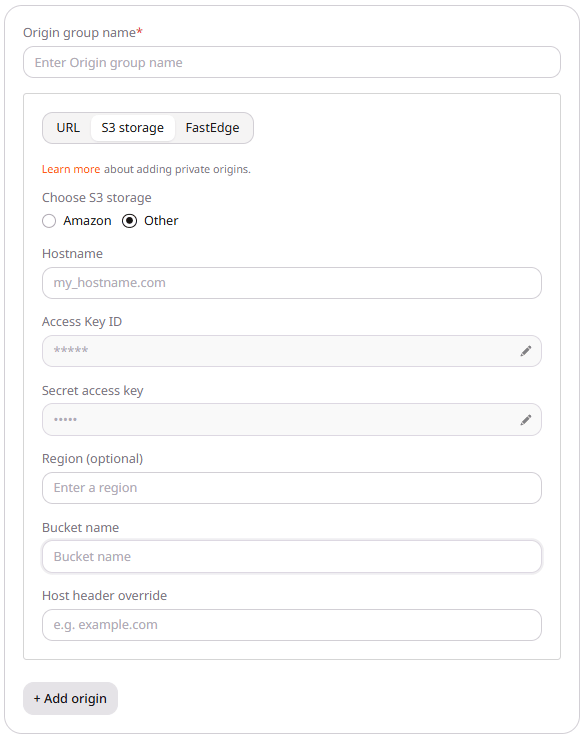 3\. To add more origins to the group, click **+ Add origin** again and repeat step 2 for each one. Each origin can have different credentials and a separate Host header override.
4\. Continue the CDN resource creation according to the [Create CDN resource for static assets only](/cdn/getting-started/create-a-cdn-resource/create-a-cdn-resource) guide.
5\. If the per-origin Host header override is not used, go to the resource settings and open the **Host header** option in the **HTTP headers** section. Enter the storage hostname in the format shown in step 2e above, then click **Save changes**.
3\. To add more origins to the group, click **+ Add origin** again and repeat step 2 for each one. Each origin can have different credentials and a separate Host header override.
4\. Continue the CDN resource creation according to the [Create CDN resource for static assets only](/cdn/getting-started/create-a-cdn-resource/create-a-cdn-resource) guide.
5\. If the per-origin Host header override is not used, go to the resource settings and open the **Host header** option in the **HTTP headers** section. Enter the storage hostname in the format shown in step 2e above, then click **Save changes**.
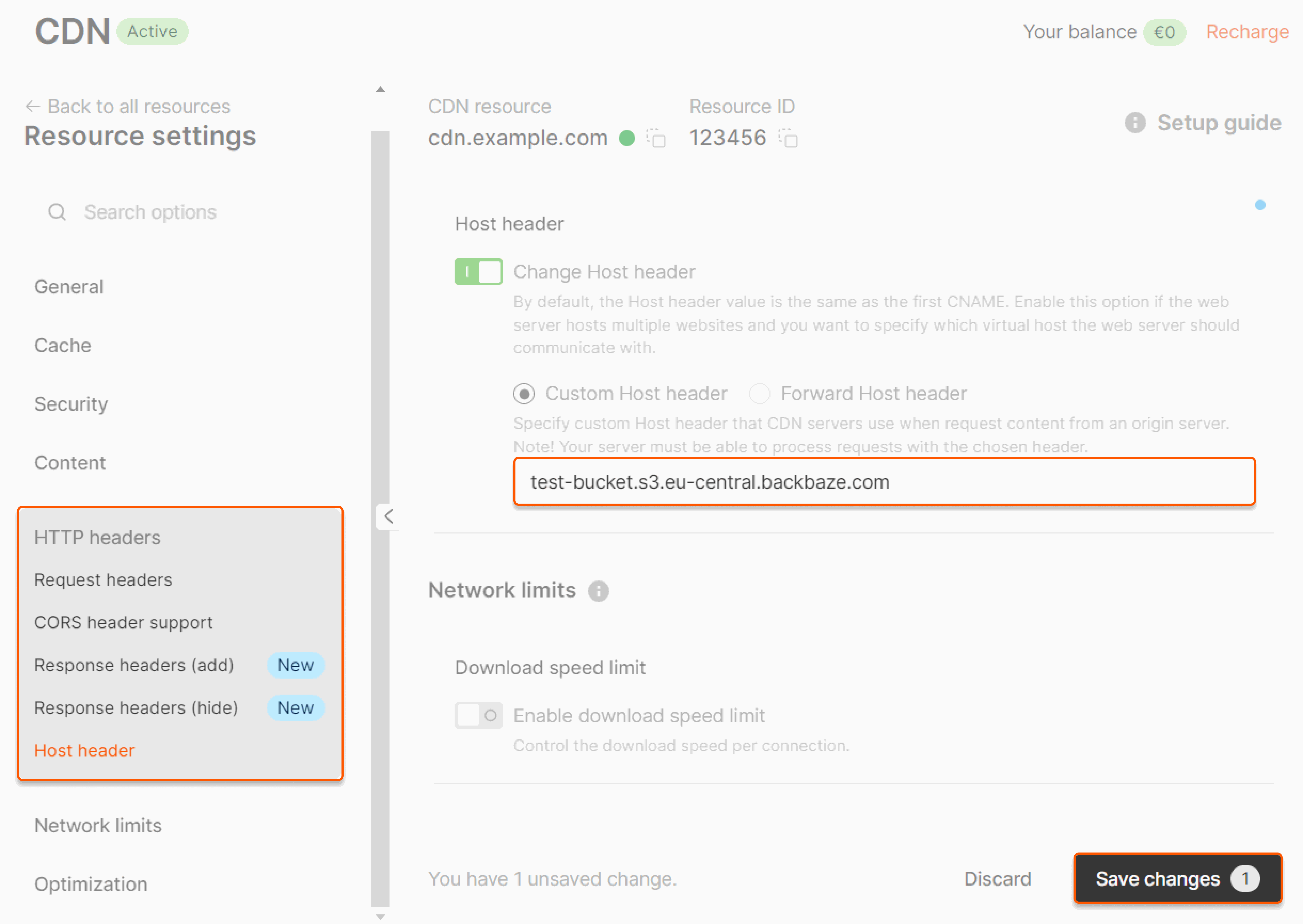 An [API token](/account-settings/api-tokens) is required. Create an origin group with `POST https://api.gcore.com/cdn/origin_groups`. Each S3 origin uses `origin_type` `s3` and a `config` object. Set `s3_type` to `other` for Gcore Object Storage, or `amazon` for AWS S3. The [origin groups](/api-reference/cdn/origins/create-origin-group) reference lists every field.
A `201` response returns the origin group ID. Later GET responses mask `s3_access_key_id` and `s3_secret_access_key`.
The same create request can be sent from Postman.
1\. Set the method to **POST** and the URL to `https://api.gcore.com/cdn/origin_groups`.
2\. Open **Authorization**. Set **Type** to **API Key**, **Key** to `Authorization`, **Value** to `APIKey` followed by the token, and **Add to** to **Header**.
An [API token](/account-settings/api-tokens) is required. Create an origin group with `POST https://api.gcore.com/cdn/origin_groups`. Each S3 origin uses `origin_type` `s3` and a `config` object. Set `s3_type` to `other` for Gcore Object Storage, or `amazon` for AWS S3. The [origin groups](/api-reference/cdn/origins/create-origin-group) reference lists every field.
A `201` response returns the origin group ID. Later GET responses mask `s3_access_key_id` and `s3_secret_access_key`.
The same create request can be sent from Postman.
1\. Set the method to **POST** and the URL to `https://api.gcore.com/cdn/origin_groups`.
2\. Open **Authorization**. Set **Type** to **API Key**, **Key** to `Authorization`, **Value** to `APIKey` followed by the token, and **Add to** to **Header**.
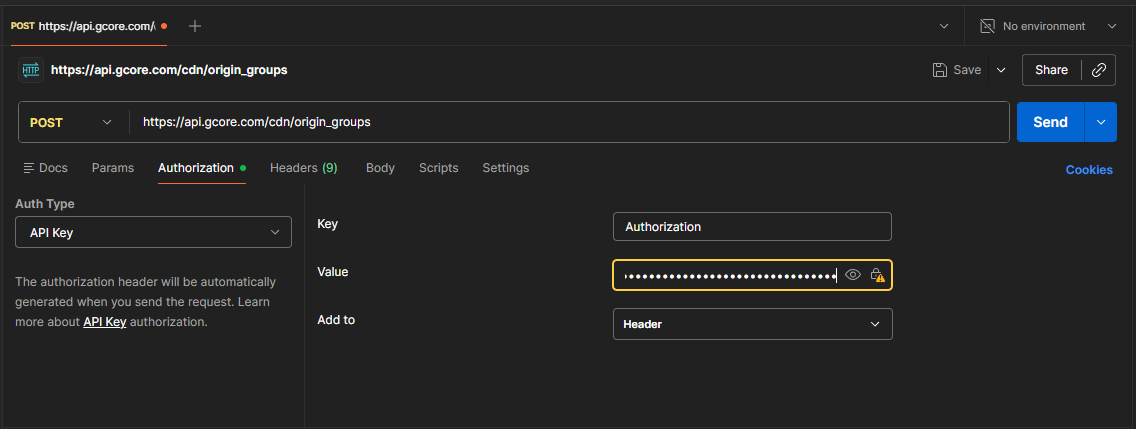 3\. Open **Body**, select **raw** and **JSON**, and paste the Gcore Object Storage payload.
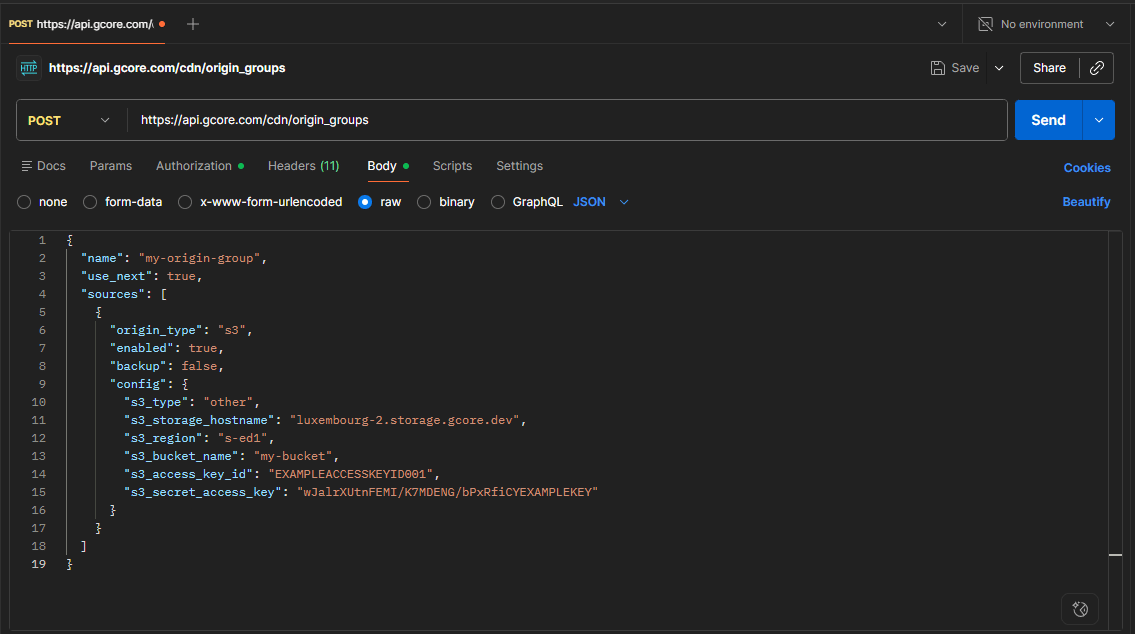 **Gcore Object Storage**
```bash theme={null}
curl -X POST https://api.gcore.com/cdn/origin_groups \
-H "Authorization: APIKey $GCORE_API_KEY" \
-H "Content-Type: application/json" \
-d '{
"name": "my-origin-group",
"use_next": true,
"sources": [
{
"origin_type": "s3",
"enabled": true,
"backup": false,
"config": {
"s3_type": "other",
"s3_storage_hostname": "luxembourg-2.storage.gcore.dev",
"s3_region": "s-ed1",
"s3_bucket_name": "my-bucket",
"s3_access_key_id": "EXAMPLEACCESSKEYID001",
"s3_secret_access_key": "wJalrXUtnFEMI/K7MDENG/bPxRfiCYEXAMPLEKEY"
}
}
]
}'
```
**Amazon S3**
```bash theme={null}
curl -X POST https://api.gcore.com/cdn/origin_groups \
-H "Authorization: APIKey $GCORE_API_KEY" \
-H "Content-Type: application/json" \
-d '{
"name": "my-origin-group",
"use_next": true,
"sources": [
{
"origin_type": "s3",
"enabled": true,
"backup": false,
"config": {
"s3_type": "amazon",
"s3_region": "eu-west-1",
"s3_bucket_name": "my-bucket",
"s3_access_key_id": "EXAMPLEACCESSKEYID001",
"s3_secret_access_key": "wJalrXUtnFEMI/K7MDENG/bPxRfiCYEXAMPLEKEY"
}
}
]
}'
```
## Key replacement in private origins
Origin credentials can be rotated without recreating the origin group. Create a replacement storage key first, then update the origin with the new Access Key ID and Secret Access Key, and delete the old key after the origin uses the new credentials.
1\. Go to **CDN** > **Origin groups**.
2\. Click the origin group.
3\. Click the pencil icon next to **Access Key ID** and **Secret access key**, because saved values are masked.
4\. Enter the new values.
5\. Click **Save changes**.
PATCH the origin group and send the `sources` array with the new `s3_access_key_id` and `s3_secret_access_key` in `config`.
```bash theme={null}
curl -X PATCH https://api.gcore.com/cdn/origin_groups/ORIGIN_GROUP_ID \
-H "Authorization: APIKey $GCORE_API_KEY" \
-H "Content-Type: application/json" \
-d '{
"name": "my-origin-group",
"use_next": true,
"sources": [
{
"origin_type": "s3",
"enabled": true,
"backup": false,
"config": {
"s3_type": "other",
"s3_storage_hostname": "luxembourg-2.storage.gcore.dev",
"s3_region": "s-ed1",
"s3_bucket_name": "my-bucket",
"s3_access_key_id": "EXAMPLEACCESSKEYID002",
"s3_secret_access_key": "wJalrXUtnFEMI/K7MDENG/bPxRfiCYEXAMPLEKEY"
}
}
]
}'
```
## Troubleshooting Amazon S3 (403 Forbidden for HEAD requests)
Private Amazon S3 buckets used as an origin can return a 403 Forbidden error for HEAD requests while GET requests succeed with 200 OK. This discrepancy typically has one of four causes:
1. **Restricted object-level permissions:** The bucket or IAM policy permits public read access, but the object's Access Control List (ACL) denies access to the IAM user or role — AWS S3 returns 403 for HEAD in this case.
2. **Different policies in effect:** The IAM identity making the HEAD request lacks `s3:GetObjectAttributes` or equivalent metadata-read permissions, causing AWS S3 to return 403 for HEAD while GET succeeds under a broader policy.
3. **Incorrect parameters in presigned URLs:** A [presigned URL](/storage/manage-object-storage/configure-aws-sli-s3cmd-and-aws-javascript-sdk/generate-temporary-links-to-files-with-aws-cli-and-s3cmd) generated with mismatched parameters (access key, secret access key, bucket name, or object key) causes AWS to return 403. The parameters must be consistent for both HEAD and GET requests.
4. **Different owners for bucket and object:** When the bucket and object belong to different AWS accounts and the object owner hasn't granted the necessary permissions to the bucket owner, AWS returns 403 for HEAD and 200 for GET.
To resolve the issue, modify the bucket policy, IAM permissions, or the object's ACL as required.
**Gcore Object Storage**
```bash theme={null}
curl -X POST https://api.gcore.com/cdn/origin_groups \
-H "Authorization: APIKey $GCORE_API_KEY" \
-H "Content-Type: application/json" \
-d '{
"name": "my-origin-group",
"use_next": true,
"sources": [
{
"origin_type": "s3",
"enabled": true,
"backup": false,
"config": {
"s3_type": "other",
"s3_storage_hostname": "luxembourg-2.storage.gcore.dev",
"s3_region": "s-ed1",
"s3_bucket_name": "my-bucket",
"s3_access_key_id": "EXAMPLEACCESSKEYID001",
"s3_secret_access_key": "wJalrXUtnFEMI/K7MDENG/bPxRfiCYEXAMPLEKEY"
}
}
]
}'
```
**Amazon S3**
```bash theme={null}
curl -X POST https://api.gcore.com/cdn/origin_groups \
-H "Authorization: APIKey $GCORE_API_KEY" \
-H "Content-Type: application/json" \
-d '{
"name": "my-origin-group",
"use_next": true,
"sources": [
{
"origin_type": "s3",
"enabled": true,
"backup": false,
"config": {
"s3_type": "amazon",
"s3_region": "eu-west-1",
"s3_bucket_name": "my-bucket",
"s3_access_key_id": "EXAMPLEACCESSKEYID001",
"s3_secret_access_key": "wJalrXUtnFEMI/K7MDENG/bPxRfiCYEXAMPLEKEY"
}
}
]
}'
```
## Key replacement in private origins
Origin credentials can be rotated without recreating the origin group. Create a replacement storage key first, then update the origin with the new Access Key ID and Secret Access Key, and delete the old key after the origin uses the new credentials.
1\. Go to **CDN** > **Origin groups**.
2\. Click the origin group.
3\. Click the pencil icon next to **Access Key ID** and **Secret access key**, because saved values are masked.
4\. Enter the new values.
5\. Click **Save changes**.
PATCH the origin group and send the `sources` array with the new `s3_access_key_id` and `s3_secret_access_key` in `config`.
```bash theme={null}
curl -X PATCH https://api.gcore.com/cdn/origin_groups/ORIGIN_GROUP_ID \
-H "Authorization: APIKey $GCORE_API_KEY" \
-H "Content-Type: application/json" \
-d '{
"name": "my-origin-group",
"use_next": true,
"sources": [
{
"origin_type": "s3",
"enabled": true,
"backup": false,
"config": {
"s3_type": "other",
"s3_storage_hostname": "luxembourg-2.storage.gcore.dev",
"s3_region": "s-ed1",
"s3_bucket_name": "my-bucket",
"s3_access_key_id": "EXAMPLEACCESSKEYID002",
"s3_secret_access_key": "wJalrXUtnFEMI/K7MDENG/bPxRfiCYEXAMPLEKEY"
}
}
]
}'
```
## Troubleshooting Amazon S3 (403 Forbidden for HEAD requests)
Private Amazon S3 buckets used as an origin can return a 403 Forbidden error for HEAD requests while GET requests succeed with 200 OK. This discrepancy typically has one of four causes:
1. **Restricted object-level permissions:** The bucket or IAM policy permits public read access, but the object's Access Control List (ACL) denies access to the IAM user or role — AWS S3 returns 403 for HEAD in this case.
2. **Different policies in effect:** The IAM identity making the HEAD request lacks `s3:GetObjectAttributes` or equivalent metadata-read permissions, causing AWS S3 to return 403 for HEAD while GET succeeds under a broader policy.
3. **Incorrect parameters in presigned URLs:** A [presigned URL](/storage/manage-object-storage/configure-aws-sli-s3cmd-and-aws-javascript-sdk/generate-temporary-links-to-files-with-aws-cli-and-s3cmd) generated with mismatched parameters (access key, secret access key, bucket name, or object key) causes AWS to return 403. The parameters must be consistent for both HEAD and GET requests.
4. **Different owners for bucket and object:** When the bucket and object belong to different AWS accounts and the object owner hasn't granted the necessary permissions to the bucket owner, AWS returns 403 for HEAD and 200 for GET.
To resolve the issue, modify the bucket policy, IAM permissions, or the object's ACL as required.