> ## Documentation Index
> Fetch the complete documentation index at: https://gcore-doc-1894.mintlify.site/llms.txt
> Use this file to discover all available pages before exploring further.
# Add or hide response headers
Gcore CDN provides two options for controlling response headers: **Response headers (add)** adds custom HTTP headers to CDN server responses, and **Response headers (hide)** removes specific origin headers before delivery.
## Add response headers
The **Response headers (add)** option sets custom HTTP headers that CDN servers include in responses to end users. If the same header is already configured on the origin server, the CDN server overrides its value.
To configure the option:
1. In the [Gcore Customer Portal](https://portal.gcore.com), navigate to **CDN** → **CDN resources**.
2. Click the resource to open its settings.
3. In the left panel, click **HTTP headers** to expand the section, then click **Response headers (add)** to jump to the option.
4. Enable the **Add response headers** toggle.
Up to 50 response headers can be added per resource.
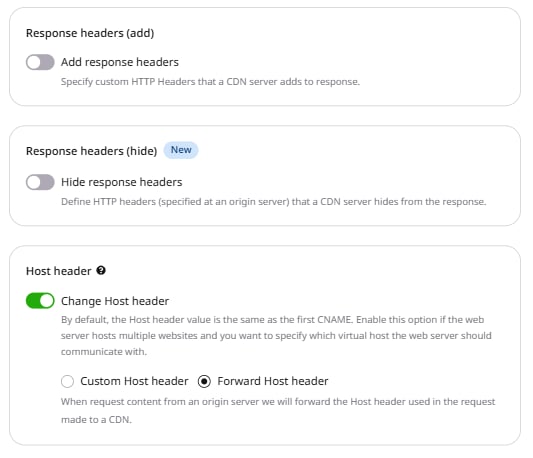 5. In the **Header name** field, enter a header name.
6. In the **Value** field, enter the header value.
7. The **Always add the header to response from CDN regardless of response code** checkbox is enabled by default, which adds the header to all responses. To add the header only to responses with codes 200, 201, 204, 206, 301, 302, 303, 304, 307, and 308, uncheck the box.
8. Click **Add header** to add more headers. Fill in the fields for each additional header.
9. Click **Save changes**.
In the CDN API, this option is the `static_response_headers` field in the resource `options` object. Gcore deprecated `staticHeaders` in favor of `static_response_headers` — use the latter for all new configurations. The `always` field on each header object controls status code filtering: `false` limits the header to responses with codes 200, 201, 204, 206, 301, 302, 303, 304, 307, and 308; `true` adds it to all responses regardless of status code.
To set custom response headers via the API, include `static_response_headers` in the resource `options`:
```json theme={null}
{
"options": {
"static_response_headers": {
"enabled": true,
"value": [
{
"name": "X-Custom-Header",
"value": ["example-value"],
"always": false
}
]
}
}
}
```
### Add multiple header values
To add more than one value to the same header, enter them in the **Value** field in one of two ways:
* **Separate strings:** enter the first value and press Enter, then enter the second value and press Enter. Repeat for each additional value.
5. In the **Header name** field, enter a header name.
6. In the **Value** field, enter the header value.
7. The **Always add the header to response from CDN regardless of response code** checkbox is enabled by default, which adds the header to all responses. To add the header only to responses with codes 200, 201, 204, 206, 301, 302, 303, 304, 307, and 308, uncheck the box.
8. Click **Add header** to add more headers. Fill in the fields for each additional header.
9. Click **Save changes**.
In the CDN API, this option is the `static_response_headers` field in the resource `options` object. Gcore deprecated `staticHeaders` in favor of `static_response_headers` — use the latter for all new configurations. The `always` field on each header object controls status code filtering: `false` limits the header to responses with codes 200, 201, 204, 206, 301, 302, 303, 304, 307, and 308; `true` adds it to all responses regardless of status code.
To set custom response headers via the API, include `static_response_headers` in the resource `options`:
```json theme={null}
{
"options": {
"static_response_headers": {
"enabled": true,
"value": [
{
"name": "X-Custom-Header",
"value": ["example-value"],
"always": false
}
]
}
}
}
```
### Add multiple header values
To add more than one value to the same header, enter them in the **Value** field in one of two ways:
* **Separate strings:** enter the first value and press Enter, then enter the second value and press Enter. Repeat for each additional value.
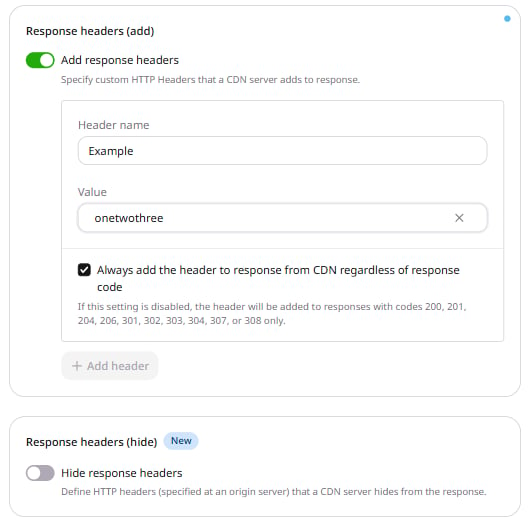 The response header appears as:
```
Example: one
Example: two
Example: three
```
* **Single string:** enter all values in the **Value** field separated by commas.
The response header appears as:
```
Example: one
Example: two
Example: three
```
* **Single string:** enter all values in the **Value** field separated by commas.
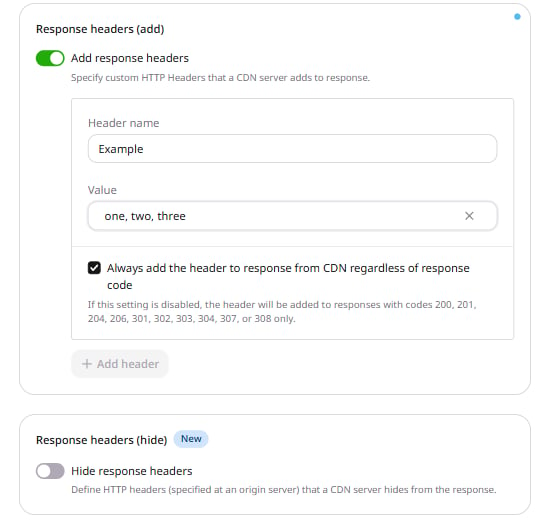 The response header appears as:
`Example: one, two, three`
Both methods can be combined: enter values separated by commas and press Enter to start a new string.
The response header appears as:
`Example: one, two, three`
Both methods can be combined: enter values separated by commas and press Enter to start a new string.
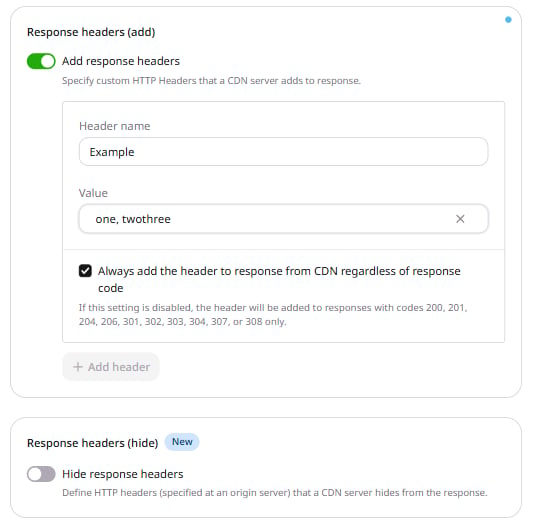 The response header appears as:
```
Example: one, two
Example: three
```
**Valid characters for fields:**
* **Header name**: Latin letters (A–Z, a–z), numbers (0–9), underscore (\_) and hyphen (-)
* **Value**: Latin letters (A–Z, a–z), numbers (0–9), a space and the following special characters: `~!@#%^&*()-_=+ /|";:?.><{}[]`
**Value field restrictions:**
* Invalid characters: `$'`
* Cannot start with a special character
* Cannot contain only special characters
### Check headers
After saving the configuration, verify the header appears in CDN responses.
1. [Clear the cache](/cdn/clear-cdn-resource-cache-by-url-pattern-or-all) of the CDN resource or files for which the header was added.
2. Run the following cURL command, substituting the file URL:
```sh theme={null}
curl -I http://cdn.site.com/images/1.jpg
HTTP/1.1 200 OK
Server: nginx/1.11.4
Date: Wed, 05 Apr 2017 19:27:14 GMT
Content-Type: image/jpeg
Content-Length: 62890
Connection: keep-alive
Last-Modified: Mon, 03 Oct 2016 22:21:05 GMT
ETag: "f5aa-53dfd5c25d421"
FILE: Image
Example: yourvalue
Cache: HIT
X-ID: m9-up-e240
Accept-Ranges: bytes
```
3. If the response contains the configured header, the setup is complete.
## Hide response headers
By default, a CDN server passes all HTTP headers it receives from the origin server to end users. To control which headers are included in responses:
1. In the Customer Portal, navigate to **CDN** → **CDN resources**.
2. Click the resource to open its settings.
3. In the left panel, click **HTTP headers** to expand the section, then click **Response headers (hide)** to jump to the option.
4. Enable the **Hide response headers** toggle.
The response header appears as:
```
Example: one, two
Example: three
```
**Valid characters for fields:**
* **Header name**: Latin letters (A–Z, a–z), numbers (0–9), underscore (\_) and hyphen (-)
* **Value**: Latin letters (A–Z, a–z), numbers (0–9), a space and the following special characters: `~!@#%^&*()-_=+ /|";:?.><{}[]`
**Value field restrictions:**
* Invalid characters: `$'`
* Cannot start with a special character
* Cannot contain only special characters
### Check headers
After saving the configuration, verify the header appears in CDN responses.
1. [Clear the cache](/cdn/clear-cdn-resource-cache-by-url-pattern-or-all) of the CDN resource or files for which the header was added.
2. Run the following cURL command, substituting the file URL:
```sh theme={null}
curl -I http://cdn.site.com/images/1.jpg
HTTP/1.1 200 OK
Server: nginx/1.11.4
Date: Wed, 05 Apr 2017 19:27:14 GMT
Content-Type: image/jpeg
Content-Length: 62890
Connection: keep-alive
Last-Modified: Mon, 03 Oct 2016 22:21:05 GMT
ETag: "f5aa-53dfd5c25d421"
FILE: Image
Example: yourvalue
Cache: HIT
X-ID: m9-up-e240
Accept-Ranges: bytes
```
3. If the response contains the configured header, the setup is complete.
## Hide response headers
By default, a CDN server passes all HTTP headers it receives from the origin server to end users. To control which headers are included in responses:
1. In the Customer Portal, navigate to **CDN** → **CDN resources**.
2. Click the resource to open its settings.
3. In the left panel, click **HTTP headers** to expand the section, then click **Response headers (hide)** to jump to the option.
4. Enable the **Hide response headers** toggle.
 5. Select a mode:
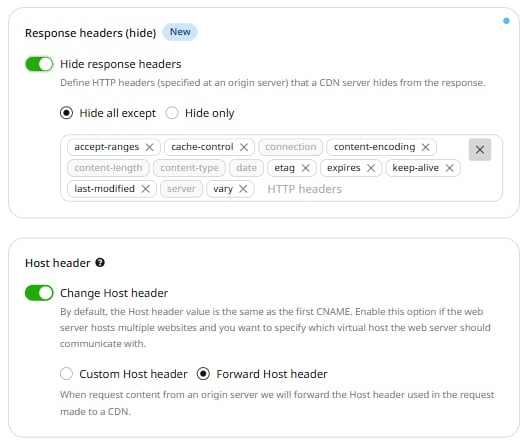
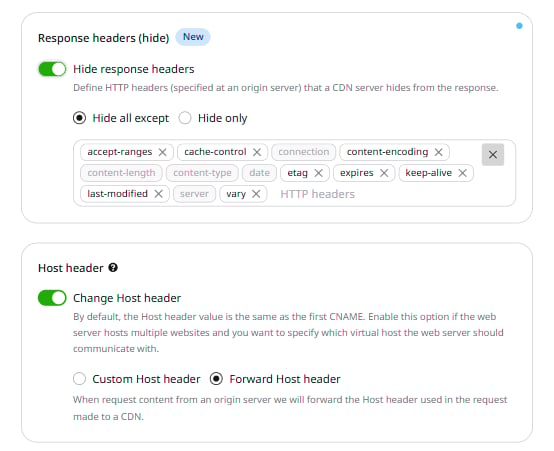
* **Hide all except** — set the headers to keep in the response; all other headers are hidden. After enabling, the most common headers appear pre-filled. Remove headers by clicking the × icon, or add headers by clicking the **HTTP headers** row and selecting from the list or entering a name. Header names accept letters (a–z), numbers (0–9), dashes (-), and underscores (\_).
5. Select a mode:
* **Hide all except** — set the headers to keep in the response; all other headers are hidden. After enabling, the most common headers appear pre-filled. Remove headers by clicking the × icon, or add headers by clicking the **HTTP headers** row and selecting from the list or entering a name. Header names accept letters (a–z), numbers (0–9), dashes (-), and underscores (\_).
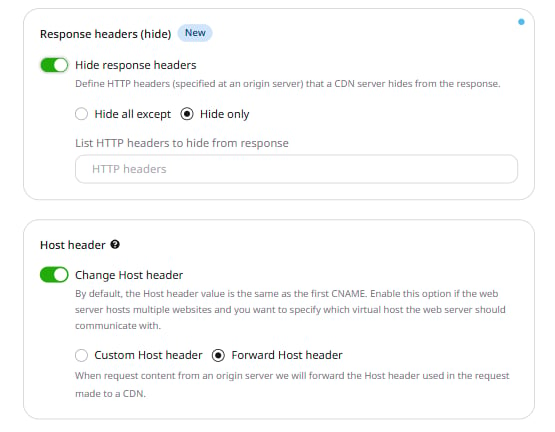
 * **Hide only** — set the headers to hide from the response; all other headers are kept. Click the **HTTP headers** row and select from the list or enter custom header names.
 Headers available in the portal: *accept, accept-charset, accept-encoding, accept-language, accept-ranges, age, allow, alternates, authorization, cache-control, content-disposition, content-encoding, content-language, content-location, content-md5, content-range, content-version, derived-from, etag, expect, expires, from, host, if-match, if-modified-since, if-none-match, if-range, if-unmodified-since, last-modified, link, location, max-forwards, mime-version, pragma, proxy-authenticate, proxy-authorization, public, range, referer, retry-after, title, te, trailer, transfer-encoding, upgrade, user-agent, vary, via, warning, www-authenticate, keep-alive*.
The following headers are mandatory and cannot be hidden: *connection, content-length, content-type, server,* and *date*.
6. Click **Save changes**.
Headers available in the portal: *accept, accept-charset, accept-encoding, accept-language, accept-ranges, age, allow, alternates, authorization, cache-control, content-disposition, content-encoding, content-language, content-location, content-md5, content-range, content-version, derived-from, etag, expect, expires, from, host, if-match, if-modified-since, if-none-match, if-range, if-unmodified-since, last-modified, link, location, max-forwards, mime-version, pragma, proxy-authenticate, proxy-authorization, public, range, referer, retry-after, title, te, trailer, transfer-encoding, upgrade, user-agent, vary, via, warning, www-authenticate, keep-alive*.
The following headers are mandatory and cannot be hidden: *connection, content-length, content-type, server,* and *date*.
6. Click **Save changes**.