> ## Documentation Index
> Fetch the complete documentation index at: https://gcore-doc-1894.mintlify.site/llms.txt
> Use this file to discover all available pages before exploring further.
# Add the Access-Control-Allow-Origin header to the browser response
CORS (Cross-Origin Resource Sharing) is a browser security mechanism. When a browser makes a cross-origin request, it checks the `Access-Control-Allow-Origin` response header to decide whether the calling page is permitted to read the response. Without this header, the browser blocks cross-origin access — even if the server returned a `200 OK` with the full content.
Consider a user visiting `http://site-a.com` who requests an image hosted at `http://cdn.site-b.com/image.jpg`. The browser sends a request to `http://cdn.site-b.com/`:
```
GET /image.jpg HTTP/1.1
Host: cdn.site-b.com
User-Agent: Mozilla/5.0 (Macintosh; U; Intel Mac OS X 10.5; en-US; rv:1.9.1b3pre) Gecko/20081130 Minefield/3.1b3pre
Accept: text/html,application/xhtml+xml,application/xml;q=0.9,*/*;q=0.8
Accept-Language: en-us,en;q=0.5
Accept-Encoding: gzip,deflate
Accept-Charset: ISO-8859-1,utf-8;q=0.7,*;q=0.7
Connection: keep-alive
Referer: http://site-a.com/examples/access-control/test.html
Origin: http://site-a.com
```
The `Origin` header tells the server which site sent the request. The `http://cdn.site-b.com` server uses this value to decide whether to include `Access-Control-Allow-Origin` in the response.
* If the header is present and permits `http://site-a.com`, the browser allows the page to read the response and the image is displayed.
* If the header is absent or does not permit `http://site-a.com`, the browser blocks access to the response — even though the server returned a `200 OK` with the image.
The Gcore CDN CORS header support feature adds the `Access-Control-Allow-Origin` header to browser responses. Use it to protect content from use on third-party sites or to prevent errors — *XMLHttpRequest cannot load [http://domain.com](http://domain.com)* and *No `Access-Control-Allow-Origin` header is present on the requested resource* — that appear when web fonts load in Firefox or Internet Explorer from CDN servers.
## Configure CORS header support
There are three methods to configure CORS header support: in the resource settings, via rule creation, and on the origin server.
### Configure CORS in the resource settings
Use this method to apply the configuration to all files delivered over the CDN.
1. Navigate to **CDN** > **CDN resources** and click the CDN resource to configure.
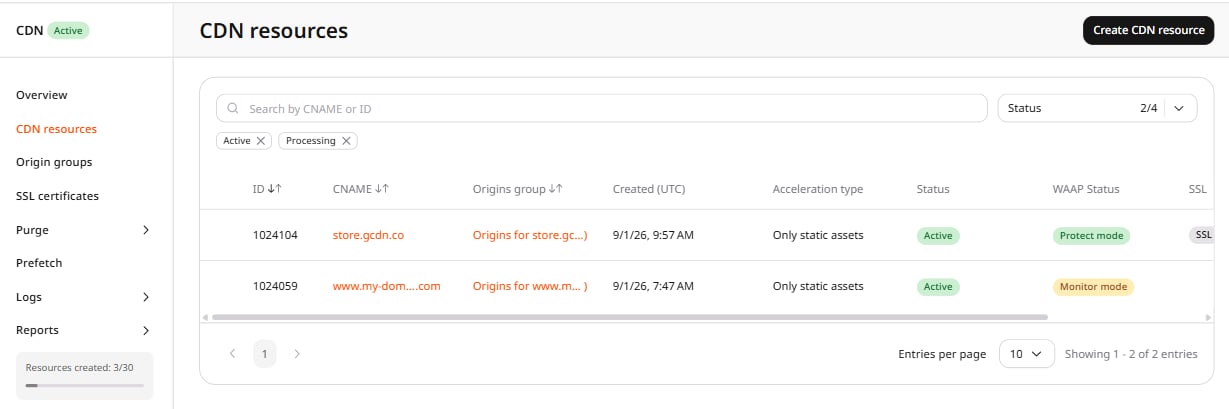 2. In the resource settings panel, click **HTTP headers** to expand the section, then click **CORS header support**.
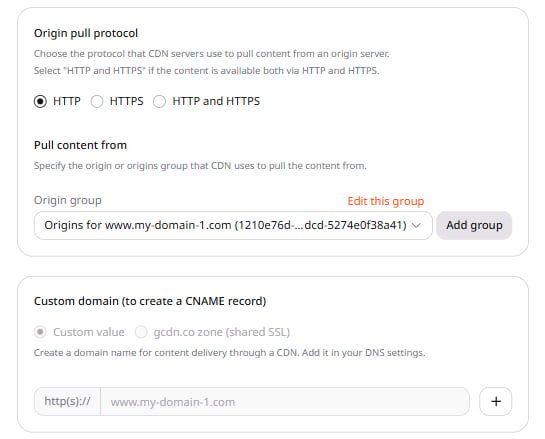 3. Enable the **CORS header support** toggle.
4. Configure one of the three available options:
The CDN includes `Access-Control-Allow-Origin: *` in every response, allowing browsers from any origin to read it.
```
HTTP/1.1 200 OK
Date: Mon, 01 Dec 2020 00:23:53 GMT
Server: Apache/2.0.61
Access-Control-Allow-Origin: *
Keep-Alive: timeout=2, max=100
Connection: Keep-Alive
Transfer-Encoding: chunked
Content-Type: application/xml
```
Enter the domain name from which cross-origin requests are permitted — `site-a.com` is an example. Up to 20 domains are supported. When CDN servers receive a request, they check the value of the `Origin` header to determine which site the request came from.
* If it matches any of the listed domains, the CDN includes `Access-Control-Allow-Origin` in the response set to the matched origin, and the browser allows the page to read the response:
```
HTTP/1.1 200 OK
Date: Mon, 01 Dec 2008 00:23:53 GMT
Server: Apache/2.0.61
Access-Control-Allow-Origin: https://site-a.com
Keep-Alive: timeout=2, max=100
Connection: Keep-Alive
Transfer-Encoding: chunked
Content-Type: application/xml
```
* If it does not match, the `Access-Control-Allow-Origin` header is omitted from the response. The browser blocks cross-origin access.
Similar to the first option, but use it when the `*` value is unsuitable — for example, when requests include credentials. The CDN echoes the request's `Origin` value in the `Access-Control-Allow-Origin` header, allowing browsers from any origin to read the response. If a request comes from `http://site-b.com`, the response looks as follows:
```
HTTP/1.1 200 OK
Date: Mon, 01 Dec 2008 00:23:53 GMT
Server: Apache/2.0.61
Access-Control-Allow-Origin: https://site-b.com
Keep-Alive: timeout=2, max=100
Connection: Keep-Alive
Transfer-Encoding: chunked
Content-Type: application/xml
```
5. (Optional) Enable **Always add the header to response from CDN regardless of response code** to add the `Access-Control-Allow-Origin` header to responses with any status code, including those when content is unavailable. When left disabled, the header is added only to responses with specific status codes.
6. Click **Save changes**.
### Configure CORS via rule creation
Use this method to apply the configuration only to particular files.
1. Navigate to **CDN** > **CDN resources** and click the CDN resource to configure.
2. Open the **RULES** tab, click **Create rule**, and select **Create blank rule** from the list.
3. Enable the **CORS header support** toggle.
4. Configure one of the three available options:
The CDN includes `Access-Control-Allow-Origin: *` in every response, allowing browsers from any origin to read it.
```
HTTP/1.1 200 OK
Date: Mon, 01 Dec 2020 00:23:53 GMT
Server: Apache/2.0.61
Access-Control-Allow-Origin: *
Keep-Alive: timeout=2, max=100
Connection: Keep-Alive
Transfer-Encoding: chunked
Content-Type: application/xml
```
Enter the domain name from which cross-origin requests are permitted — `site-a.com` is an example. Up to 20 domains are supported. When CDN servers receive a request, they check the value of the `Origin` header to determine which site the request came from.
* If it matches any of the listed domains, the CDN includes `Access-Control-Allow-Origin` in the response set to the matched origin, and the browser allows the page to read the response:
```
HTTP/1.1 200 OK
Date: Mon, 01 Dec 2008 00:23:53 GMT
Server: Apache/2.0.61
Access-Control-Allow-Origin: https://site-a.com
Keep-Alive: timeout=2, max=100
Connection: Keep-Alive
Transfer-Encoding: chunked
Content-Type: application/xml
```
* If it does not match, the `Access-Control-Allow-Origin` header is omitted from the response. The browser blocks cross-origin access.
Similar to the first option, but use it when the `*` value is unsuitable — for example, when requests include credentials. The CDN echoes the request's `Origin` value in the `Access-Control-Allow-Origin` header, allowing browsers from any origin to read the response. If a request comes from `http://site-b.com`, the response looks as follows:
```
HTTP/1.1 200 OK
Date: Mon, 01 Dec 2008 00:23:53 GMT
Server: Apache/2.0.61
Access-Control-Allow-Origin: https://site-b.com
Keep-Alive: timeout=2, max=100
Connection: Keep-Alive
Transfer-Encoding: chunked
Content-Type: application/xml
```
5. (Optional) Enable **Always add the header to response from CDN regardless of response code** to add the `Access-Control-Allow-Origin` header to responses with any status code, including those when content is unavailable. When left disabled, the header is added only to responses with specific status codes.
6. Click **Save changes**.
### Configure CORS via rule creation
Use this method to apply the configuration only to particular files.
1. Navigate to **CDN** > **CDN resources** and click the CDN resource to configure.
2. Open the **RULES** tab, click **Create rule**, and select **Create blank rule** from the list.
 3. Specify the settings (rule name and path to files) according to the [create a rule](/cdn/cdn-resource-options/rules-for-particular-files/create-a-rule-manually-or-from-a-template-to-configure-settings-for-particular-files) guide.
4. Click **Add option**, select **CORS header support**, and click **Close**.
3. Specify the settings (rule name and path to files) according to the [create a rule](/cdn/cdn-resource-options/rules-for-particular-files/create-a-rule-manually-or-from-a-template-to-configure-settings-for-particular-files) guide.
4. Click **Add option**, select **CORS header support**, and click **Close**.
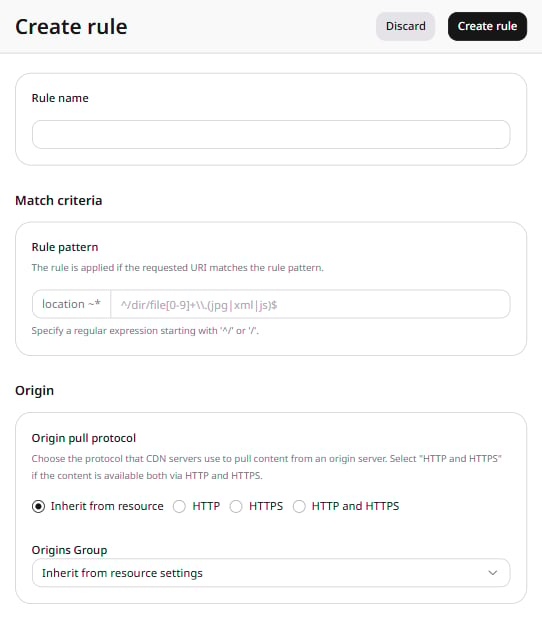 5. Configure the option. When the option is enabled, the `Access-Control-Allow-Origin` header is added. When the option is added but left disabled, the header is not added.
6. Click **Create rule** to save the changes.
### Configure CORS on the origin server
The following examples show how to set up CORS for Apache and Nginx web servers.
**Apache:**
```
# ----------------------------------------------------------------------
# CORS-enabled images (@crossorigin)
# ----------------------------------------------------------------------
# Send CORS headers if browsers request them; enabled by default for images.
# developer.mozilla.org/en/CORS_Enabled_Image
# blog.chromium.org/2011/07/using-cross-domain-images-in-webgl-and.html
# hacks.mozilla.org/2011/11/using-cors-to-load-webgl-textures-from-cross-domain-images/
# wiki.mozilla.org/Security/Reviews/crossoriginAttribute
# mod_headers, y u no match by Content-Type?!
SetEnvIf Origin ":" IS_CORS
Header set Access-Control-Allow-Origin "*" env=IS_CORS
# ----------------------------------------------------------------------
# Webfont access
# ----------------------------------------------------------------------
# Allow access from all domains for webfonts.
# Alternatively you could only whitelist your # subdomains like "subdomain.example.com".
Header set Access-Control-Allow-Origin "*"
```
**Nginx:**
```
location ~ \.(ttf|ttc|otf|eot|woff|woff2|font.css|css|js)$ {
add_header Access-Control-Allow-Origin "*";
}
```
## Check CORS
Clear the CDN resource or file cache according to the [clear CDN cache](/cdn/clear-cdn-resource-cache-by-url-pattern-or-all) guide, then use one of the methods below.
### Check CORS through cURL
1. Open a terminal on macOS or Command Prompt on Windows.
2. Run the following command, substituting the file URL and the origin of your website:
```sh theme={null}
curl -I -H "Origin: https://site-a.com" https://cdn.testdomain.com/assets/image.jpg
```
The `-H "Origin: ..."` flag simulates a browser cross-origin request. It is required for the `$http_origin`-based modes — without it, the CDN omits the `Access-Control-Allow-Origin` header even when the configuration is correct. For the `*` mode the header is returned regardless of whether `Origin` is present.
3. In the output, confirm the `Access-Control-Allow-Origin` header appears. If it is present, the configuration was successful.
```
HTTP/1.1 200 OK
Server: nginx/1.13.1
Date: Fri, 24 Feb 2023 12:54:24 GMT
Content-Type: image/jpeg
Content-Length: 124024
Connection: keep-alive
X-Image-Generated: 29
X-Image-Meta: 1024x768
X-Image-Read: 71
Expires: Fr, 10 March 2023 12:51:43 GMT
Cache-Control: max-age=15552000
Access-Control-Allow-Origin: *
Last-Modified: Sun, 29 Jan 2023 12:00:00 GMT
Cache-Control: max-age=315360000, public
Cache: HIT
X-Cached-Since: 2022-12-09T12:51:43+00:00
X-ID: m9-up-e245
```
### Check CORS with DevTools in a browser
1. Open a browser — Google Chrome is recommended.
2. Navigate to the website.
3. Right-click and select **Inspect** to open DevTools.
4. Select the **Network** tab.
5. Refresh the page.
6. Select any CDN-delivered file — a JPEG, PNG, or CSS file.
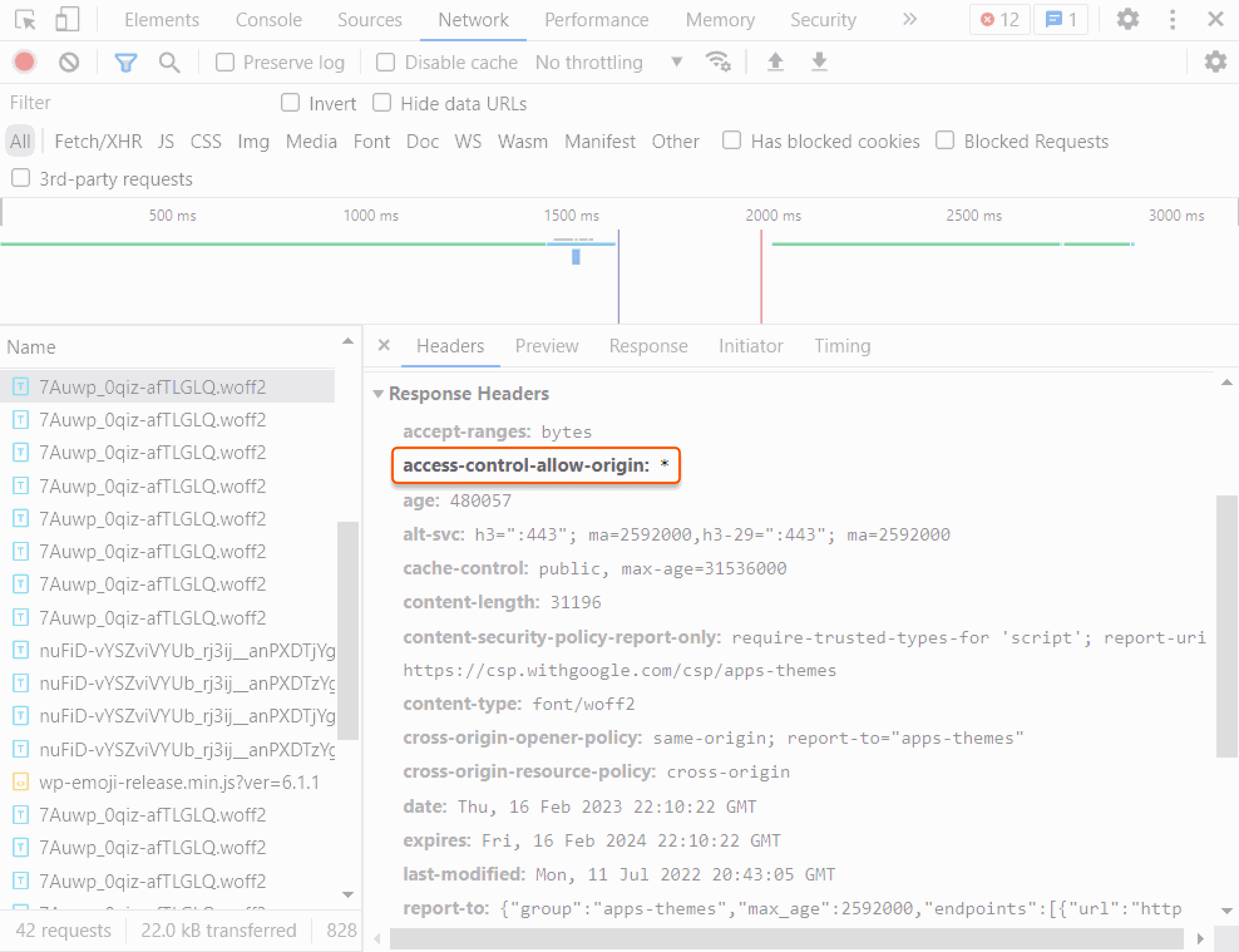
7. In the **Headers** tab on the right, check whether the `Access-Control-Allow-Origin` header is present. If the header appears, the configuration was successful.
5. Configure the option. When the option is enabled, the `Access-Control-Allow-Origin` header is added. When the option is added but left disabled, the header is not added.
6. Click **Create rule** to save the changes.
### Configure CORS on the origin server
The following examples show how to set up CORS for Apache and Nginx web servers.
**Apache:**
```
# ----------------------------------------------------------------------
# CORS-enabled images (@crossorigin)
# ----------------------------------------------------------------------
# Send CORS headers if browsers request them; enabled by default for images.
# developer.mozilla.org/en/CORS_Enabled_Image
# blog.chromium.org/2011/07/using-cross-domain-images-in-webgl-and.html
# hacks.mozilla.org/2011/11/using-cors-to-load-webgl-textures-from-cross-domain-images/
# wiki.mozilla.org/Security/Reviews/crossoriginAttribute
# mod_headers, y u no match by Content-Type?!
SetEnvIf Origin ":" IS_CORS
Header set Access-Control-Allow-Origin "*" env=IS_CORS
# ----------------------------------------------------------------------
# Webfont access
# ----------------------------------------------------------------------
# Allow access from all domains for webfonts.
# Alternatively you could only whitelist your # subdomains like "subdomain.example.com".
Header set Access-Control-Allow-Origin "*"
```
**Nginx:**
```
location ~ \.(ttf|ttc|otf|eot|woff|woff2|font.css|css|js)$ {
add_header Access-Control-Allow-Origin "*";
}
```
## Check CORS
Clear the CDN resource or file cache according to the [clear CDN cache](/cdn/clear-cdn-resource-cache-by-url-pattern-or-all) guide, then use one of the methods below.
### Check CORS through cURL
1. Open a terminal on macOS or Command Prompt on Windows.
2. Run the following command, substituting the file URL and the origin of your website:
```sh theme={null}
curl -I -H "Origin: https://site-a.com" https://cdn.testdomain.com/assets/image.jpg
```
The `-H "Origin: ..."` flag simulates a browser cross-origin request. It is required for the `$http_origin`-based modes — without it, the CDN omits the `Access-Control-Allow-Origin` header even when the configuration is correct. For the `*` mode the header is returned regardless of whether `Origin` is present.
3. In the output, confirm the `Access-Control-Allow-Origin` header appears. If it is present, the configuration was successful.
```
HTTP/1.1 200 OK
Server: nginx/1.13.1
Date: Fri, 24 Feb 2023 12:54:24 GMT
Content-Type: image/jpeg
Content-Length: 124024
Connection: keep-alive
X-Image-Generated: 29
X-Image-Meta: 1024x768
X-Image-Read: 71
Expires: Fr, 10 March 2023 12:51:43 GMT
Cache-Control: max-age=15552000
Access-Control-Allow-Origin: *
Last-Modified: Sun, 29 Jan 2023 12:00:00 GMT
Cache-Control: max-age=315360000, public
Cache: HIT
X-Cached-Since: 2022-12-09T12:51:43+00:00
X-ID: m9-up-e245
```
### Check CORS with DevTools in a browser
1. Open a browser — Google Chrome is recommended.
2. Navigate to the website.
3. Right-click and select **Inspect** to open DevTools.
4. Select the **Network** tab.
5. Refresh the page.
6. Select any CDN-delivered file — a JPEG, PNG, or CSS file.
7. In the **Headers** tab on the right, check whether the `Access-Control-Allow-Origin` header is present. If the header appears, the configuration was successful.