> ## Documentation Index
> Fetch the complete documentation index at: https://gcore-doc-1894.mintlify.site/llms.txt
> Use this file to discover all available pages before exploring further.
# Change image quality
The Quality feature reduces the quality of images delivered through the CDN. It works in combination with at least one other Image Stack operation — such as Compression (WebP or AVIF), Resize, or Crop — and cannot run independently. The origin retains the original image; only the version delivered to end users is affected.
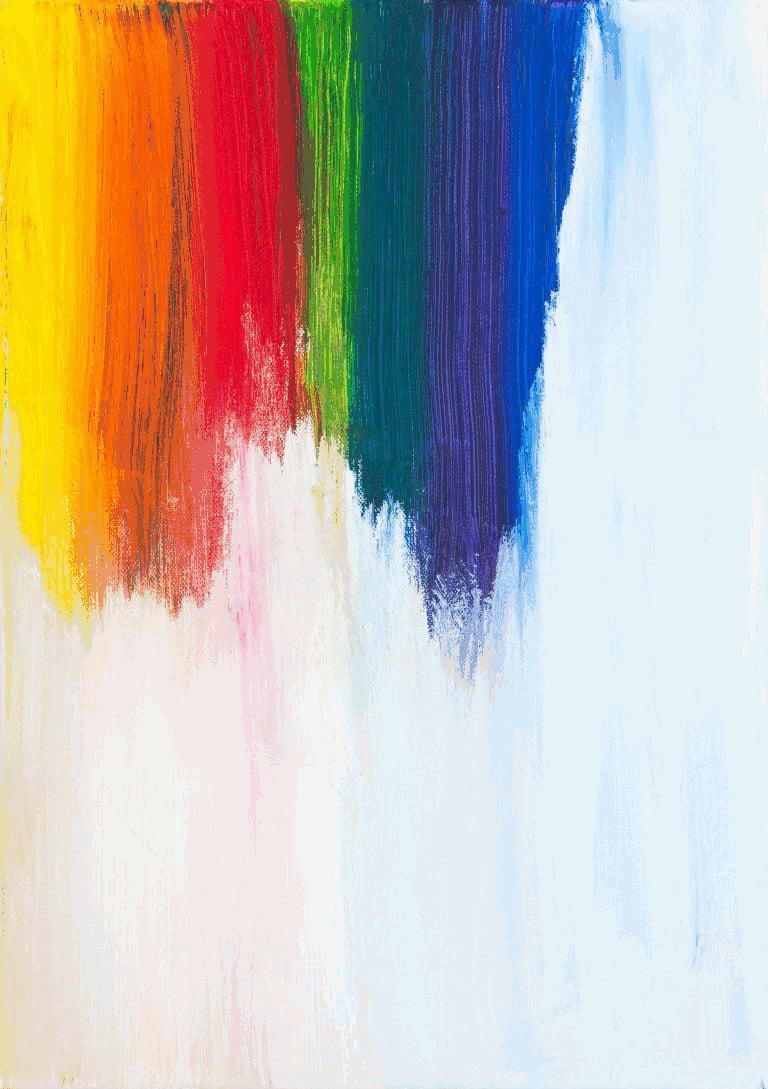
The following example shows the same image at four different quality settings. The visual difference is subtle for detailed or non-contrasted images, and more noticeable for images with large solid areas against contrasting backgrounds.


 ## Enable quality
Quality is included in the paid Image Stack option. To use it, enable Image Stack for the CDN resource following the [Enable Image stack](/cdn/cdn-resource-options/image-optimization-paid/enable-image-stack) guide.
## Use quality
Quality can be configured in two ways: via the Gcore Customer Portal to apply a default level to all images matching the rule, or via query parameters to set quality per individual image URL.
### Use quality in the customer portal
Navigate to the settings of the required CDN resource. Click the **Rules** tab, then open the **Image optimization** rule.
## Enable quality
Quality is included in the paid Image Stack option. To use it, enable Image Stack for the CDN resource following the [Enable Image stack](/cdn/cdn-resource-options/image-optimization-paid/enable-image-stack) guide.
## Use quality
Quality can be configured in two ways: via the Gcore Customer Portal to apply a default level to all images matching the rule, or via query parameters to set quality per individual image URL.
### Use quality in the customer portal
Navigate to the settings of the required CDN resource. Click the **Rules** tab, then open the **Image optimization** rule.
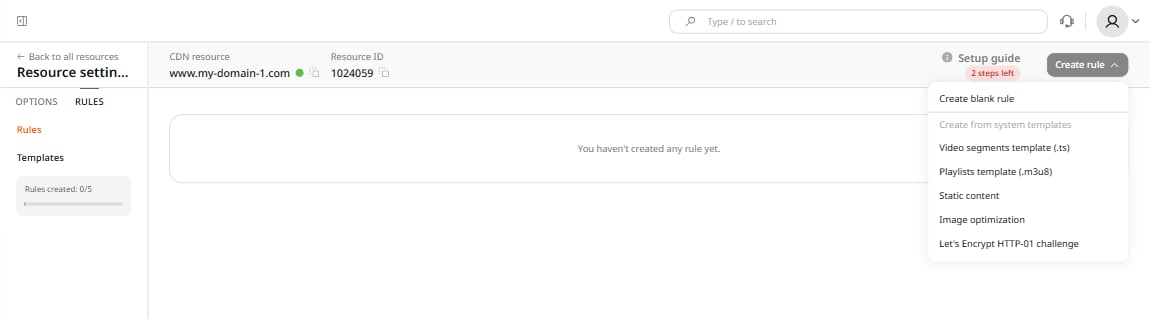 In the **Image Stack** section, select one of the built-in presets: **High (95%)**, **Medium (80%)**, **Low (65%)**, or **Custom value**. The default is **High (95%)**.
To prevent quality reduction for PNG images, enable **Enable lossless for PNG**. When enabled, the quality setting applies only to JPG images.
The quality value cannot exceed 100%.
In the **Image Stack** section, select one of the built-in presets: **High (95%)**, **Medium (80%)**, **Low (65%)**, or **Custom value**. The default is **High (95%)**.
To prevent quality reduction for PNG images, enable **Enable lossless for PNG**. When enabled, the quality setting applies only to JPG images.
The quality value cannot exceed 100%.
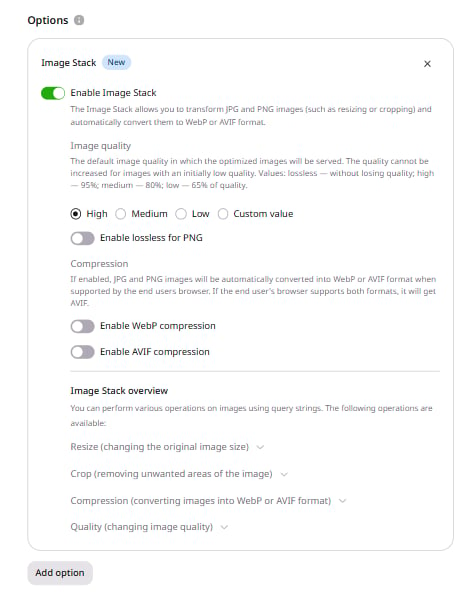 Click **Save changes** at the top right corner of the page.
### Use quality via query parameters
Query parameters set quality for individual images by modifying the URL in the website source.
1\. Open the website source code.
2\. Find the URLs of the images whose quality needs to change.
3\. Add the `quality` query parameter to each URL alongside at least one other Image Stack parameter:
```
image.jpg?quality=value&tool2=value2…
```
where:
* `value` is a number between 1 and 100
* `tool2=value2` represents query parameters for any other Image Stack function such as [Compression](/cdn/cdn-resource-options/image-optimization-paid/image-stack-tools/configure-image-compression-to-webp-and-avif), [Resize](/cdn/cdn-resource-options/image-optimization-paid/image-stack-tools/reduce-image-size), or [Crop](/cdn/cdn-resource-options/image-optimization-paid/image-stack-tools/crop-images)
For example, to reduce quality to 76%, convert to AVIF format, and crop a 200×200 px area from the center:
```
image.jpg?quality=76&fmt=avif&crop=200,200
```
The following example shows the same image processed with different `quality` and `fmt` parameter combinations:
* Link: img.jpg
* Size: 813 KB
* Quality: 100%
Click **Save changes** at the top right corner of the page.
### Use quality via query parameters
Query parameters set quality for individual images by modifying the URL in the website source.
1\. Open the website source code.
2\. Find the URLs of the images whose quality needs to change.
3\. Add the `quality` query parameter to each URL alongside at least one other Image Stack parameter:
```
image.jpg?quality=value&tool2=value2…
```
where:
* `value` is a number between 1 and 100
* `tool2=value2` represents query parameters for any other Image Stack function such as [Compression](/cdn/cdn-resource-options/image-optimization-paid/image-stack-tools/configure-image-compression-to-webp-and-avif), [Resize](/cdn/cdn-resource-options/image-optimization-paid/image-stack-tools/reduce-image-size), or [Crop](/cdn/cdn-resource-options/image-optimization-paid/image-stack-tools/crop-images)
For example, to reduce quality to 76%, convert to AVIF format, and crop a 200×200 px area from the center:
```
image.jpg?quality=76&fmt=avif&crop=200,200
```
The following example shows the same image processed with different `quality` and `fmt` parameter combinations:
* Link: img.jpg
* Size: 813 KB
* Quality: 100%
 * Link: img.jpg?quality=95\&fmt=webp
* Size: 97.4 KB
* Quality: 95%
* Link: img.jpg?quality=95\&fmt=webp
* Size: 97.4 KB
* Quality: 95%
 * Link: img.jpg?quality=50\&fmt=avif
* Size: 97.4 KB
* Quality: 48% (actual measured quality; AVIF encoding maps the requested value non-linearly)
* Link: img.jpg?quality=50\&fmt=avif
* Size: 97.4 KB
* Quality: 48% (actual measured quality; AVIF encoding maps the requested value non-linearly)
 * Link: img.jpg?quality=10\&fmt=avif\&crop=300,600
* Size: 18.5 KB
* Quality: 10%
* Link: img.jpg?quality=10\&fmt=avif\&crop=300,600
* Size: 18.5 KB
* Quality: 10%
 4\. Save the changes in the website source code.
## Check HTTP headers
After processing, the image URL and file extension remain unchanged. Use the HTTP response headers to verify that quality conversion was applied.
The `X-Img-Operations` header lists all conversions performed. If the value includes `convert`, the image quality was changed.
4\. Save the changes in the website source code.
## Check HTTP headers
After processing, the image URL and file extension remain unchanged. Use the HTTP response headers to verify that quality conversion was applied.
The `X-Img-Operations` header lists all conversions performed. If the value includes `convert`, the image quality was changed.
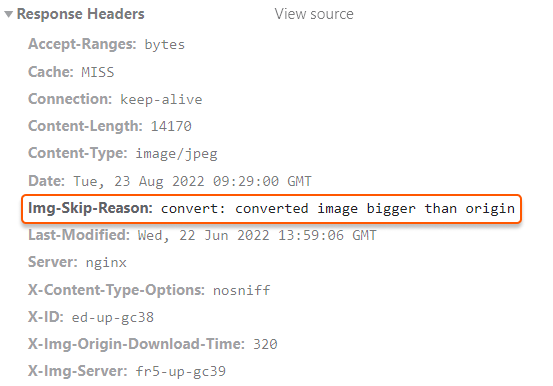
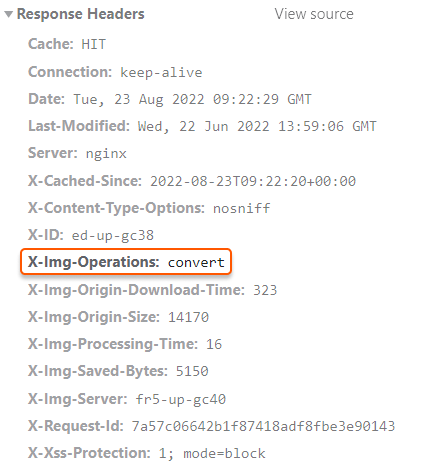 If `X-Img-Operations` does not contain `convert` and the CDN returns the original-quality image, check the `Img-Skip-Reason` header. It explains why the operation was skipped — for example, `converted image bigger than origin` appears when the configured quality value is higher than the original image quality. In this case, combine Quality with another Image Stack feature.