> ## Documentation Index
> Fetch the complete documentation index at: https://gcore-doc-1894.mintlify.site/llms.txt
> Use this file to discover all available pages before exploring further.
# Crop images
Crop is a feature that trims original JPG or PNG images before delivery over the CDN. Add [crop query parameters](#crop-parameters) to image URLs in the website source code to specify the target area and its location. When a user requests a webpage, the CDN returns it with cropped images.
An origin server hosts a 750×1150 px image. With Crop configured, the CDN delivers a 500×400 cropped version to end users while the original 750×1150 image remains on the origin.

 ## Enable the crop feature
Crop is part of the paid Image Stack option. Image Stack also supports converting images to WebP or AVIF, resizing, and adjusting quality. To use Crop, activate Image Stack following the [Enable Image Stack](/cdn/cdn-resource-options/image-optimization-paid/enable-image-stack) guide.
## Use crop
1\. Open the website source code.
2\. Find the strings with the URLs of the images to crop.
3\. Add the query strings to the URLs of the images as follows:
```
image.jpg?parameter=values
```
where `image.jpg` is the image URL on the website. The [Crop parameters](#crop-parameters) section lists all available parameters.
4\. Save the changes in the website source code.
After saving, the CDN delivers cropped images to users requesting the webpage.
## Crop parameters
Crop cuts out a section of an original image for delivery to users. Append a query string to the image URL to specify the target area and its location.
### Crop an image by customizing its aspect ratio
**Parameter:** `?crop=16:9`
where:
* `16` = the width component of the target aspect ratio
* `9` = the height component of the target aspect ratio
The tool crops an image evenly to fit the specified aspect ratio.
**Example.** An origin server hosts a 400×300 image with a 4:3 aspect ratio. To illustrate this, a grid has been placed on the picture.
## Enable the crop feature
Crop is part of the paid Image Stack option. Image Stack also supports converting images to WebP or AVIF, resizing, and adjusting quality. To use Crop, activate Image Stack following the [Enable Image Stack](/cdn/cdn-resource-options/image-optimization-paid/enable-image-stack) guide.
## Use crop
1\. Open the website source code.
2\. Find the strings with the URLs of the images to crop.
3\. Add the query strings to the URLs of the images as follows:
```
image.jpg?parameter=values
```
where `image.jpg` is the image URL on the website. The [Crop parameters](#crop-parameters) section lists all available parameters.
4\. Save the changes in the website source code.
After saving, the CDN delivers cropped images to users requesting the webpage.
## Crop parameters
Crop cuts out a section of an original image for delivery to users. Append a query string to the image URL to specify the target area and its location.
### Crop an image by customizing its aspect ratio
**Parameter:** `?crop=16:9`
where:
* `16` = the width component of the target aspect ratio
* `9` = the height component of the target aspect ratio
The tool crops an image evenly to fit the specified aspect ratio.
**Example.** An origin server hosts a 400×300 image with a 4:3 aspect ratio. To illustrate this, a grid has been placed on the picture.
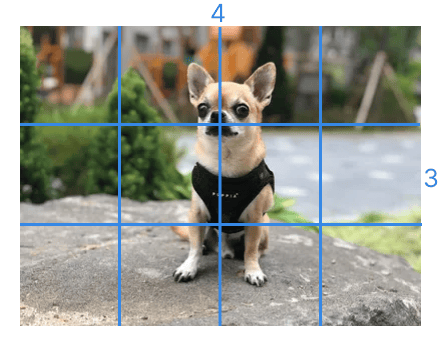 Set a new aspect ratio (4:5) by adding the query parameter to the image URL:
```
img.jpg?crop=4:5
```
The tool selects a section with this aspect ratio at the center of the original image.
Set a new aspect ratio (4:5) by adding the query parameter to the image URL:
```
img.jpg?crop=4:5
```
The tool selects a section with this aspect ratio at the center of the original image.
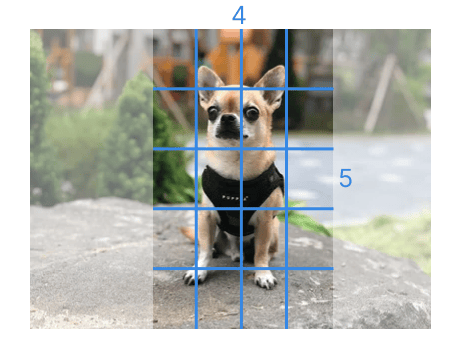 Then it cuts off the unwanted parts. The resulting image looks as follows:
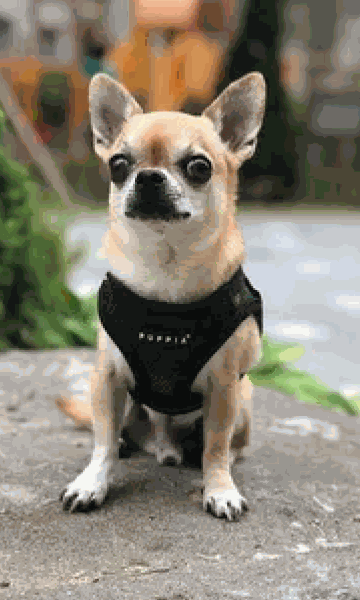 How the tool defines what to crop:
It compares the values in the aspect ratio (4 and 5, in this example) and chooses the greater one (5). This determines which side of the original image is not cropped. The value 5 corresponds to the height, so the height remains the same: 300 px.
It calculates the width to fit the aspect ratio by multiplying the original height by the ratio of 4:5: 300 × (4/5) = 240 px.
It places a 240×300 area at the center of the original image and crops it.
### Crop an image at its center
**Parameter:** `?crop=300,200`
where:
* `300` = the target width
* `200` = the target height
The tool keeps the target area at the center and cuts off the unwanted parts.
**Example.** An origin server hosts a 400×300 image. To keep only a 200×100 section at the center, add the desired parameter to the image URL:
```
img.jpg?crop=200,100
```
How the tool defines what to crop:
It compares the values in the aspect ratio (4 and 5, in this example) and chooses the greater one (5). This determines which side of the original image is not cropped. The value 5 corresponds to the height, so the height remains the same: 300 px.
It calculates the width to fit the aspect ratio by multiplying the original height by the ratio of 4:5: 300 × (4/5) = 240 px.
It places a 240×300 area at the center of the original image and crops it.
### Crop an image at its center
**Parameter:** `?crop=300,200`
where:
* `300` = the target width
* `200` = the target height
The tool keeps the target area at the center and cuts off the unwanted parts.
**Example.** An origin server hosts a 400×300 image. To keep only a 200×100 section at the center, add the desired parameter to the image URL:
```
img.jpg?crop=200,100
```
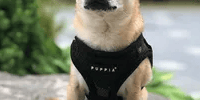
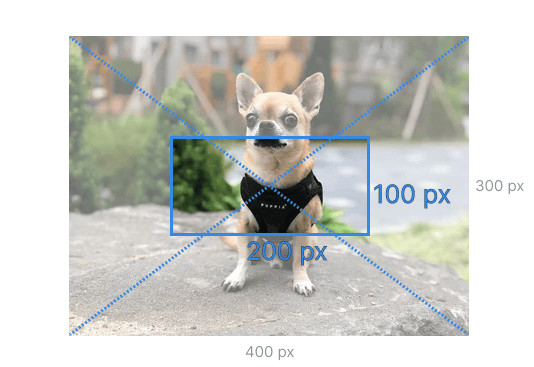 The tool crops a 200×100 area from the center. The resulting image looks as follows:
 ### Crop from a specific location
To cut out a section from a specific location, add the target width and height parameters (`?crop=(width),(height)`) and then the location of the section. The location can be specified in four ways, described in the subsections below.
#### Specify a location with two offsets measured in pixels
**Parameter:** `?crop=300,200,x100,y50`
where:
* `300` = the target width
* `200` = the target height
* `100` = the number of pixels to offset from the original left side
* `50` = the number of pixels to offset from the original top
The tool positions the target area so that its upper-left corner is at the specified coordinate, then cuts out the section.
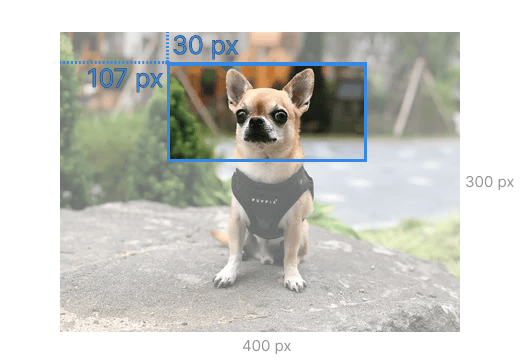
**Example.** An origin server hosts a 400×300 image; the goal is to cut out a 200×100 section with the dog's muzzle.
### Crop from a specific location
To cut out a section from a specific location, add the target width and height parameters (`?crop=(width),(height)`) and then the location of the section. The location can be specified in four ways, described in the subsections below.
#### Specify a location with two offsets measured in pixels
**Parameter:** `?crop=300,200,x100,y50`
where:
* `300` = the target width
* `200` = the target height
* `100` = the number of pixels to offset from the original left side
* `50` = the number of pixels to offset from the original top
The tool positions the target area so that its upper-left corner is at the specified coordinate, then cuts out the section.
**Example.** An origin server hosts a 400×300 image; the goal is to cut out a 200×100 section with the dog's muzzle.
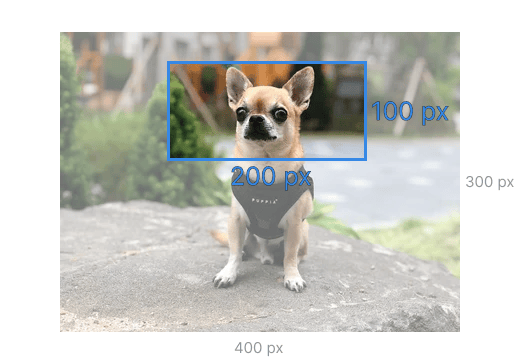 To crop an image, add the query parameter to the URL:
```
img.jpg?crop=200,100,x107,y30
```
Before being delivered to an end user, the image goes through the following conversions:
1\. The target area is 200×100 (`crop=200,100`), so the tool selects this area in the picture.
To crop an image, add the query parameter to the URL:
```
img.jpg?crop=200,100,x107,y30
```
Before being delivered to an end user, the image goes through the following conversions:
1\. The target area is 200×100 (`crop=200,100`), so the tool selects this area in the picture.
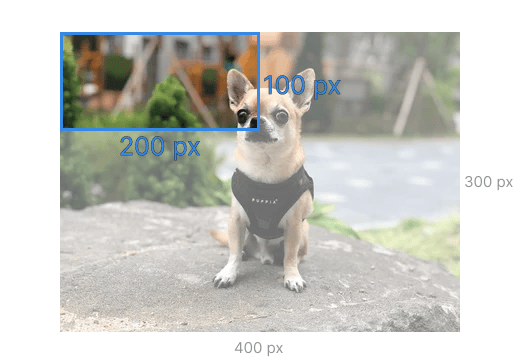 2\. The coordinates of the starting point are 107 px from the left side and 30 pixels from the top (`x107,y30`). The tool drags the target area so that its upper-left corner is at this point.
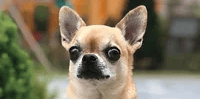
 3\. The tool cuts out the section. The cropped image looks as follows:
 #### Specify a location using two coordinates measured as a percentage of the original image
**Parameter:** `?crop=300,200,x25p,y10p`
where:
* `300` = the target width
* `200` = the target height
* `25` = the percent of the original width to offset from the left side
* `10` = the percent of the original height to offset from the top
The tool positions the target area so that its upper-left corner is at the specified coordinate, then cuts out the section.
**Example.** An origin server hosts a 400×300 image; the goal is to cut out a 200×100 section with the dog's muzzle.
#### Specify a location using two coordinates measured as a percentage of the original image
**Parameter:** `?crop=300,200,x25p,y10p`
where:
* `300` = the target width
* `200` = the target height
* `25` = the percent of the original width to offset from the left side
* `10` = the percent of the original height to offset from the top
The tool positions the target area so that its upper-left corner is at the specified coordinate, then cuts out the section.
**Example.** An origin server hosts a 400×300 image; the goal is to cut out a 200×100 section with the dog's muzzle.
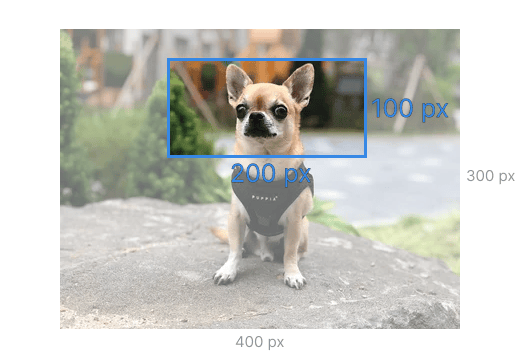 To crop an image, add the query parameter to the URL:
```
img.jpg?crop=200,100,x25p,y10p
```
Before being delivered to an end user, the image goes through the following conversions:
1\. The target area is 200×100 (`crop=200,100`), so the tool selects this area in the picture.
To crop an image, add the query parameter to the URL:
```
img.jpg?crop=200,100,x25p,y10p
```
Before being delivered to an end user, the image goes through the following conversions:
1\. The target area is 200×100 (`crop=200,100`), so the tool selects this area in the picture.
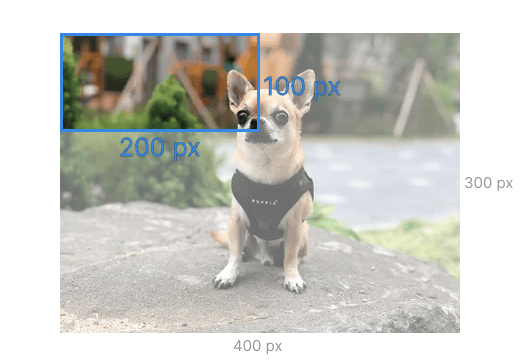 2\. The starting point for cropping (`x25p,y10p`): offset 25% of the original width from the left side and 10% of the original height from the top. The tool drags the target area so that its upper-left corner is at this point.
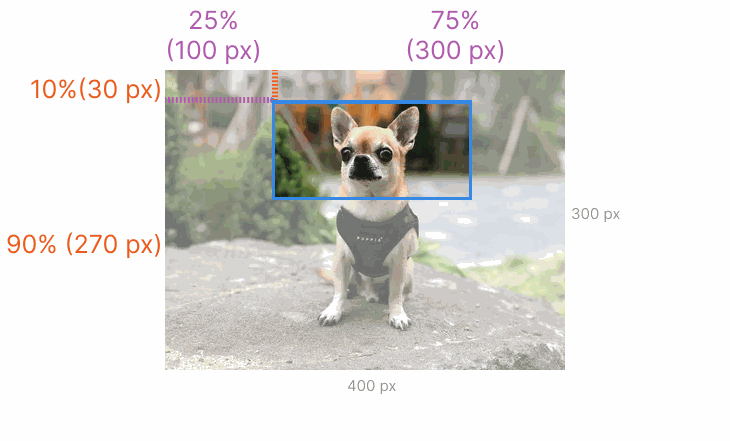 3\. Then it cuts out the section. The cropped image looks as follows:
#### Specify a location using the ratio of unwanted areas
**Parameter:** `?crop=300,200,offset-x20,offset-y40`
where:
* `300` = the target width
* `200` = the target height
* `20` = the percent of the unwanted width that should be cropped from the left side
* `40` = the percent of the unwanted height that should be cropped from the top
The tool positions the target area so that the specified percentage of unwanted area remains on the left and on the top, then crops the image.
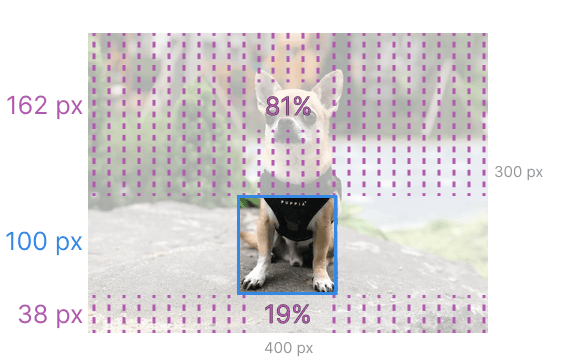
**Example.** An origin server hosts a 400×300 image; the goal is to cut out a 100×100 section with the dog's paws.
3\. Then it cuts out the section. The cropped image looks as follows:
#### Specify a location using the ratio of unwanted areas
**Parameter:** `?crop=300,200,offset-x20,offset-y40`
where:
* `300` = the target width
* `200` = the target height
* `20` = the percent of the unwanted width that should be cropped from the left side
* `40` = the percent of the unwanted height that should be cropped from the top
The tool positions the target area so that the specified percentage of unwanted area remains on the left and on the top, then crops the image.
**Example.** An origin server hosts a 400×300 image; the goal is to cut out a 100×100 section with the dog's paws.
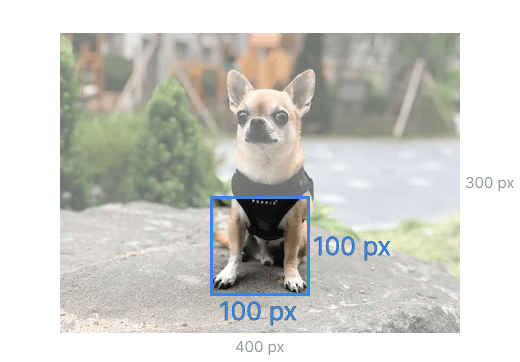 To crop the image, add the query parameter to the URL:
```
img.jpg?crop=100,100,offset-x50,offset-y81
```
Before being delivered to an end user, the image goes through the following conversions:
1\. The target area is 100×100 (`crop=100,100`). The tool selects the target area in the picture.
To crop the image, add the query parameter to the URL:
```
img.jpg?crop=100,100,offset-x50,offset-y81
```
Before being delivered to an end user, the image goes through the following conversions:
1\. The target area is 100×100 (`crop=100,100`). The tool selects the target area in the picture.
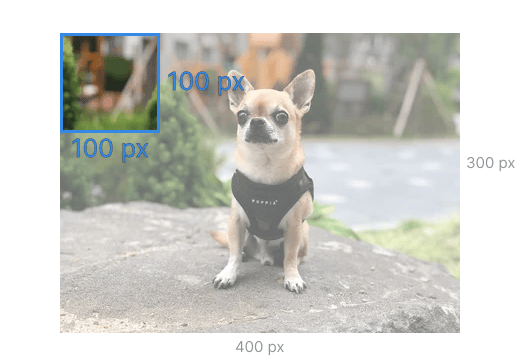 2\. The tool drags the target area to the right until 50% of the unwanted width remains on the left (`offset-x50`). Accordingly, 50% of the unwanted area remains on the right.
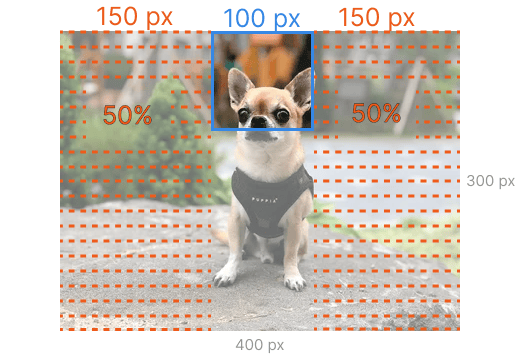 3\. It moves the target area down until 81% of the unwanted height remains on the top (`offset-y81`). Accordingly, 19% of the unwanted height remains at the bottom.
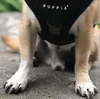
 4\. The tool cuts out the target area. The cropped image looks as follows:
 #### Specify a location using one offset measured in pixels and one coordinate measured as a percentage of the original image
The previous options can be combined to crop an original image from a specific place — set the horizontal coordinate in pixels and the percentage of unwanted vertical area, or vice versa.
Examples of combined query parameters:
* `?crop=width,height,x(x-axis value),offset-y(percentage of unwanted area to be cropped from the top)`
* `?crop=width,height,offset-x(percentage of unwanted area to be cropped from the left),y(y-axis value)`
* `?crop=width,height,x(percentage of original image width from the left),offset-y(percentage of unwanted area to be cropped from the top)`
The cropping behavior for combined parameters follows the same rules as the individual options above.
## Check HTTP headers
Check the HTTP response headers to verify that the crop was applied. The `X-Img-Operations` header lists all conversions performed. If the value includes `crop`, the image has been cropped.
#### Specify a location using one offset measured in pixels and one coordinate measured as a percentage of the original image
The previous options can be combined to crop an original image from a specific place — set the horizontal coordinate in pixels and the percentage of unwanted vertical area, or vice versa.
Examples of combined query parameters:
* `?crop=width,height,x(x-axis value),offset-y(percentage of unwanted area to be cropped from the top)`
* `?crop=width,height,offset-x(percentage of unwanted area to be cropped from the left),y(y-axis value)`
* `?crop=width,height,x(percentage of original image width from the left),offset-y(percentage of unwanted area to be cropped from the top)`
The cropping behavior for combined parameters follows the same rules as the individual options above.
## Check HTTP headers
Check the HTTP response headers to verify that the crop was applied. The `X-Img-Operations` header lists all conversions performed. If the value includes `crop`, the image has been cropped.
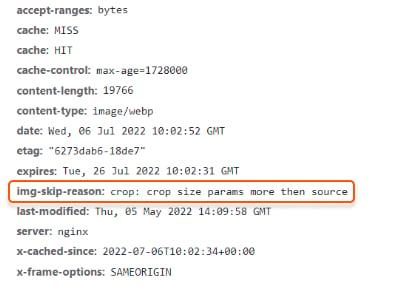
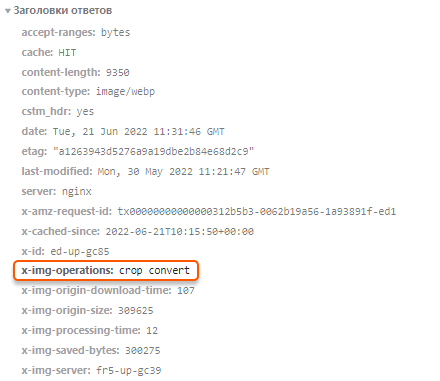 If `X-Img-Operations` does not include `crop` and the CDN returns the original uncropped image, check the `img-skip-reason` header. This explains why the conversion failed.