> ## Documentation Index
> Fetch the complete documentation index at: https://gcore-doc-1894.mintlify.site/llms.txt
> Use this file to discover all available pages before exploring further.
# Reduce image size
Resize reduces the width and height of an original JPG or PNG before the CDN delivers it. The target dimensions are set per image using query parameters, and the reduction method — proportional scaling or cropping — is controlled by the `fit` parameter.
An origin server hosts an 1100×1500 px image. With `width=200, height=150`, the CDN reduces the image before delivering it to end users. The origin retains the original 1100×1500 version; users receive the 200×150 reduced version:

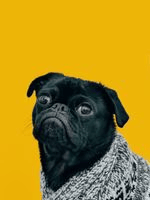 To set a new height and width for an image, add the relevant query string to the image URL in the website source. These query strings are described in the [Use Resize](/cdn/cdn-resource-options/image-optimization-paid/image-stack-tools/reduce-image-size#use-resize) section. When a user requests a page, the CDN delivers it with the reduced images.
## Enable resize
Resize is included in the paid Image Stack option. This option optimizes images by converting them to WebP or AVIF format, cropping them, or adjusting their quality and size. To use Resize, activate Image Stack according to the [Enable Image Stack](/cdn/cdn-resource-options/image-optimization-paid/enable-image-stack) guide.
## Use resize
Add the relevant Resize query parameters to the image URLs in the website source code.
1\. Open the website source code.
2\. Find the strings with the URLs of the images to reduce using Resize.
3\. Add the query strings to the URLs of the images.
A query parameter should be set as follows:
```
image.jpg?parameter=value
```
Two or more parameters should be set as follows:
```
image.jpg?parameter1=value1¶meter2=value2
```
where image.jpg is the URL of an image on the website.
The available parameters control how the image is resized:
Width compresses an image while preserving the aspect ratio of the original image. This parameter sets the target width of the new image in pixels. The height is automatically adjusted to maintain the original aspect ratio.
Example. An origin server hosts a 900×600 image (W×H). With `width=300`: the width is reduced by three, and the height is also reduced by three. Result: 300×200.
To set a new height and width for an image, add the relevant query string to the image URL in the website source. These query strings are described in the [Use Resize](/cdn/cdn-resource-options/image-optimization-paid/image-stack-tools/reduce-image-size#use-resize) section. When a user requests a page, the CDN delivers it with the reduced images.
## Enable resize
Resize is included in the paid Image Stack option. This option optimizes images by converting them to WebP or AVIF format, cropping them, or adjusting their quality and size. To use Resize, activate Image Stack according to the [Enable Image Stack](/cdn/cdn-resource-options/image-optimization-paid/enable-image-stack) guide.
## Use resize
Add the relevant Resize query parameters to the image URLs in the website source code.
1\. Open the website source code.
2\. Find the strings with the URLs of the images to reduce using Resize.
3\. Add the query strings to the URLs of the images.
A query parameter should be set as follows:
```
image.jpg?parameter=value
```
Two or more parameters should be set as follows:
```
image.jpg?parameter1=value1¶meter2=value2
```
where image.jpg is the URL of an image on the website.
The available parameters control how the image is resized:
Width compresses an image while preserving the aspect ratio of the original image. This parameter sets the target width of the new image in pixels. The height is automatically adjusted to maintain the original aspect ratio.
Example. An origin server hosts a 900×600 image (W×H). With `width=300`: the width is reduced by three, and the height is also reduced by three. Result: 300×200.
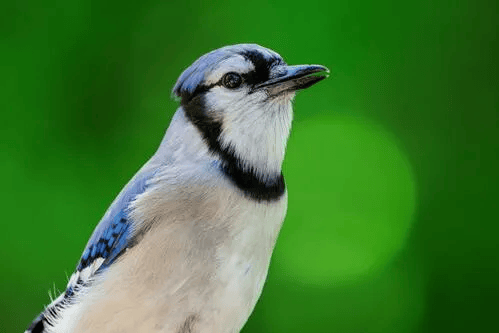 500×333
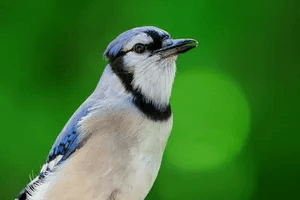 300×200
Height compresses an image while preserving the aspect ratio of the original image. This parameter specifies the target height of the new image in pixels. The width is automatically adjusted to maintain the original aspect ratio.
Example. An origin server hosts a 900×600 image (W×H). With `height=300`: the height is reduced by two, and the width is also reduced by two. Result: 450×300.
500×333
450×300
Fit controls how the image is reduced: cropped from sides, compressed keeping the original aspect ratio, or compressed ignoring the aspect ratio.
To use `fit`, specify both `width` and `height`, then add the `fit` parameter: `image.jpg?width=300&height=100&fit=…`
If only `width` and `height` are specified without `fit`, the default `fit=fit` is applied. There are four possible values for `fit`:
500×333
The image is scaled proportionally and then cropped centrally to exactly fit the specified dimensions. This is the default value — `fit=fit` can be omitted.
Example. An image is 500×333 pixels. With `width=200, height=100, fit=fit`: the image is first scaled to 200×133 (factor 0.4, keeping proportions), then 33 pixels are cropped centrally from the height (17 px from the top, 16 px from the bottom). Result: 200×100. | After: `image.jpg?width=200&height=100&fit=fit` or `image.jpg?width=200&height=100`
300×200
Height compresses an image while preserving the aspect ratio of the original image. This parameter specifies the target height of the new image in pixels. The width is automatically adjusted to maintain the original aspect ratio.
Example. An origin server hosts a 900×600 image (W×H). With `height=300`: the height is reduced by two, and the width is also reduced by two. Result: 450×300.
500×333
450×300
Fit controls how the image is reduced: cropped from sides, compressed keeping the original aspect ratio, or compressed ignoring the aspect ratio.
To use `fit`, specify both `width` and `height`, then add the `fit` parameter: `image.jpg?width=300&height=100&fit=…`
If only `width` and `height` are specified without `fit`, the default `fit=fit` is applied. There are four possible values for `fit`:
500×333
The image is scaled proportionally and then cropped centrally to exactly fit the specified dimensions. This is the default value — `fit=fit` can be omitted.
Example. An image is 500×333 pixels. With `width=200, height=100, fit=fit`: the image is first scaled to 200×133 (factor 0.4, keeping proportions), then 33 pixels are cropped centrally from the height (17 px from the top, 16 px from the bottom). Result: 200×100. | After: `image.jpg?width=200&height=100&fit=fit` or `image.jpg?width=200&height=100`
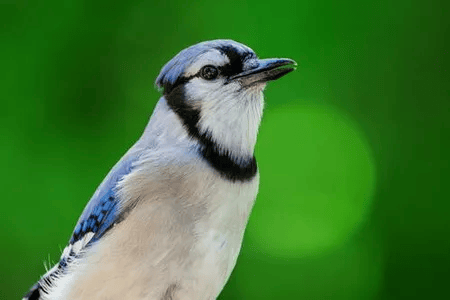 200×100
The image is compressed proportionally. Resize selects the greater of the two target dimensions and uses it to resize, ignoring the other dimension value.
The final image fits entirely within the specified region — one dimension matches the target exactly, and the other is adjusted to maintain the original aspect ratio.
Example. An origin server hosts a 1000×500 image. With `width=500, height=300, fit=bounds`: the width value is greater (500 pixels), so the height value is ignored. The original aspect ratio is 2:1, so the height is calculated as 500 ÷ 2 = 250. Result: 500×250. | After: `image.jpg?width=200&height=100&fit=bounds`
200×133
The image is compressed proportionally. Resize selects the dimension that results in the larger scale factor and uses it to resize, ensuring the image covers the entire specified region.
The final image fully covers the specified region — one dimension matches the target exactly, and the other is proportionally larger and gets cropped centrally.
Example. An origin server hosts a 1000×500 image. With `width=500, height=300, fit=cover`: the height scale factor (300 ÷ 500 = 0.6) is larger than the width scale factor (500 ÷ 1000 = 0.5), so the image is scaled by height. The original aspect ratio is 2:1, so the width is calculated as 300 × 2 = 600. Result: 600×300. | After: `image.jpg?width=200&height=100&fit=cover`
150×100
The final image matches the specified width and height exactly. The image is compressed in both dimensions, and the original aspect ratio is ignored. | After: `image.jpg?width=200&height=50&fit=force`
200×100
The image is compressed proportionally. Resize selects the greater of the two target dimensions and uses it to resize, ignoring the other dimension value.
The final image fits entirely within the specified region — one dimension matches the target exactly, and the other is adjusted to maintain the original aspect ratio.
Example. An origin server hosts a 1000×500 image. With `width=500, height=300, fit=bounds`: the width value is greater (500 pixels), so the height value is ignored. The original aspect ratio is 2:1, so the height is calculated as 500 ÷ 2 = 250. Result: 500×250. | After: `image.jpg?width=200&height=100&fit=bounds`
200×133
The image is compressed proportionally. Resize selects the dimension that results in the larger scale factor and uses it to resize, ensuring the image covers the entire specified region.
The final image fully covers the specified region — one dimension matches the target exactly, and the other is proportionally larger and gets cropped centrally.
Example. An origin server hosts a 1000×500 image. With `width=500, height=300, fit=cover`: the height scale factor (300 ÷ 500 = 0.6) is larger than the width scale factor (500 ÷ 1000 = 0.5), so the image is scaled by height. The original aspect ratio is 2:1, so the width is calculated as 300 × 2 = 600. Result: 600×300. | After: `image.jpg?width=200&height=100&fit=cover`
150×100
The final image matches the specified width and height exactly. The image is compressed in both dimensions, and the original aspect ratio is ignored. | After: `image.jpg?width=200&height=50&fit=force`
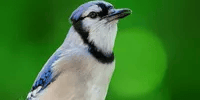 200х50
4\. Save the changes in the website source code.
Images on the website are now delivered to end users with the dimensions specified in the query parameters.
## Check HTTP headers
The `X-Img-Operations` header reflects all conversions performed on an image. If the value includes `resize`, the image size has changed.
200х50
4\. Save the changes in the website source code.
Images on the website are now delivered to end users with the dimensions specified in the query parameters.
## Check HTTP headers
The `X-Img-Operations` header reflects all conversions performed on an image. If the value includes `resize`, the image size has changed.
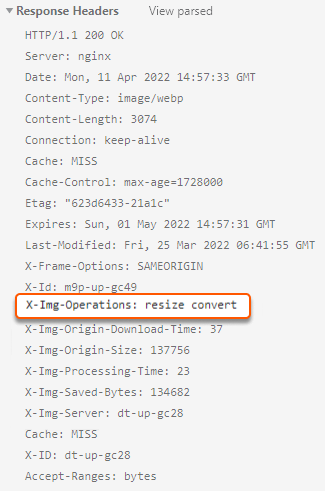 If the HTTP header contains no `resize` value and the CDN returns the origin image, check the `Img-skip-reason` HTTP header. This header explains why the resize operation was skipped.