> ## Documentation Index
> Fetch the complete documentation index at: https://gcore-doc-1894.mintlify.site/llms.txt
> Use this file to discover all available pages before exploring further.
# Network limits: set the content delivery speed to end users
The **Download speed limit** option controls the content delivery speed to end users.
To configure the download speed limit:
1\. Navigate to CDN and select the CDN resource to configure.
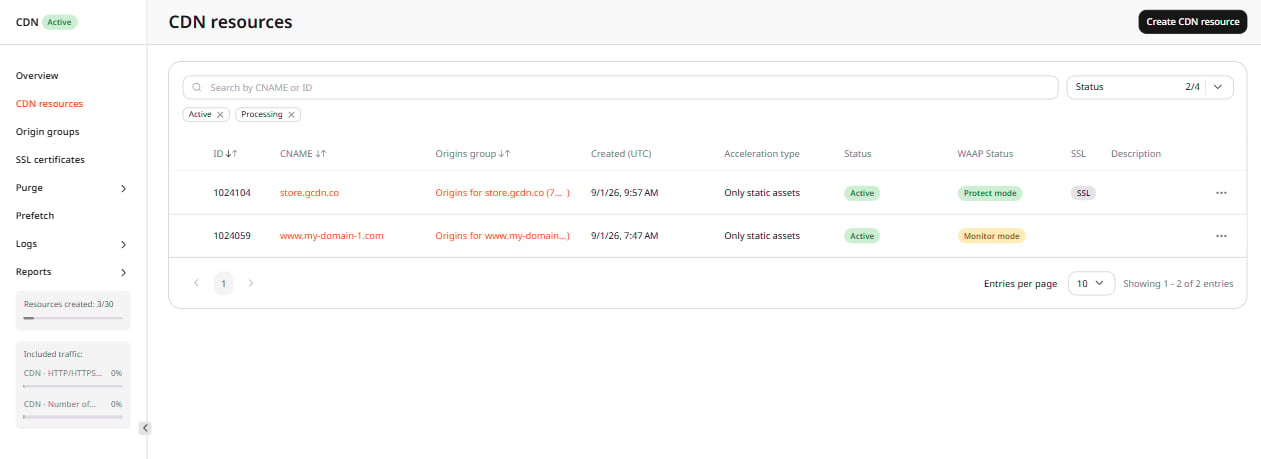 2\. In the sidebar, under **Network limits**, click **Download speed limit**.
3\. Enable the **Download speed limit** toggle.
The option has two modes: **Static** and **Dynamic**.
## Static
This mode sets a limit on all content transmitted through the CDN. When this mode is selected, configure the **Connection speed** and **Limit after** parameters.
2\. In the sidebar, under **Network limits**, click **Download speed limit**.
3\. Enable the **Download speed limit** toggle.
The option has two modes: **Static** and **Dynamic**.
## Static
This mode sets a limit on all content transmitted through the CDN. When this mode is selected, configure the **Connection speed** and **Limit after** parameters.
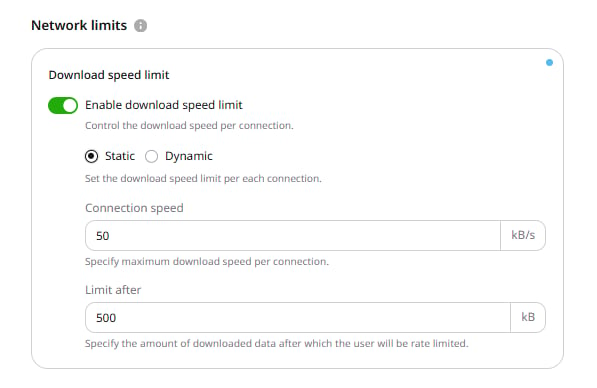 ### Connection speed
This setting defines the maximum download speed per connection in kilobytes per second (kB/s). The minimum accepted value is 1 kB/s.
### Limit after
This setting defines the amount of data that downloads without a speed limit before the **Connection speed** setting takes effect. If set to 0, the download speed is limited immediately from the first byte.
## Dynamic
This mode sets different limits for different users or content types. The speed is adjusted based on the `speed` and `buffer` query string arguments.
### Connection speed
This setting defines the maximum download speed per connection in kilobytes per second (kB/s). The minimum accepted value is 1 kB/s.
### Limit after
This setting defines the amount of data that downloads without a speed limit before the **Connection speed** setting takes effect. If set to 0, the download speed is limited immediately from the first byte.
## Dynamic
This mode sets different limits for different users or content types. The speed is adjusted based on the `speed` and `buffer` query string arguments.
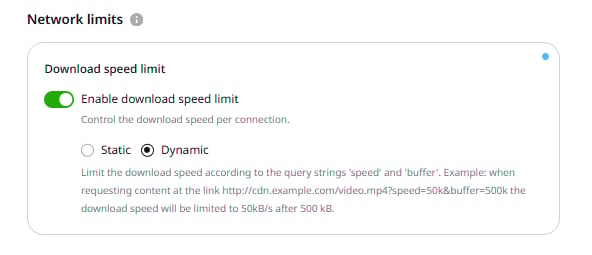 The `speed` argument sets the maximum download speed, while `buffer` sets how much data transfers without the speed limit. The `buffer` argument is optional.
Pass the arguments as query string parameters. The following URL limits download speed to 50 kB/s after downloading 500 kB:
```
http://cdn.example.com/video.mp4?speed=50k&buffer=500k
```
## Option features
* For both modes, the limit is set per connection, so if a client opens two connections at the same time, the total speed is twice the specified limit.
* [Ignore Query String](/cdn/cdn-resource-options/cache/ignore-the-set-cookie-or-query-string-parameters-when-caching-content-on-cdn-servers#query-string-setting) does not affect the **Download speed limit** option. They can be used together.
The `speed` argument sets the maximum download speed, while `buffer` sets how much data transfers without the speed limit. The `buffer` argument is optional.
Pass the arguments as query string parameters. The following URL limits download speed to 50 kB/s after downloading 500 kB:
```
http://cdn.example.com/video.mp4?speed=50k&buffer=500k
```
## Option features
* For both modes, the limit is set per connection, so if a client opens two connections at the same time, the total speed is twice the specified limit.
* [Ignore Query String](/cdn/cdn-resource-options/cache/ignore-the-set-cookie-or-query-string-parameters-when-caching-content-on-cdn-servers#query-string-setting) does not affect the **Download speed limit** option. They can be used together.