> ## Documentation Index
> Fetch the complete documentation index at: https://gcore-doc-1894.mintlify.site/llms.txt
> Use this file to discover all available pages before exploring further.
# Avoid CDN resource indexing by web crawlers
When a [CDN resource](/cdn/getting-started/create-a-cdn-resource/create-a-cdn-resource) is set up for a website, its content becomes accessible from both the origin domain (e.g., `website-example.com/image.png`) and [CDN custom domains](/cdn/cdn-resource-options/general/create-and-set-a-custom-domain-for-the-content-delivery-via-cdn) (e.g., `cdn.website-example.com/image.png`). Search engines treat the same content at two different URLs as duplicate content, which degrades the site's search ranking.
To prevent this, create a [CDN rule](/cdn/cdn-resource-options/rules-for-particular-files/create-a-rule-manually-or-from-a-template-to-configure-settings-for-particular-files) that matches the `/robots.txt` path and returns a `Disallow: /` directive. Web crawlers checking `/robots.txt` on the CDN domain receive the disallow response and stop indexing it. All other CDN URLs continue to serve content normally.
## Block CDN domain indexing
1\. In the [Gcore Customer Portal](https://portal.gcore.com), navigate to **CDN** → **CDN resources** and click the CNAME of the resource.
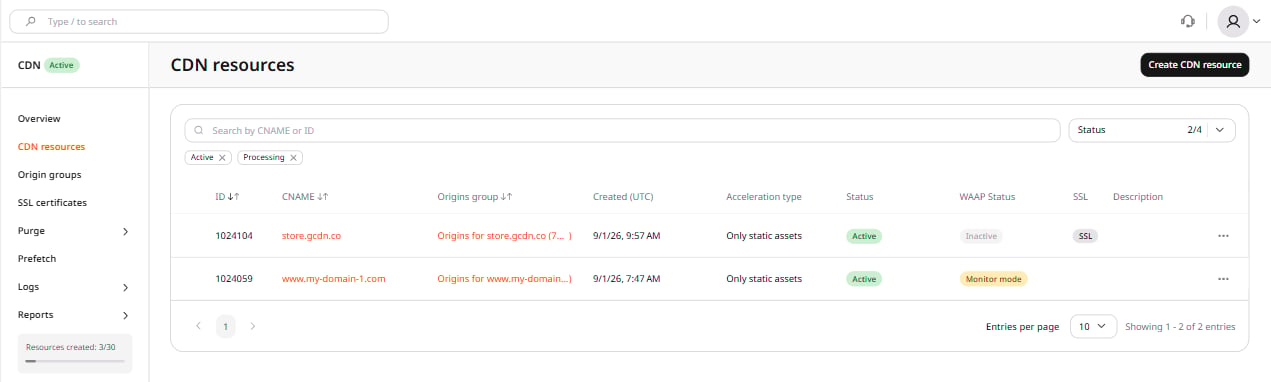 2\. Navigate to the **RULES** tab and click **Create rule**, then select **Create blank rule**.
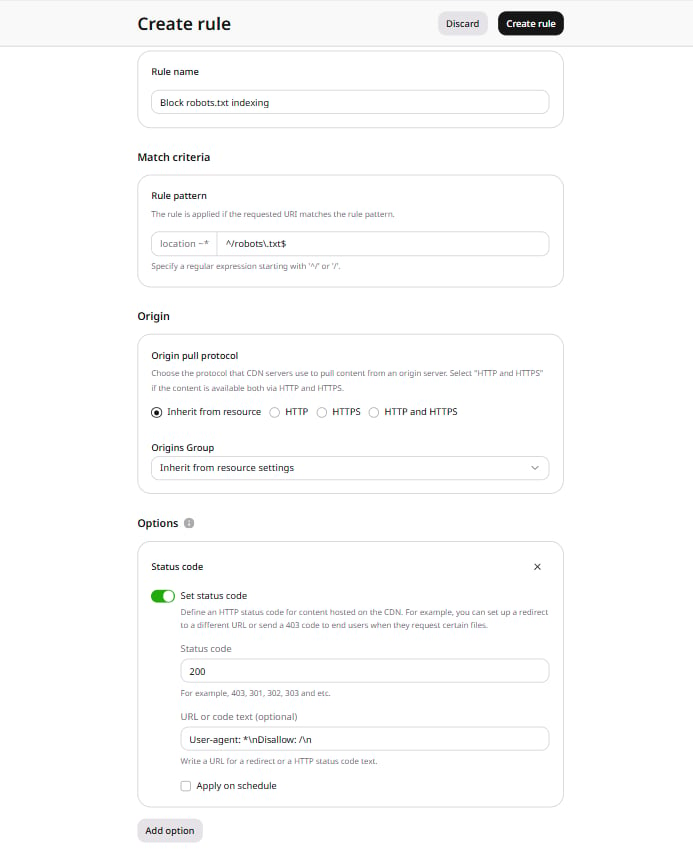
3\. In the **Rule name** field, enter a descriptive name — `Block robots.txt indexing`.
4\. In the **Rule pattern** field, enter `^/robots\.txt$`.
5\. Click **Add option**. In the panel that opens, under **Content**, click **Add** next to **Status code**, then close the panel.
6\. In the **Status code** section, enable the **Set status code** option.
7\. In the **Status code** field, enter `200`.
8\. In the **URL or code text (optional)** field, enter:
```
User-agent: *\nDisallow: /\n
```
9\. Click **Create rule**.
2\. Navigate to the **RULES** tab and click **Create rule**, then select **Create blank rule**.
3\. In the **Rule name** field, enter a descriptive name — `Block robots.txt indexing`.
4\. In the **Rule pattern** field, enter `^/robots\.txt$`.
5\. Click **Add option**. In the panel that opens, under **Content**, click **Add** next to **Status code**, then close the panel.
6\. In the **Status code** section, enable the **Set status code** option.
7\. In the **Status code** field, enter `200`.
8\. In the **URL or code text (optional)** field, enter:
```
User-agent: *\nDisallow: /\n
```
9\. Click **Create rule**.
 Web crawlers that request `/robots.txt` from the CDN domain receive a `Disallow: /` directive and stop indexing it. All other URLs on the CDN domain continue to serve content as configured.
This configuration applies only to the `/robots.txt` path on the CDN custom domain and does not affect the origin website or other CDN URLs.
Web crawlers that request `/robots.txt` from the CDN domain receive a `Disallow: /` directive and stop indexing it. All other URLs on the CDN domain continue to serve content as configured.
This configuration applies only to the `/robots.txt` path on the CDN custom domain and does not affect the origin website or other CDN URLs.