> ## Documentation Index
> Fetch the complete documentation index at: https://gcore-doc-1894.mintlify.site/llms.txt
> Use this file to discover all available pages before exploring further.
# Set the hostname passed in SNI requests to the origin
Server Name Indication (SNI) is a TLS extension that tells the origin server which hostname the CDN is connecting to during a TLS handshake. It allows an origin serving multiple hostnames over the same IP address to select the appropriate SSL certificate.
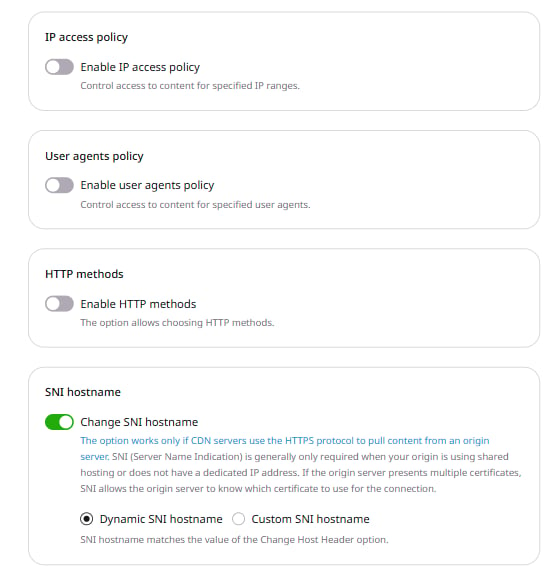
The **Change SNI hostname** option controls this hostname. It is enabled by default on all CDN resources and takes effect only when CDN servers pull content from the origin over HTTPS.
To configure the SNI hostname mode:
1. Log in to the [Gcore Customer Portal](https://portal.gcore.com) and navigate to **CDN** > **CDN resources**.
2. Click the CNAME of the resource to open its settings.
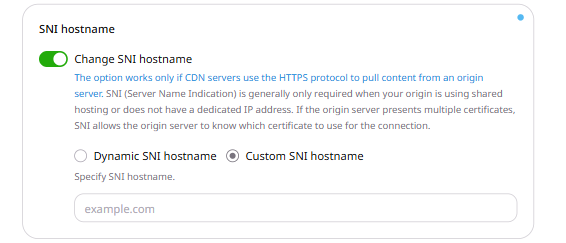
3. On the **OPTIONS** tab, scroll to the **SNI hostname** section and select a mode:
* **Dynamic SNI hostname** (default) — the CDN uses the hostname set in the **Change Host Header** option.
* **Custom SNI hostname** — enter a specific hostname in the **Specify SNI hostname** field. IP addresses are not accepted.
 4. Click **Save changes**.