> ## Documentation Index
> Fetch the complete documentation index at: https://gcore-doc-1894.mintlify.site/llms.txt
> Use this file to discover all available pages before exploring further.
# Set up a redirect from HTTP to HTTPS
HTTP to HTTPS redirect sends all HTTP requests for a CDN resource to HTTPS. The redirect can be turned on only after HTTPS is enabled and an SSL certificate is issued.
The same option can be set through the [CDN resource API](/api-reference/cdn/cdn-resources/change-cdn-resource-1).
1. Log in to the [Gcore Customer Portal](https://portal.gcore.com) and navigate to **CDN** > **CDN resources**. Open the resource.
2. On the **OPTIONS** tab, navigate to **General** > **SSL**.
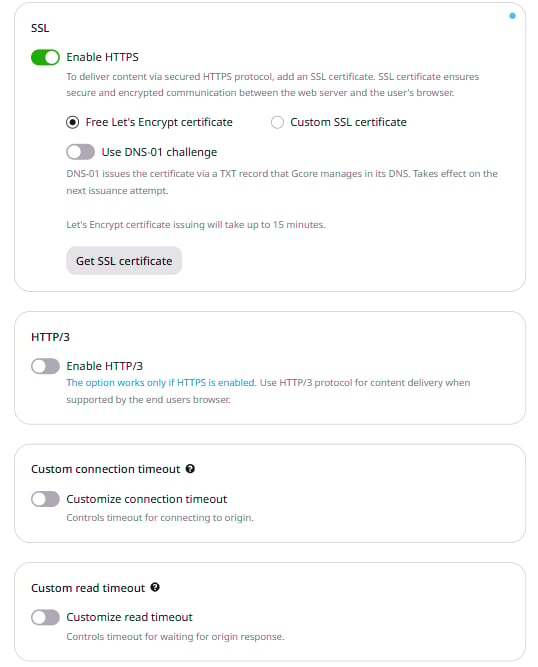
3. If HTTPS isn't enabled for the resource, turn on **Enable HTTPS** and select **Free Let's Encrypt certificate** or **Custom SSL certificate**.
Let's Encrypt issuance takes up to 15 minutes. Certificate setup is covered in [SSL certificates](/cdn/ssl-certificates/add-an-ssl-certificate-to-deliver-content-over-https).
 4. Navigate to **Access** > **Redirect HTTP to HTTPS**.
5. Turn on **Enable redirect HTTP to HTTPS** and click **Save changes**.
If the resource uses a custom CNAME, the SSL certificate must include that hostname.
4. Navigate to **Access** > **Redirect HTTP to HTTPS**.
5. Turn on **Enable redirect HTTP to HTTPS** and click **Save changes**.
If the resource uses a custom CNAME, the SSL certificate must include that hostname.
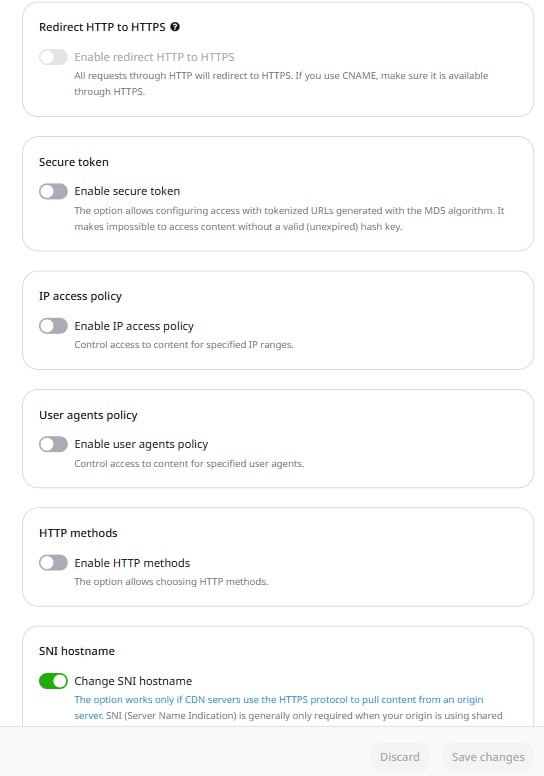 The **Enable redirect HTTP to HTTPS** toggle stays disabled until HTTPS is on and a certificate is present. Saving the option while HTTPS is off returns:
```
You cannot enable redirect HTTP to HTTPS when HTTPS is disabled. Please enable HTTPS and add SSL certificate first.
```
The **Enable redirect HTTP to HTTPS** toggle stays disabled until HTTPS is on and a certificate is present. Saving the option while HTTPS is off returns:
```
You cannot enable redirect HTTP to HTTPS when HTTPS is disabled. Please enable HTTPS and add SSL certificate first.
```