> ## Documentation Index
> Fetch the complete documentation index at: https://gcore-doc-1894.mintlify.site/llms.txt
> Use this file to discover all available pages before exploring further.
# Configuring HTTP status codes for CDN-hosted content
export const Caution = ({children}) => {
return ;
};
The **Set status code** option defines a custom HTTP status code for content hosted on a CDN resource. The code can be applied globally to all resource content or selectively to specific files via Rules. A schedule with an **Apply from** and **Until** time range lets the code activate only during certain hours.
A common use case is age-restricted content compliance — return a 403 error code or redirect users to a different page after 22:00, and configure the schedule to activate the code only during the restricted hours.
The option is available in two places:
* Via **Resource settings** — applies the custom code to all content on the CDN resource.
* Via **Rules** — applies the custom code only to files matching the rule pattern.
Select the appropriate tab below.
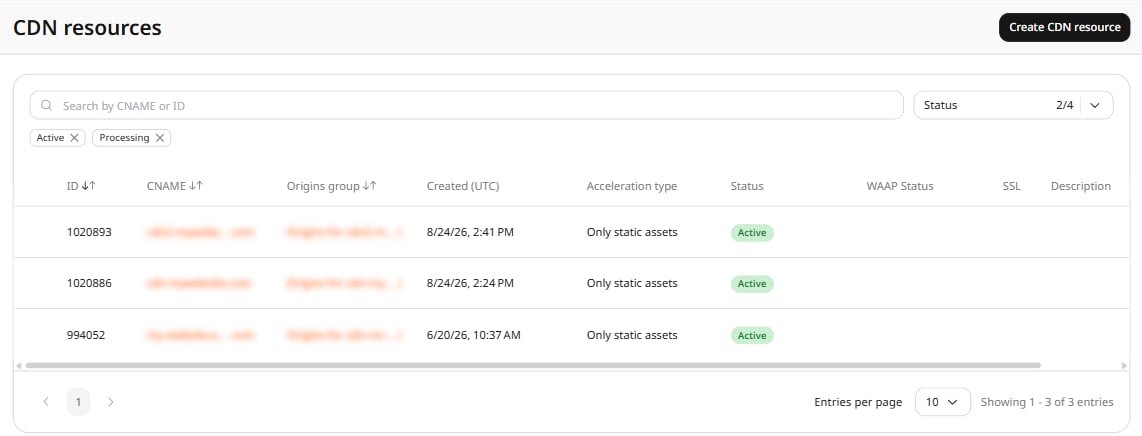
1. In the [Gcore Customer Portal](https://portal.gcore.com), navigate to **CDN** > **CDN resources**.
2. Click the CNAME of the required CDN resource to open **Resource settings**.
 3. Navigate to the **OPTIONS** tab.
4. In the left menu, click **Content** to scroll to the Content section.
5. Enable the **Set status code** toggle.
3. Navigate to the **OPTIONS** tab.
4. In the left menu, click **Content** to scroll to the Content section.
5. Enable the **Set status code** toggle.
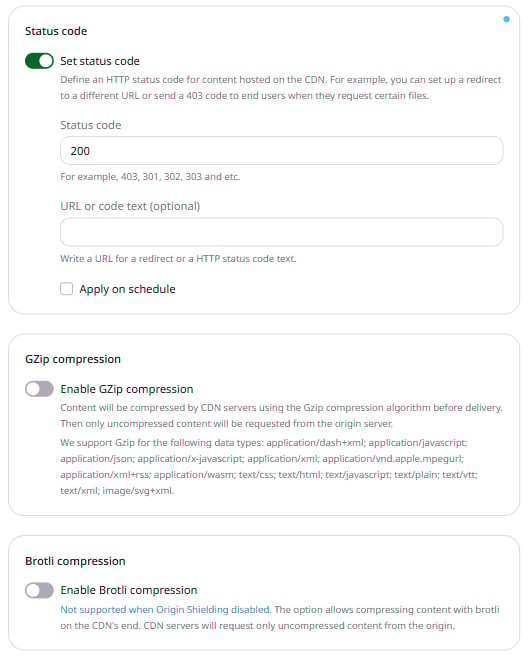 6. In the **Status code** field, enter the desired HTTP status code. The field defaults to **200**.
**Caution**
Codes 408, 444, 494, 495, 496, 497, and 499 are not accepted.
7. (Optional) In the **URL or code text** field, enter a redirect URL or an HTTP status code text.
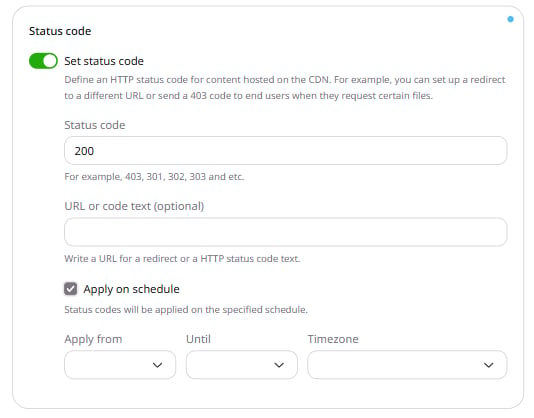
8. (Optional) Select **Apply on schedule**. In the expanded block, set **Apply from**, **Until**, and **Timezone** to define the time range when the custom status code is active.
9. Click **Save changes**.
6. In the **Status code** field, enter the desired HTTP status code. The field defaults to **200**.
**Caution**
Codes 408, 444, 494, 495, 496, 497, and 499 are not accepted.
7. (Optional) In the **URL or code text** field, enter a redirect URL or an HTTP status code text.
8. (Optional) Select **Apply on schedule**. In the expanded block, set **Apply from**, **Until**, and **Timezone** to define the time range when the custom status code is active.
9. Click **Save changes**.
 The custom code is now applied to all files delivered via the CDN resource.
1. In the [Gcore Customer Portal](https://portal.gcore.com), navigate to **CDN** > **CDN resources**.
2. Click the CNAME of the required CDN resource to open **Resource settings**.
3. Navigate to the **RULES** tab.
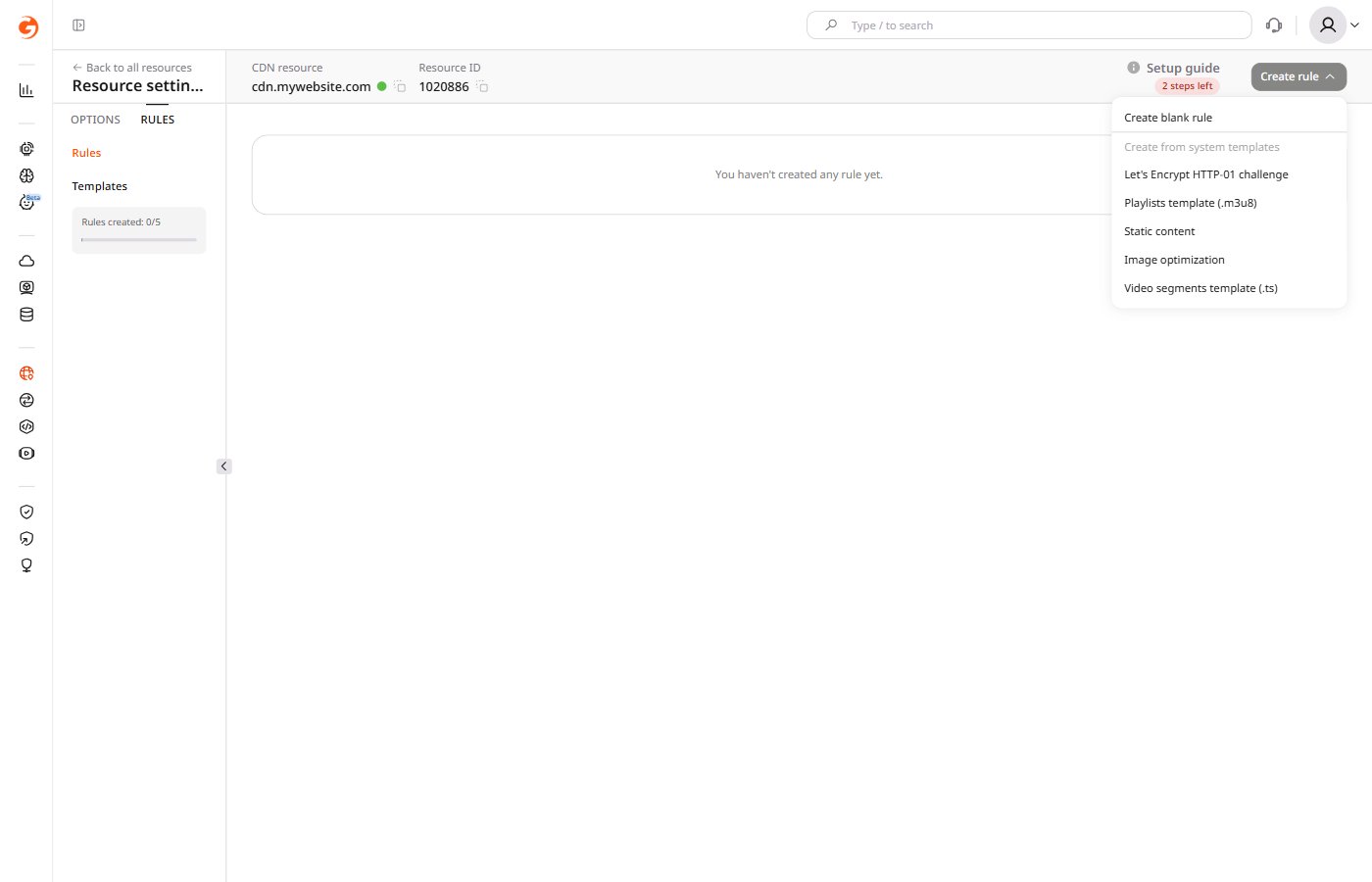
4. Click **Create rule**.
5. In the menu that opens, click **Create blank rule**.
The custom code is now applied to all files delivered via the CDN resource.
1. In the [Gcore Customer Portal](https://portal.gcore.com), navigate to **CDN** > **CDN resources**.
2. Click the CNAME of the required CDN resource to open **Resource settings**.
3. Navigate to the **RULES** tab.
4. Click **Create rule**.
5. In the menu that opens, click **Create blank rule**.
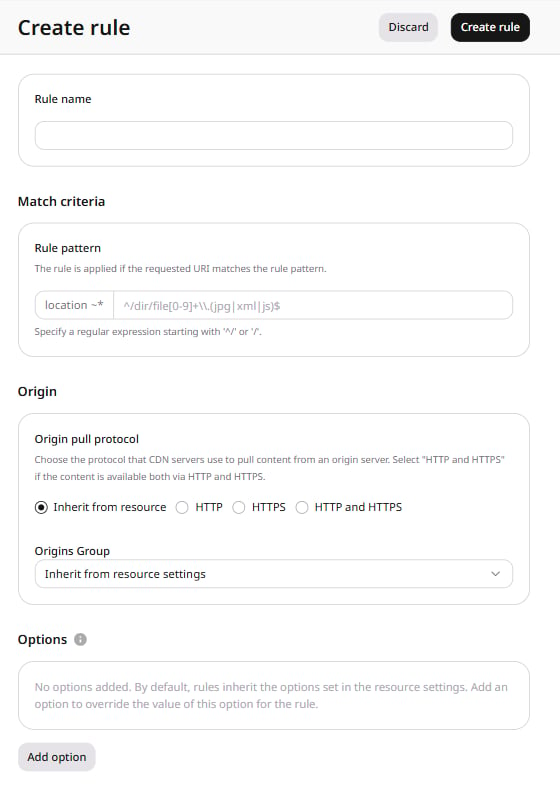
 On the page that opens, specify to which files the rule applies. Configure the other settings on the page. The guide on [creating rules](/cdn/cdn-resource-options/rules-for-particular-files/create-a-rule-manually-or-from-a-template-to-configure-settings-for-particular-files#create-a-rule-manually) explains the configuration options in depth.
6. At the end of the page, click **Add option**.
On the page that opens, specify to which files the rule applies. Configure the other settings on the page. The guide on [creating rules](/cdn/cdn-resource-options/rules-for-particular-files/create-a-rule-manually-or-from-a-template-to-configure-settings-for-particular-files#create-a-rule-manually) explains the configuration options in depth.
6. At the end of the page, click **Add option**.
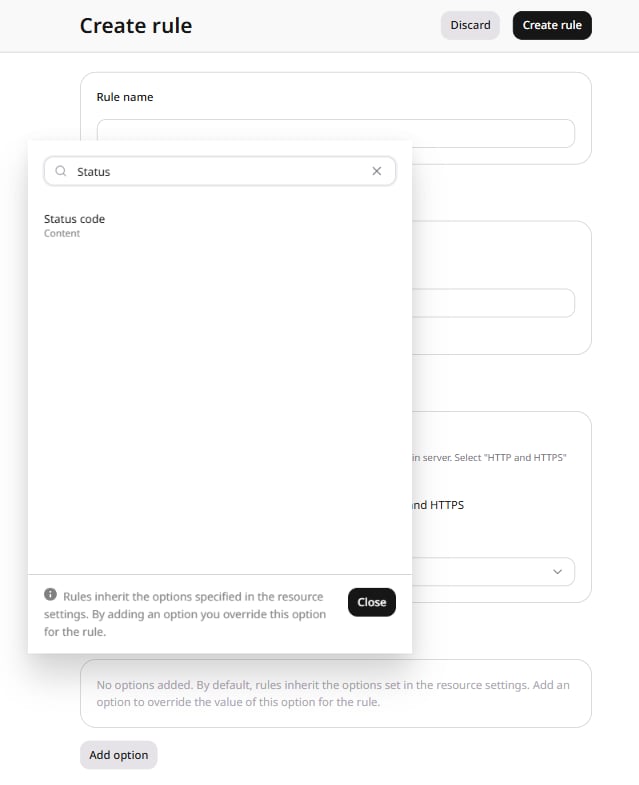
 7. Click **Status code** in the list to add the option to the rule.
8. Click **Close**.
7. Click **Status code** in the list to add the option to the rule.
8. Click **Close**.
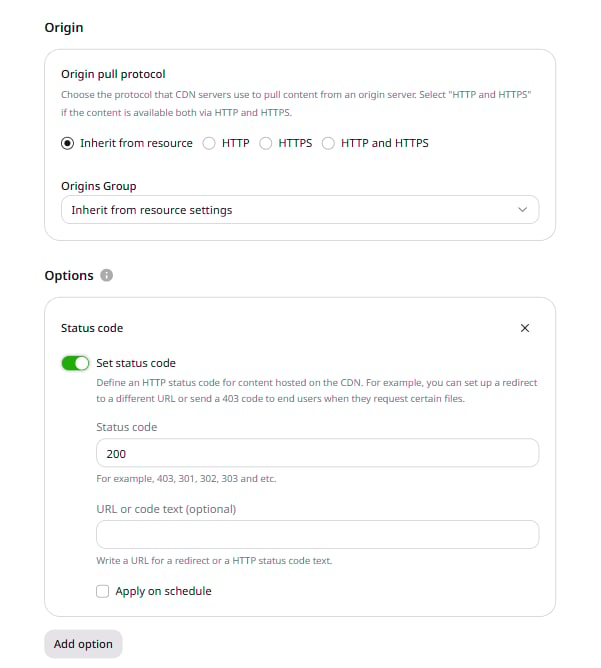
 9. Enable the **Set status code** toggle.
10. In the **Status code** field, enter the desired HTTP status code. The field defaults to **200**.
**Caution**
Codes 408, 444, 494, 495, 496, 497, and 499 are not accepted.
11. (Optional) In the **URL or code text** field, enter a redirect URL or an HTTP status code text.
12. (Optional) Select **Apply on schedule**. In the expanded block, set **Apply from**, **Until**, and **Timezone** to define the time range when the custom status code is active.
13. Click **Create rule**.
9. Enable the **Set status code** toggle.
10. In the **Status code** field, enter the desired HTTP status code. The field defaults to **200**.
**Caution**
Codes 408, 444, 494, 495, 496, 497, and 499 are not accepted.
11. (Optional) In the **URL or code text** field, enter a redirect URL or an HTTP status code text.
12. (Optional) Select **Apply on schedule**. In the expanded block, set **Apply from**, **Until**, and **Timezone** to define the time range when the custom status code is active.
13. Click **Create rule**.
 The rule with the custom status code is now applied to the specified files delivered via the CDN.