> ## Documentation Index
> Fetch the complete documentation index at: https://gcore-doc-1894.mintlify.site/llms.txt
> Use this file to discover all available pages before exploring further.
# Integrate a CDN resource with Cloudflare
Cloudflare can remain the DNS provider while Gcore delivers content through CDN. An existing Gcore CDN resource, its generated `*.gcdn.co` hostname, and access to the Cloudflare DNS zone are required.
Cloudflare can proxy eligible A, AAAA, and CNAME records individually. Set the CDN CNAME record to **DNS only** so requests resolve directly to Gcore instead of passing through the Cloudflare proxy first.
## CNAME record setup
Add the custom domain from the Gcore resource to the Cloudflare DNS zone.
In the Cloudflare dashboard:
1. Select the account.
2. Select the domain.
3. Navigate to **DNS** > **Records**.
Click **Add record** and configure the record:
1. Set **Type** to **CNAME**.
2. In **Name**, enter the CDN subdomain configured in Gcore — `cdn` for `cdn.example.com`.
3. In **Target**, enter the `*.gcdn.co` value shown in the CDN resource's **Setup guide**.
4. Set **Proxy status** to **DNS only**.
5. Click **Save**.
Confirm that the saved CNAME points to the `*.gcdn.co` value shown in the CDN resource's **Setup guide** and shows **DNS only**. Gcore uses this record to validate the [custom domain](/cdn/cdn-resource-options/general/create-and-set-a-custom-domain-for-the-content-delivery-via-cdn).
## Proxied origin settings
When Cloudflare only hosts DNS for the CDN CNAME, keep the existing Gcore origin settings. When Cloudflare also proxies the origin hostname, align the origin protocol, host header, and SNI hostname in the Customer Portal.
In the [Gcore Customer Portal](https://portal.gcore.com), navigate to **CDN** > **CDN resources** and click the resource CNAME.
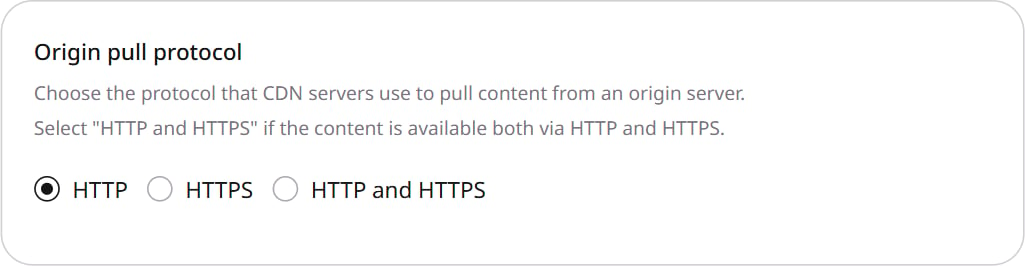
In **General** > **Origin pull protocol**, select a protocol accepted by the Cloudflare-proxied origin:
* **HTTP** sends unencrypted requests to the origin.
* **HTTPS** encrypts requests to the origin.
* **HTTP and HTTPS** supports pulls over both protocols when the origin accepts both.
 In **HTTP headers** > **Host header**, set **Change Host header** to the Cloudflare-proxied origin hostname — for example `example.com`. This is the hostname Cloudflare expects on origin requests. Host header options are in [Configure and check the host header](/cdn/cdn-resource-options/http-headers/configure-and-check-the-host-header).
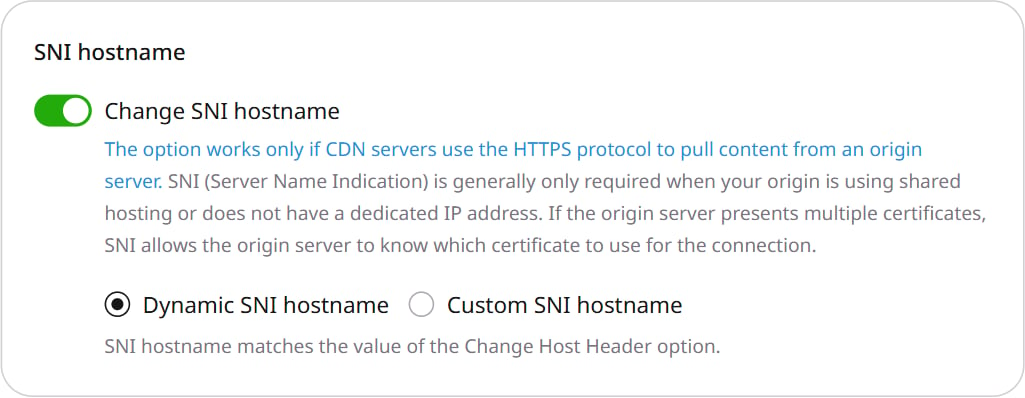
When using HTTPS, navigate to **Access** > **SNI hostname** and enable **Change SNI hostname**. Gcore connects to the Cloudflare-proxied hostname, and Cloudflare terminates TLS at the edge. The SNI hostname must therefore be covered by the certificate presented at the Cloudflare edge, not the certificate installed on the underlying origin.
* Select **Dynamic SNI hostname** when the **Change Host header** value already matches a hostname on the Cloudflare edge certificate.
* Select **Custom SNI hostname** to specify a different hostname covered by the Cloudflare edge certificate.
In **HTTP headers** > **Host header**, set **Change Host header** to the Cloudflare-proxied origin hostname — for example `example.com`. This is the hostname Cloudflare expects on origin requests. Host header options are in [Configure and check the host header](/cdn/cdn-resource-options/http-headers/configure-and-check-the-host-header).
When using HTTPS, navigate to **Access** > **SNI hostname** and enable **Change SNI hostname**. Gcore connects to the Cloudflare-proxied hostname, and Cloudflare terminates TLS at the edge. The SNI hostname must therefore be covered by the certificate presented at the Cloudflare edge, not the certificate installed on the underlying origin.
* Select **Dynamic SNI hostname** when the **Change Host header** value already matches a hostname on the Cloudflare edge certificate.
* Select **Custom SNI hostname** to specify a different hostname covered by the Cloudflare edge certificate.
 Click **Save changes**. [Purge](/cdn/clear-cdn-resource-cache-by-url-pattern-or-all) the test asset, then request it through the CDN domain so the request causes an origin pull. If the request returns a 502 response, verify that the origin accepts the selected protocol, that the Host header matches the hostname Cloudflare expects, and that the SNI hostname is covered by the Cloudflare edge certificate.