> ## Documentation Index
> Fetch the complete documentation index at: https://gcore-doc-1894.mintlify.site/llms.txt
> Use this file to discover all available pages before exploring further.
# Integrate a CDN resource with WordPress using WP Rocket
WP Rocket rewrites eligible static asset URLs in cached WordPress pages so Gcore CDN can retrieve and deliver the assets from edge locations. An active WP Rocket license and the plugin ZIP from the [WP Rocket account](https://wp-rocket.me/account/) are required.
Back up the WordPress files and database before installing or reconfiguring plugins.
Prepare a CDN hostname for WP Rocket:
1. Create a [CDN resource](/cdn/getting-started/create-a-cdn-resource/create-a-cdn-resource) with the WordPress site as its origin.
2. Configure an HTTPS [custom domain](/cdn/cdn-resource-options/general/create-and-set-a-custom-domain-for-the-content-delivery-via-cdn), `cdn.example.com`.
3. Confirm that the custom domain can retrieve a public static asset from the origin.
Use an HTTPS CDN domain when the WordPress site uses HTTPS to prevent mixed-content errors.
Sign in to the WP Rocket account and download the plugin ZIP. Keep the archive compressed for the WordPress upload.
In WordPress Admin:
1. Navigate to **Plugins** > **Add Plugin**.
2. Select **Upload Plugin** and select the WP Rocket ZIP.
3. Select **Install Now**.
4. Select **Activate Plugin**.
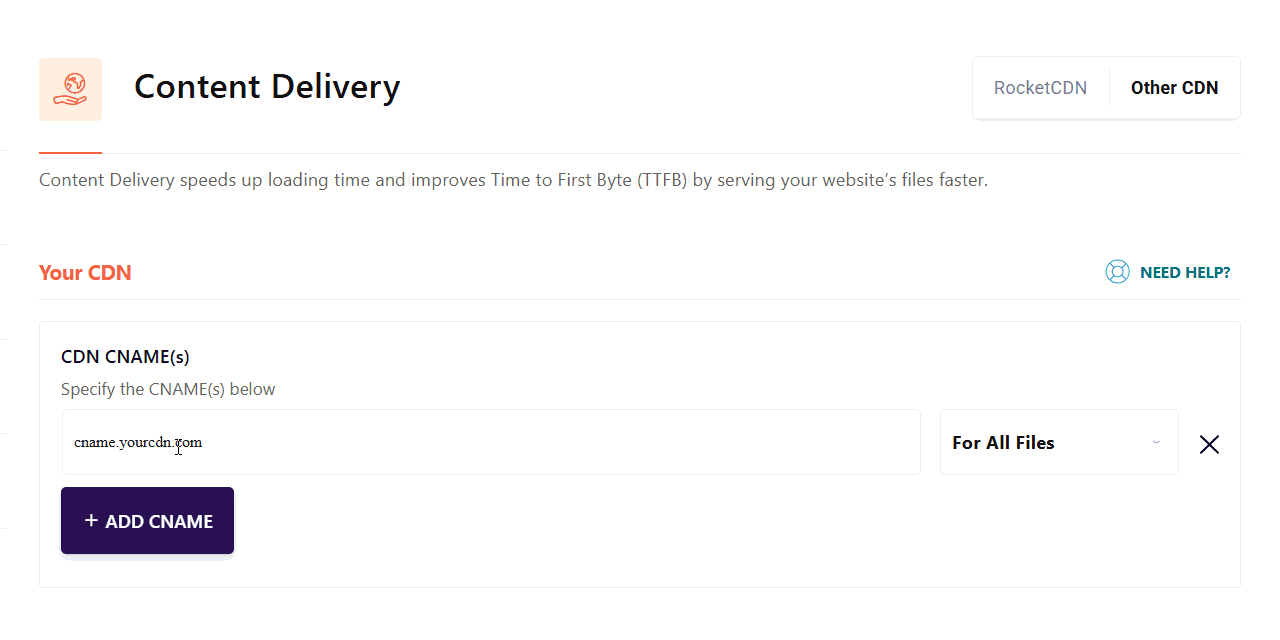
In WordPress Admin, navigate to **Settings** > **WP Rocket** > **Content Delivery** > **Other CDN**, then:
1. Select **ADD CNAME**.
2. In **CDN CNAME(S)**, enter the Gcore custom domain without a path — `cdn.example.com`.
3. Keep **For All Files** selected to rewrite supported images, CSS, and JavaScript files.
4. Select **SAVE CHANGES**.
 Verify the result on a cached page:
1. In WordPress Admin, navigate to **Settings** > **WP Rocket** > **Dashboard** and select **Clear and preload cache**. Alternatively, use the **WP Rocket** toolbar menu and select **Clear and preload cache**.
2. Open the WordPress site in a logged-out private browser window.
3. In browser developer tools, open **Network**, disable the browser cache, and reload the page.
4. Select a configured image, CSS file, or JavaScript file and confirm:
* The request URL uses `cdn.example.com`.
* The response has a successful HTTP status.
* A repeated request to a cacheable asset returns `HIT` in the `Cache` response header.
## URL rewriting logic
WP Rocket changes eligible asset URLs in cached HTML to the configured CDN hostname. Gcore CDN retrieves each matching asset from the WordPress origin when the asset is first requested.
Assets loaded through AJAX or inserted dynamically after the HTML is generated might retain the origin hostname. WP Rocket does not upload or remove origin files.
## Troubleshooting
* **Asset URLs keep the origin hostname:** Clear the WP Rocket cache and test while logged out. Confirm that the asset hostname matches the **Site Address** value in **Settings** > **General**, including the `www` variant.
* **Only some assets use CDN:** Confirm that **For All Files** is selected. Assets loaded through AJAX or inserted dynamically might require application-level changes.
* **The browser reports mixed content:** Use HTTPS for the WordPress site and the Gcore CDN domain.
* **Fonts fail to load:** Font files require an `Access-Control-Allow-Origin` response header that permits the WordPress site's origin or `*`. WP Rocket automatically adds the required CORS rules to `.htaccess` on supported Apache installations. For NGINX, add the rules manually to the virtual host configuration. See [Resolving issues with CDN and fonts](https://docs.wp-rocket.me/article/24-resolving-issues-with-cdn-and-fonts-icons) in the WP Rocket knowledge base.
* **Updated assets remain stale:** Purge the affected Gcore CDN cache and clear the WP Rocket cache.
Verify the result on a cached page:
1. In WordPress Admin, navigate to **Settings** > **WP Rocket** > **Dashboard** and select **Clear and preload cache**. Alternatively, use the **WP Rocket** toolbar menu and select **Clear and preload cache**.
2. Open the WordPress site in a logged-out private browser window.
3. In browser developer tools, open **Network**, disable the browser cache, and reload the page.
4. Select a configured image, CSS file, or JavaScript file and confirm:
* The request URL uses `cdn.example.com`.
* The response has a successful HTTP status.
* A repeated request to a cacheable asset returns `HIT` in the `Cache` response header.
## URL rewriting logic
WP Rocket changes eligible asset URLs in cached HTML to the configured CDN hostname. Gcore CDN retrieves each matching asset from the WordPress origin when the asset is first requested.
Assets loaded through AJAX or inserted dynamically after the HTML is generated might retain the origin hostname. WP Rocket does not upload or remove origin files.
## Troubleshooting
* **Asset URLs keep the origin hostname:** Clear the WP Rocket cache and test while logged out. Confirm that the asset hostname matches the **Site Address** value in **Settings** > **General**, including the `www` variant.
* **Only some assets use CDN:** Confirm that **For All Files** is selected. Assets loaded through AJAX or inserted dynamically might require application-level changes.
* **The browser reports mixed content:** Use HTTPS for the WordPress site and the Gcore CDN domain.
* **Fonts fail to load:** Font files require an `Access-Control-Allow-Origin` response header that permits the WordPress site's origin or `*`. WP Rocket automatically adds the required CORS rules to `.htaccess` on supported Apache installations. For NGINX, add the rules manually to the virtual host configuration. See [Resolving issues with CDN and fonts](https://docs.wp-rocket.me/article/24-resolving-issues-with-cdn-and-fonts-icons) in the WP Rocket knowledge base.
* **Updated assets remain stale:** Purge the affected Gcore CDN cache and clear the WP Rocket cache.