> ## Documentation Index
> Fetch the complete documentation index at: https://gcore-doc-1894.mintlify.site/llms.txt
> Use this file to discover all available pages before exploring further.
# Integrate a CDN resource with WordPress using W3 Total Cache
W3 Total Cache is a WordPress plugin that rewrites static file URLs so browsers request those files from a Gcore CDN custom domain instead of the origin. A [CDN resource](/cdn/getting-started/create-a-cdn-resource/create-a-cdn-resource) must exist first, and the [custom domain](/cdn/cdn-resource-options/general/create-and-set-a-custom-domain-for-the-content-delivery-via-cdn) must have a CNAME record pointing to the `*.gcdn.co` target shown in the CDN resource's **Setup guide**.
Back up the WordPress files and database before installing the plugin. These steps assume a default WordPress file layout. A heavily customized layout might not rewrite URLs correctly.
## W3 Total Cache plugin setup
W3 Total Cache adds a **Performance** menu to the WordPress admin sidebar after it is activated.
Log in to WordPress admin (`example.com/wp-admin`) and navigate to **Plugins** > **Add Plugin**.
In **Search Plugins**, enter `W3 Total Cache`. On the W3 Total Cache card by BoldGrid, click **Install Now**, then **Activate**.
If the **Setup Guide** wizard opens, click **SKIP** to reach the settings pages.
## W3 Total Cache CDN settings
Generic Mirror is the W3 Total Cache type that rewrites hostnames in HTML without pushing files to a storage API. That is the type to use with Gcore CDN.
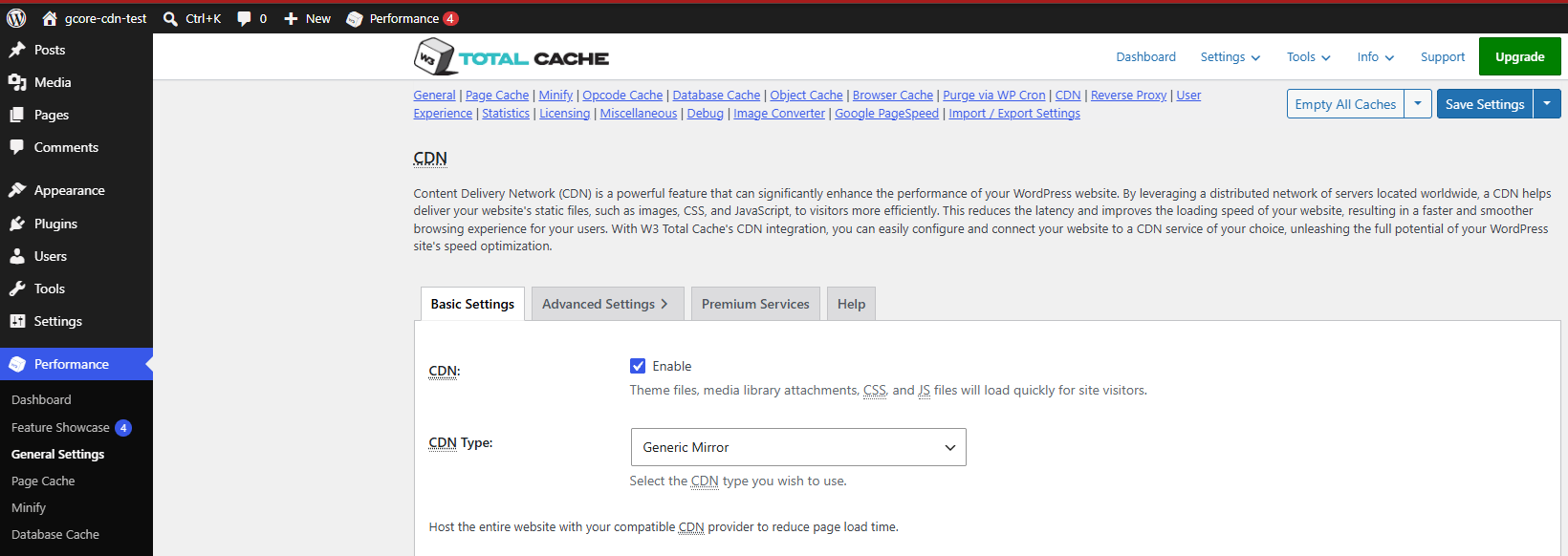
Navigate to **Performance** > **General Settings** and scroll to the **CDN** section.
1. Select **Enable**.
2. In **CDN Type**, select **Generic Mirror**.
3. Click **Save Settings**.
 A notice appears because the hostname field is still empty: *A configuration issue prevents CDN from working: The "Replace default hostname with" field cannot be empty.* Click **Specify it here**, or navigate to **Performance** > **CDN**.
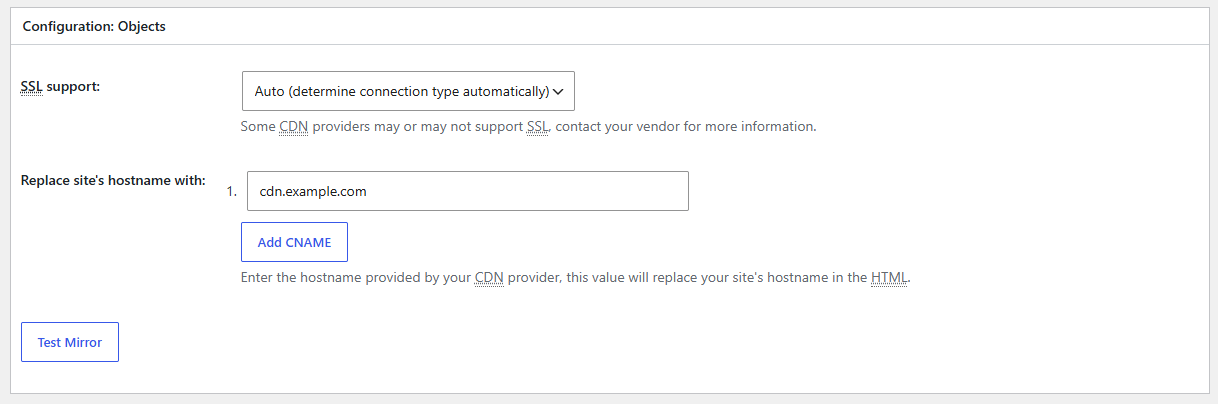
 In **Replace site's hostname with**, enter the custom domain from the [Gcore Customer Portal](https://portal.gcore.com) (**CDN** > **CDN resources**). Use the custom domain (`cdn.example.com`), not the `gcdn.co` hostname. Click **Save Settings & Purge Caches** to save and clear cached HTML so pages are regenerated with the CDN hostname. If only **Save Settings** is available, navigate to **Performance** > **Purge All Caches** separately.
 Open the site in a logged-out private browser window. In browser developer tools, open **Network**, disable the browser cache, and reload the page. Static files should request the custom domain instead of the origin hostname. Select a cached asset and confirm that a repeated request returns `HIT` in the `Cache` response header.