> ## Documentation Index
> Fetch the complete documentation index at: https://gcore-doc-1894.mintlify.site/llms.txt
> Use this file to discover all available pages before exploring further.
# Add users to a project
Only users with the Client Administrator or Project Administrator role can invite new users to a project. To send an invitation:
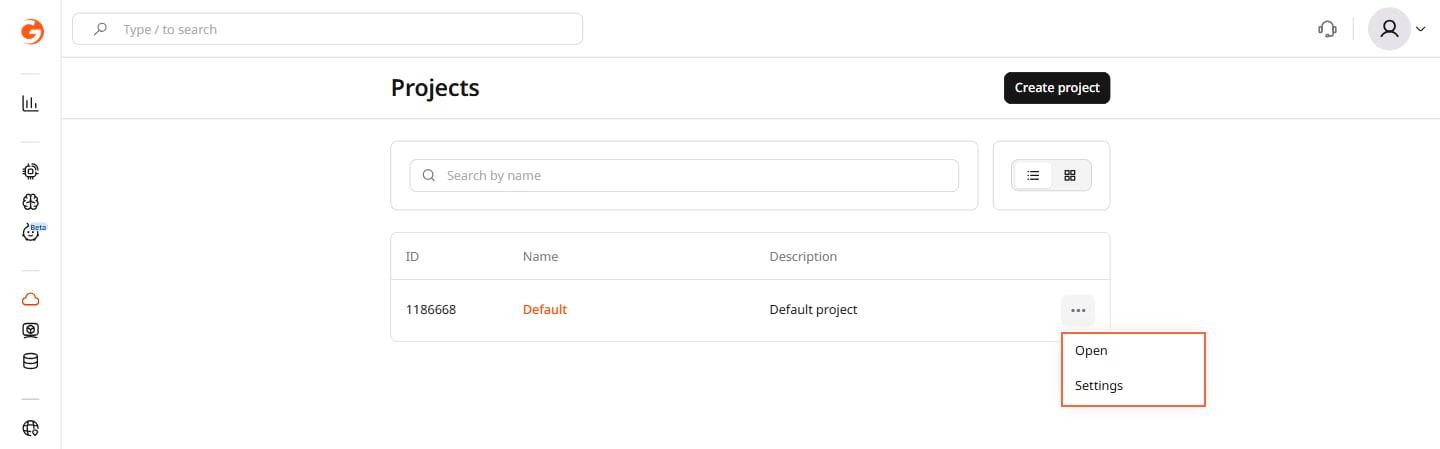
1. In the Gcore Customer Portal, navigate to the [Projects](https://portal.gcore.com/cloud/projects/list) section, click the three-dots menu next to the project, and select **Settings**.
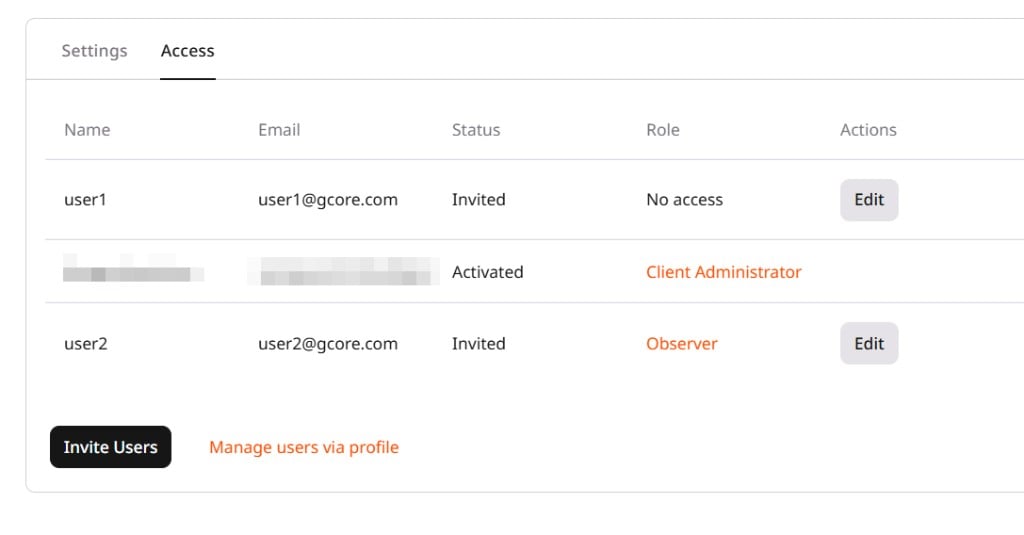
 2. Open the **Access** tab.
3. Click **Invite Users**.
2. Open the **Access** tab.
3. Click **Invite Users**.
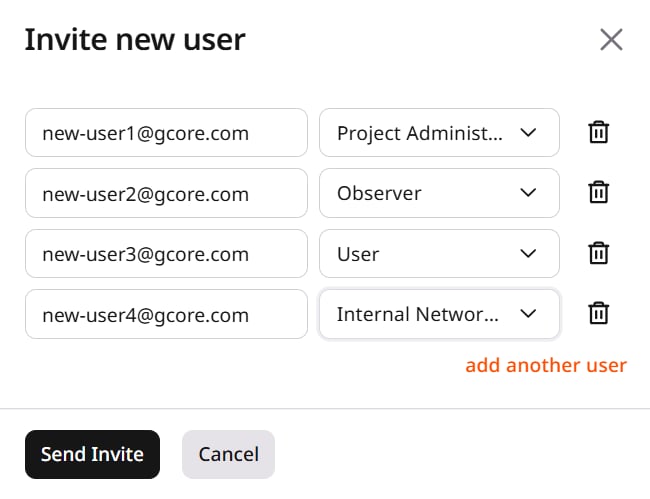
 4. Enter the email address, select a role, and click **Send Invite**. To invite multiple users, click **add another user** and repeat for each. Both existing and new users can be invited.
 * If the user is not registered, Gcore sends an email with a link to create a password. After creating a password, the user can log in.
* If the user already has a Gcore account, Gcore sends a notification about the newly granted project access. After accepting the invitation, the user can select the project when signing in.
* If the user is not registered, Gcore sends an email with a link to create a password. After creating a password, the user can log in.
* If the user already has a Gcore account, Gcore sends a notification about the newly granted project access. After accepting the invitation, the user can select the project when signing in.