> ## Documentation Index
> Fetch the complete documentation index at: https://gcore-doc-1894.mintlify.site/llms.txt
> Use this file to discover all available pages before exploring further.
# Getting started with Managed DNS
To use Managed DNS, create a DNS zone for a domain or subdomain in the [Gcore Customer Portal](https://portal.gcore.com) and point the domain to Gcore's nameservers. The zone can then serve DNS queries through Gcore's global network.
## Create DNS zones
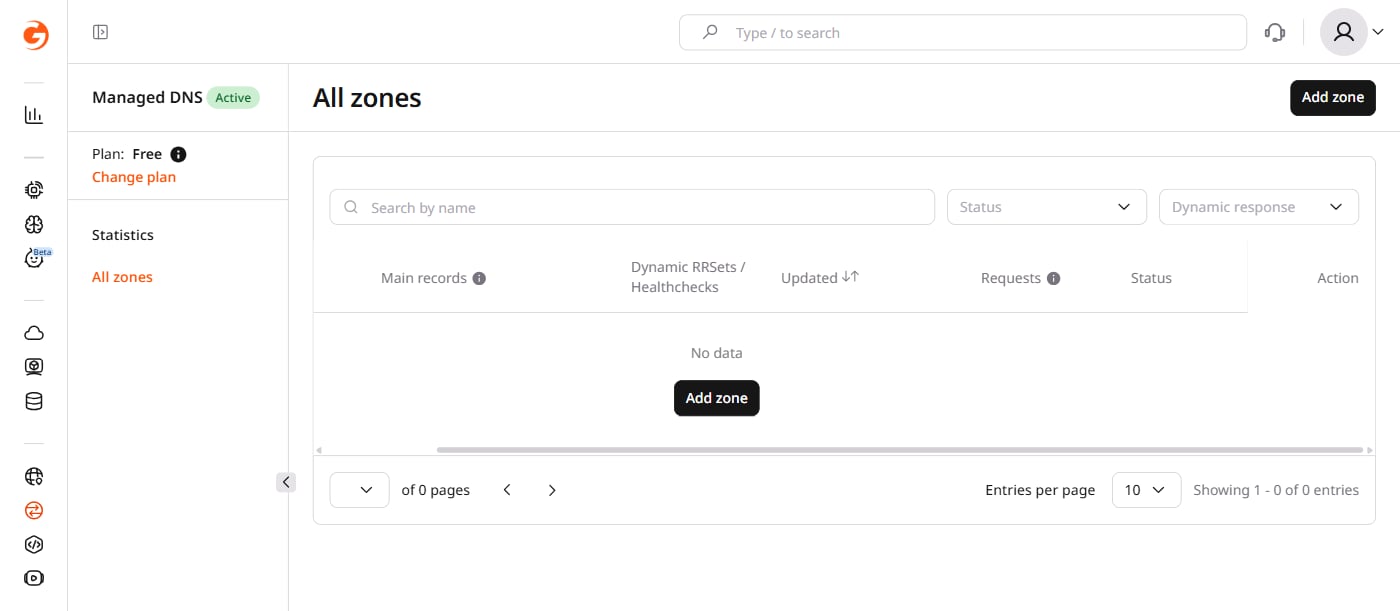
Navigate to the [DNS](https://portal.gcore.com/dns/zones) section of the Customer Portal, then follow these steps:
Click **Add zone**.
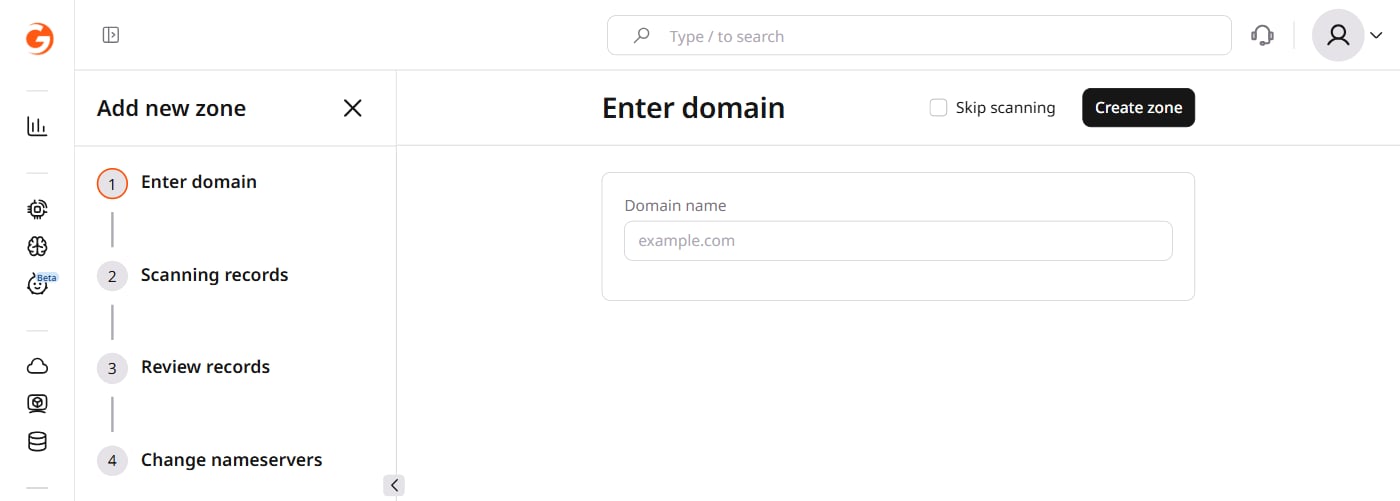
 Enter a domain or subdomain name in the **Domain name** field and click **Create zone**.
Check **Skip scanning** to skip automatic record detection and proceed directly to the nameserver step.
Enter a domain or subdomain name in the **Domain name** field and click **Create zone**.
Check **Skip scanning** to skip automatic record detection and proceed directly to the nameserver step.
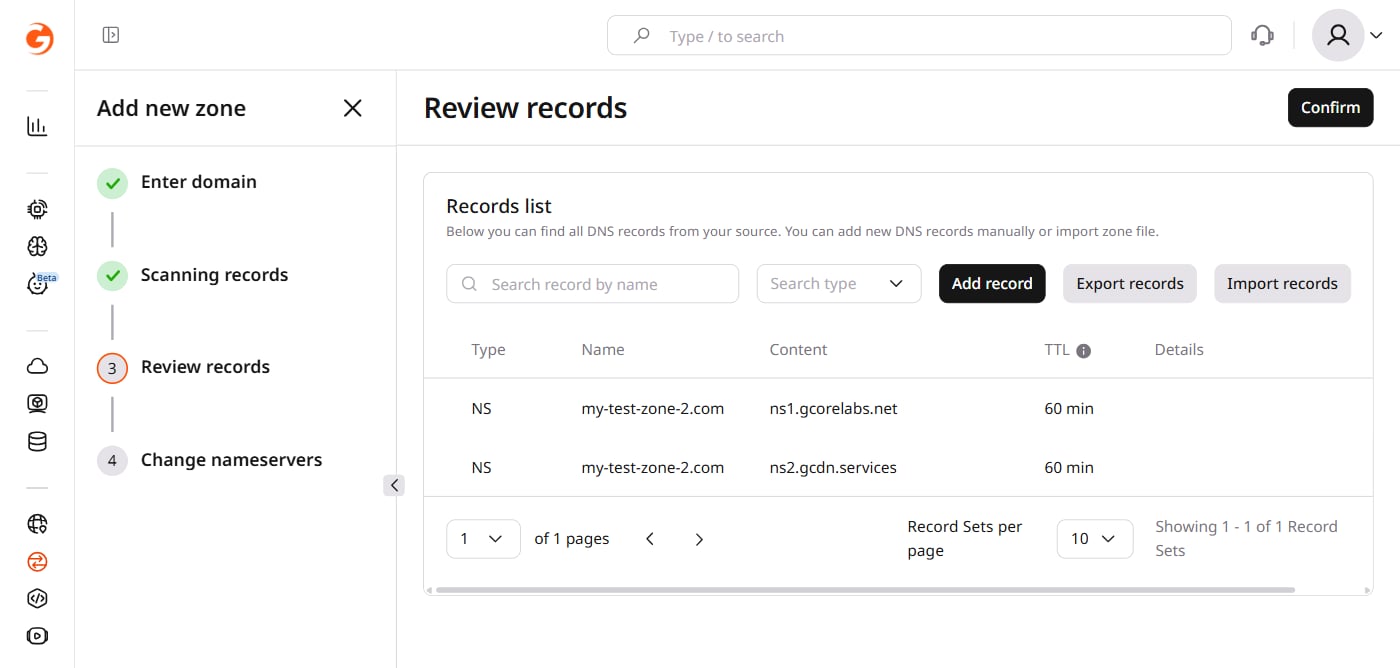
 The portal scans existing DNS records automatically and opens the **Review records** page. Review, edit, or delete records as needed, then click **Confirm**.
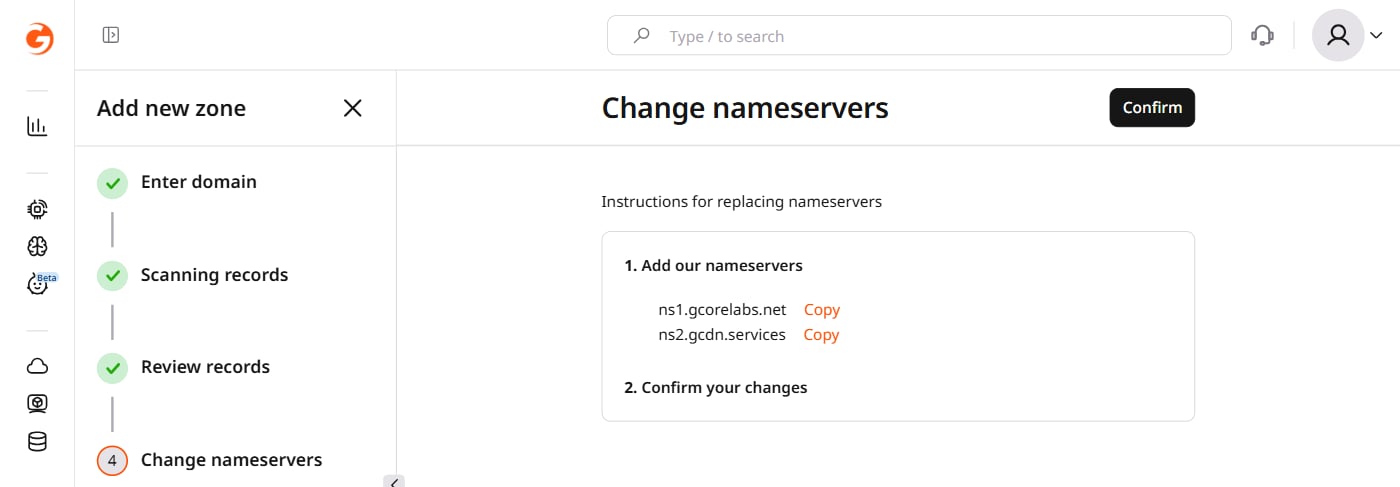
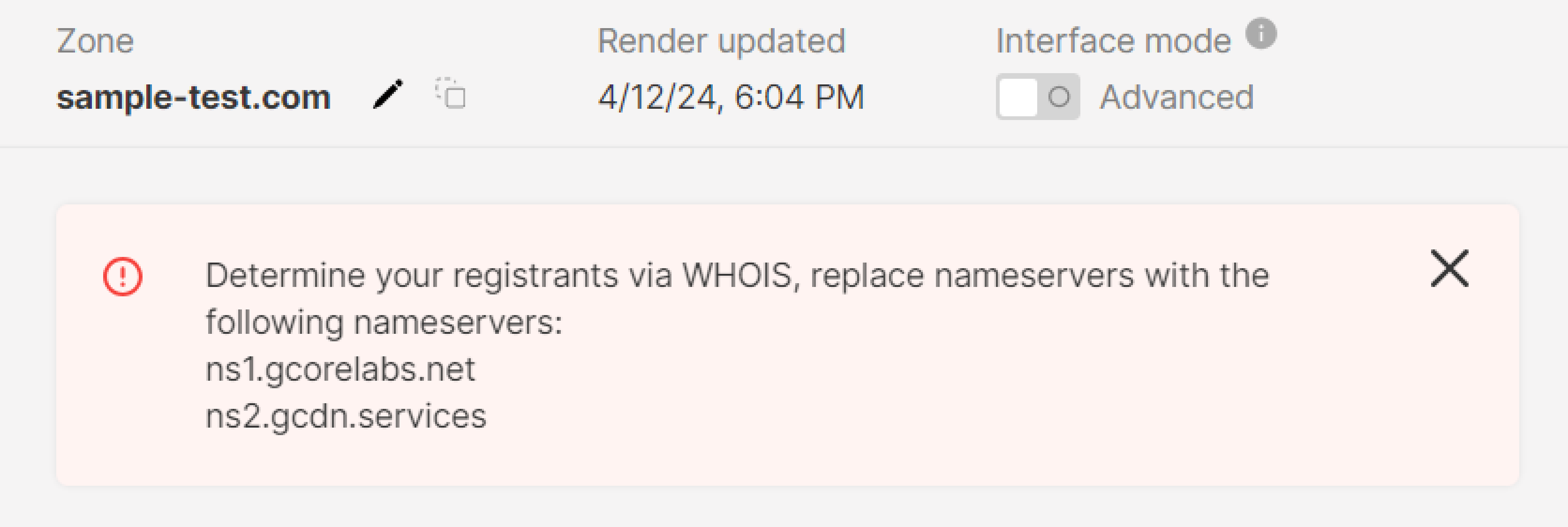
 In the domain's DNS registrar or hosting panel, replace the current NS records with `ns1.gcorelabs.net` and `ns2.gcdn.services`, then return to the portal and click **Confirm**.
 The zone is now active. Records and settings are available in the Customer Portal.
NS record changes may remain active for up to 24 hours while DNS caches update across the internet.
The zone is now active. Records and settings are available in the Customer Portal.
NS record changes may remain active for up to 24 hours while DNS caches update across the internet.
 ## Manage DNS zones
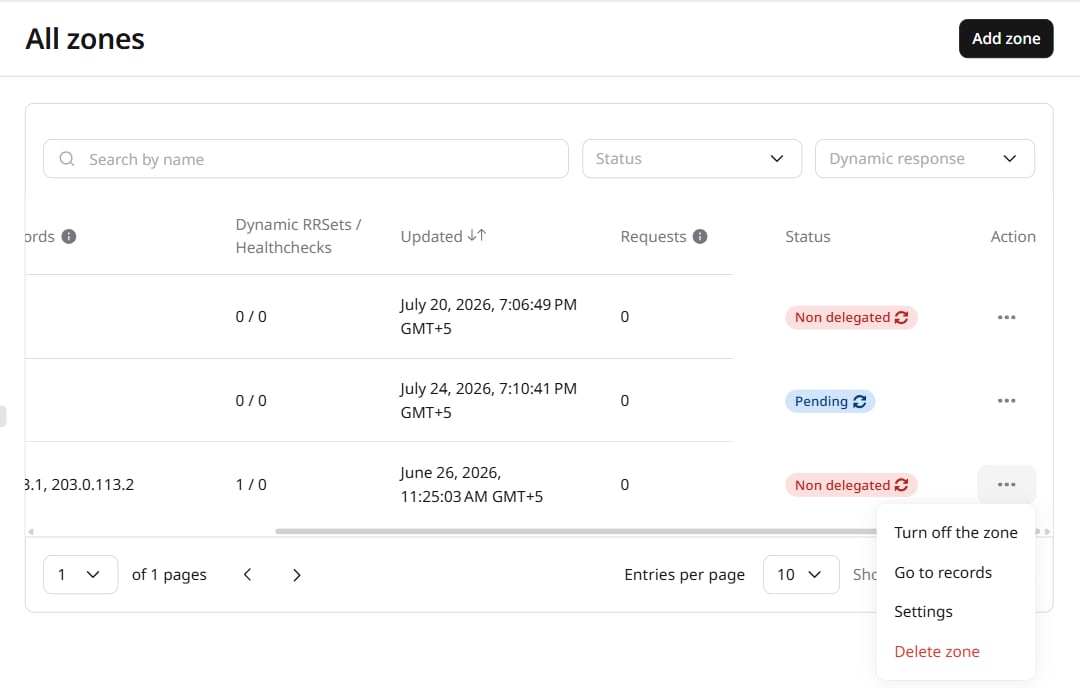
DNS zones are managed in the [All zones](https://portal.gcore.com/dns/zones) section. In the row of the desired zone, click the three-dot icon and select an action:
* **Turn off the zone.** Disables a zone. The zone continues to appear, but the records added in the Customer Portal are not active.
* **Go to records.** Create, edit, and delete records.
* **Settings.** Edit the TTL of the records in the zone.
* **Delete zone.** Delete the zone.
## Manage DNS zones
DNS zones are managed in the [All zones](https://portal.gcore.com/dns/zones) section. In the row of the desired zone, click the three-dot icon and select an action:
* **Turn off the zone.** Disables a zone. The zone continues to appear, but the records added in the Customer Portal are not active.
* **Go to records.** Create, edit, and delete records.
* **Settings.** Edit the TTL of the records in the zone.
* **Delete zone.** Delete the zone.
 ## Zone delegation status
Check whether a DNS zone is active and correctly delegated to Gcore.
The **All zones** section of the Customer Portal shows a status indicator next to each zone. This reflects the zone's operational state in Gcore: a zone that has been turned off does not serve records until re-enabled, regardless of how NS records are configured at the registrar.
To confirm that NS records at the registrar point to Gcore nameservers, use the [Delegation status](/api-reference/dns/analyze/check-delegation-status) endpoint:
```bash theme={null}
curl -s "https://api.gcore.com/dns/v2/analyze/{name}/delegation-status" \
-H "Authorization: APIKey $GCORE_API_KEY"
```
The response includes the following fields:
```json theme={null}
{
"zone_exists": true,
"gcore_authorized_count": 2,
"non_gcore_authorized_count": 0,
"is_whitelabel_delegation": false,
"authoritative_name_servers": [
{ "name": "ns1.gcorelabs.net", "ipv4Addresses": ["..."] },
{ "name": "ns2.gcdn.services", "ipv4Addresses": ["..."] }
]
}
```
* `gcore_authorized_count`: number of Gcore nameservers currently authoritative for the zone. A value of `0` means NS records at the registrar have not been updated to point to Gcore, or propagation is still in progress (up to 24 hours).
* `is_whitelabel_delegation`: `true` when the zone is served through white-label nameservers on an Enterprise plan instead of the default `ns1.gcorelabs.net` and `ns2.gcdn.services`.
## Zone delegation status
Check whether a DNS zone is active and correctly delegated to Gcore.
The **All zones** section of the Customer Portal shows a status indicator next to each zone. This reflects the zone's operational state in Gcore: a zone that has been turned off does not serve records until re-enabled, regardless of how NS records are configured at the registrar.
To confirm that NS records at the registrar point to Gcore nameservers, use the [Delegation status](/api-reference/dns/analyze/check-delegation-status) endpoint:
```bash theme={null}
curl -s "https://api.gcore.com/dns/v2/analyze/{name}/delegation-status" \
-H "Authorization: APIKey $GCORE_API_KEY"
```
The response includes the following fields:
```json theme={null}
{
"zone_exists": true,
"gcore_authorized_count": 2,
"non_gcore_authorized_count": 0,
"is_whitelabel_delegation": false,
"authoritative_name_servers": [
{ "name": "ns1.gcorelabs.net", "ipv4Addresses": ["..."] },
{ "name": "ns2.gcdn.services", "ipv4Addresses": ["..."] }
]
}
```
* `gcore_authorized_count`: number of Gcore nameservers currently authoritative for the zone. A value of `0` means NS records at the registrar have not been updated to point to Gcore, or propagation is still in progress (up to 24 hours).
* `is_whitelabel_delegation`: `true` when the zone is served through white-label nameservers on an Enterprise plan instead of the default `ns1.gcorelabs.net` and `ns2.gcdn.services`.