

website-example.com/image.png) and CDN custom domains (e.g., cdn.website-example.com/image.png). Search engines treat the same content at two different URLs as duplicate content, which degrades the site’s search ranking.
To prevent this, create a CDN rule that matches the /robots.txt path and returns a Disallow: / directive. Web crawlers checking /robots.txt on the CDN domain receive the disallow response and stop indexing it. All other CDN URLs continue to serve content normally.
Block CDN domain indexing
1. In the Gcore Customer Portal, navigate to CDN → CDN resources and click the CNAME of the resource.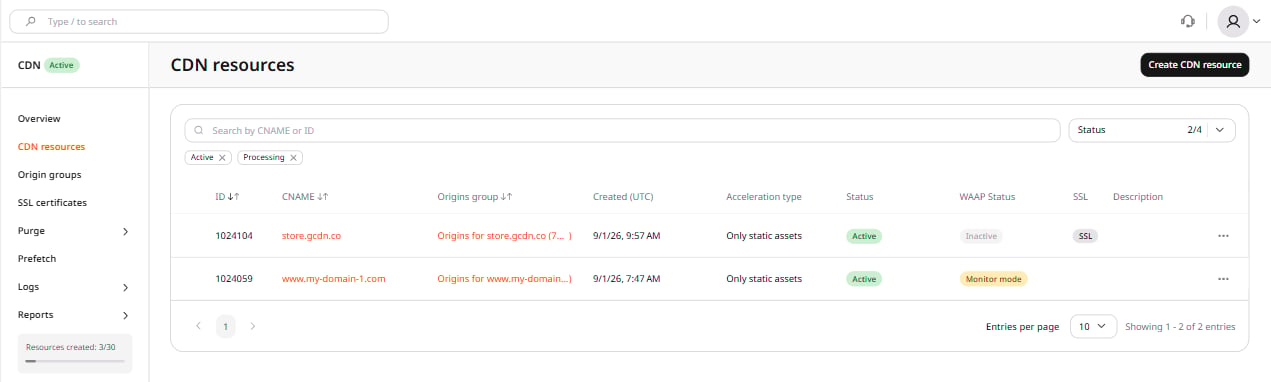
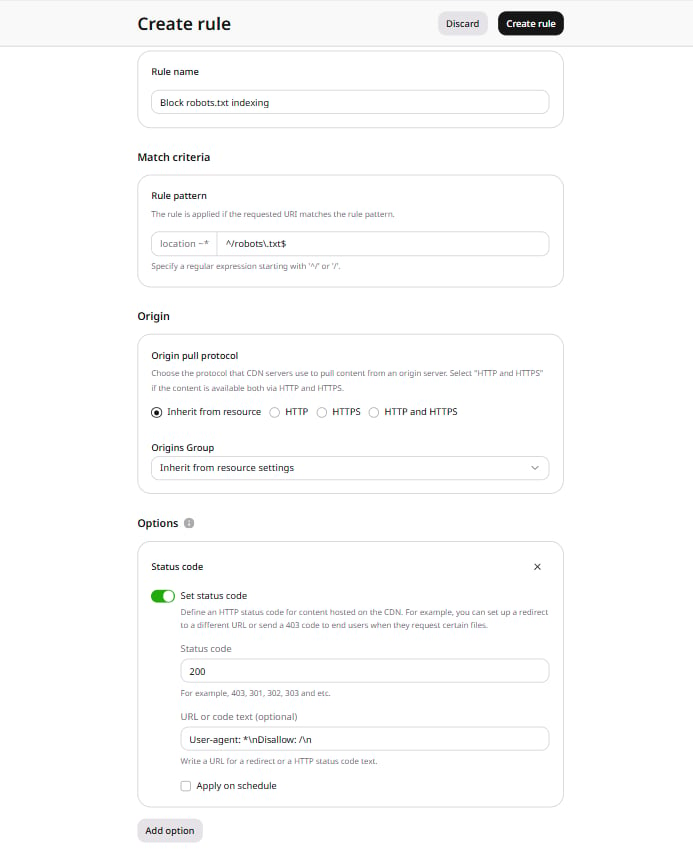
Block robots.txt indexing.
4. In the Rule pattern field, enter ^/robots\.txt$.
5. Click Add option. In the panel that opens, under Content, click Add next to Status code, then close the panel.
6. In the Status code section, enable the Set status code option.
7. In the Status code field, enter 200.
8. In the URL or code text (optional) field, enter:
/robots.txt from the CDN domain receive a Disallow: / directive and stop indexing it. All other URLs on the CDN domain continue to serve content as configured.
This configuration applies only to the
/robots.txt path on the CDN custom domain and does not affect the origin website or other CDN URLs.