

1
Prepare the CDN resource
Create a CDN resource with the WordPress site as its origin. Add an HTTPS custom domain,
cdn.example.com, and confirm that this domain can retrieve public static assets from the origin.Use the same protocol as the WordPress site. An HTTPS site requires an HTTPS CDN domain to prevent mixed-content errors.2
Install the Gcore CDN plugin
In WordPress Admin, navigate to Plugins > Add Plugin. Search for
Gcore CDN, then install and activate Gcore CDN by gcorewpress.The plugin is also available from the WordPress plugin directory.3
Enable CDN URL rewriting
Navigate to Gcore > CDN settings. On the General tab: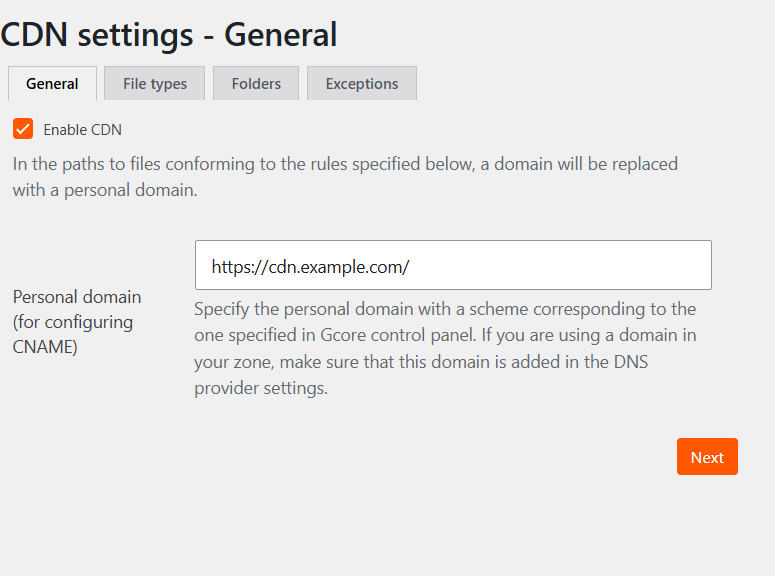
- Turn on Enable CDN.
- In Personal domain (for configuring CNAME), enter the complete CDN URL with its protocol and a trailing slash —
https://cdn.example.com/.
4
Select file types
Open the File types tab and select the categories to deliver through CDN: Type Images, Type Video, Type Audio, Type JS, Type CSS, or Type Archive.To define individual extensions instead, turn on Advanced property, enter an extension without a leading period — 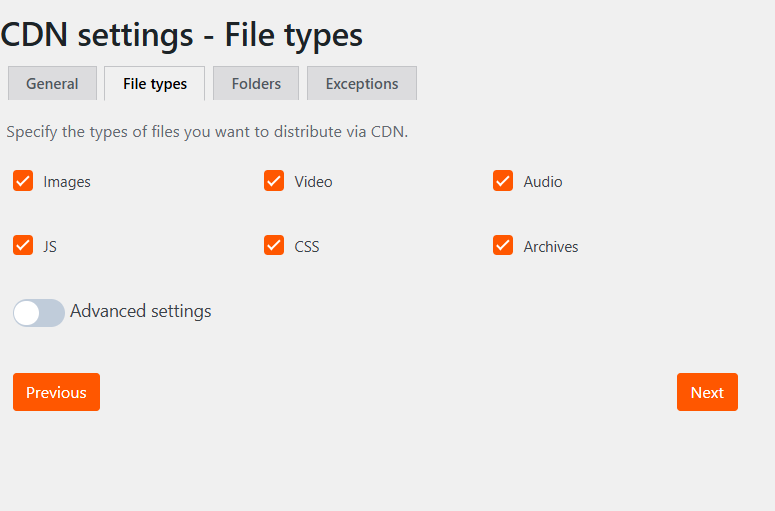
avif — and select Add. Advanced mode replaces the basic category selections.5
Select folders
Open the Folders tab and select the WordPress directories whose assets can use CDN: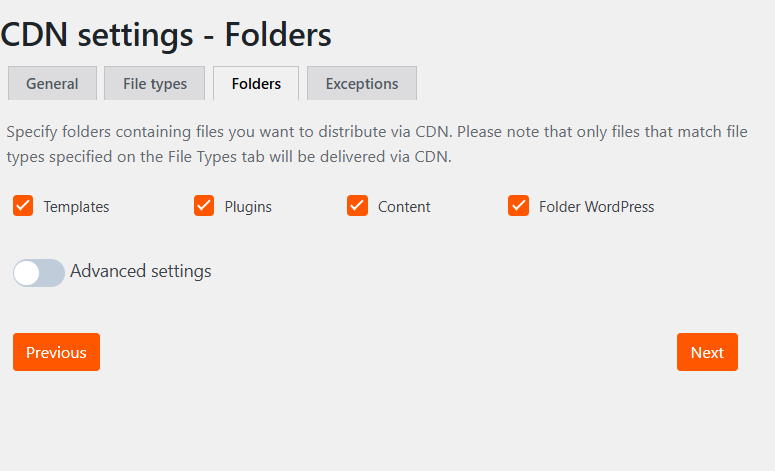
- Folder Templates maps to
/wp-content/themes/. - Folder Plugins maps to
/wp-content/plugins/. - Folder Content maps to
/wp-content/uploads/. - Folder WordPress maps to
/wp-includes/.
/assets/ — and select Add.A URL must match both a selected folder and a selected file type. If no folder is selected, assets from any folder can be rewritten when their file type matches.
6
Add URL exceptions
Open the Exceptions tab to keep specific files on the origin hostname. Enter each complete origin URL — 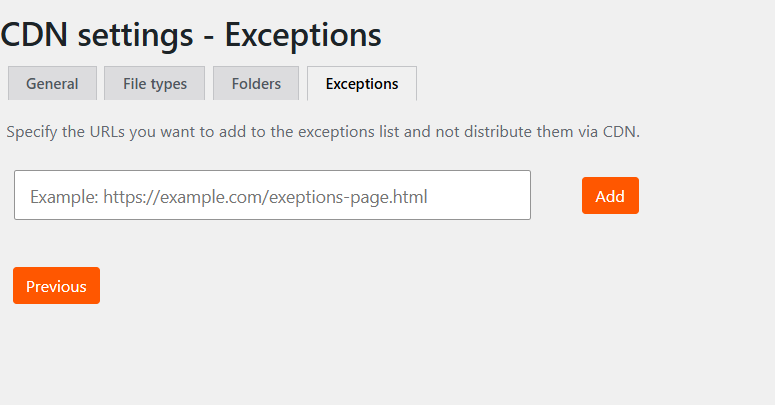
https://www.example.com/wp-content/uploads/private-image.jpg — and select Add.7
Verify CDN delivery
Clear any WordPress page cache, then open the site in a private browser window. Open the browser developer tools, select Network, select Disable cache, and reload the page.Select a configured static asset and confirm:
- The request URL uses the configured CDN hostname,
cdn.example.com. - The response has a successful HTTP status.
- A second request to a cacheable asset returns
HITin theCacheresponse header.
URL rewriting logic
The plugin changes an origin URL to the configured CDN domain only when all applicable conditions are met:- The URL in rendered output is an absolute URL with the same scheme and hostname as the WordPress Home URL. Relative URLs and protocol-relative URLs that begin with
//are not rewritten. - The complete URL is not in Exceptions.
- The path matches a selected folder, unless no folder is selected.
- The file extension matches a selected file type.
Troubleshooting
When rewritten assets fail to load from the CDN hostname, the cause is usually a missing origin path, an origin connectivity error, a mixed-content or TLS failure, a CORS header that does not allow the WordPress origin, a Content Security Policy that omits the CDN hostname, a relative or protocol-relative URL that the plugin does not rewrite, a WordPress Home URL that includes a subdirectory, or a cache that still serves the previous URL.- If the CDN hostname does not appear, confirm that Enable CDN is on, then check the selected file type, folder, and exceptions. Clear WordPress page caches after changing plugin settings.
- If an asset URL stays on the origin hostname, confirm that the rendered HTML uses an absolute URL with the same scheme and hostname as the WordPress Home URL. Relative and protocol-relative URLs are not rewritten.
- If no URLs are rewritten and WordPress is installed in a subdirectory —
https://example.com/blog— the plugin cannot match the Home URL to the asset origin. It compares that complete Home URL with a parsed origin that contains only the scheme, hostname, and port. - For a
404response, confirm that the origin contains the requested path and that the CDN can retrieve it. - For a
502response, check the origin hostname, origin pull protocol, port, and host header in the CDN resource. - If the browser blocks mixed content, use HTTPS for both the WordPress site and the CDN domain.
- If fonts or scripts are blocked by CORS, inspect the browser console, and then add an
Access-Control-Allow-Originresponse header on the CDN asset that allows the WordPress origin —https://www.example.com. - If scripts, styles, or fonts are blocked by Content Security Policy, inspect the browser console, and then allow
cdn.example.comin the WordPress site’s applicable Content Security Policy directives. - If updated assets remain stale, purge CDN cache and clear any WordPress page cache.