

- Custom Host header — CDN servers send a fixed domain or IP address as the Host header on every origin request.
- Forward Host header — CDN servers forward the Host header received in the end-user request to the origin unchanged.
Configure the host header
When the origin source changes after resource creation, the Change Host header value does not update automatically. CDN servers continue using the old value, sending requests to the new origin with an incorrect Host header and returning errors to end users. To configure the option:- In the Gcore Customer Portal, navigate to CDN → CDN resources.
- Click the resource to open its settings.
- In the left panel, click HTTP headers to expand the section, then click Host header.
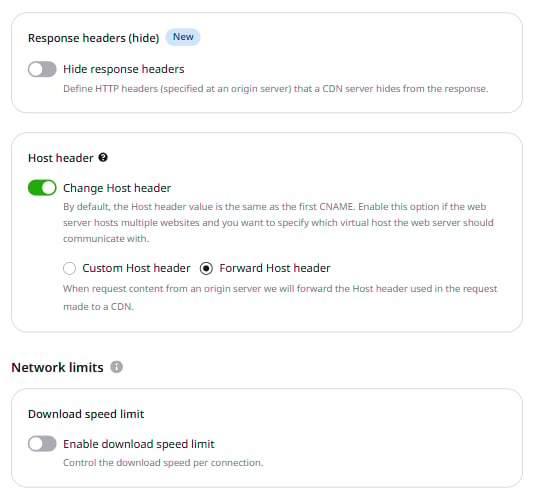
- Enable the Change Host header toggle.
-
Select one of the two modes:
- Custom Host header — enter the domain or IP address CDN servers will send as the Host header. Use this when the origin serves a single site with a fixed host name.
- Forward Host header — CDN servers forward the Host header from the end-user request. Use this when the origin validates the incoming Host header against the request domain.
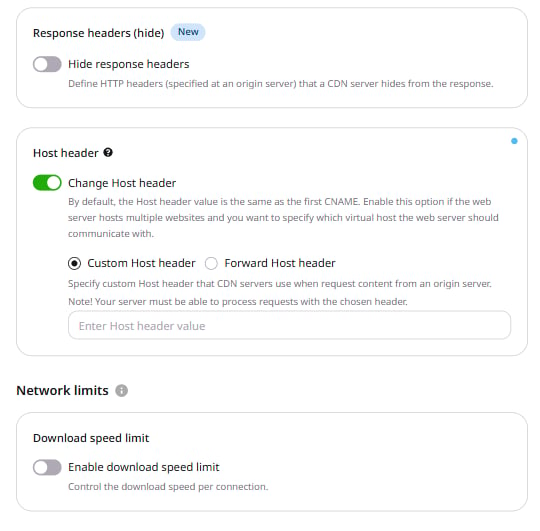
- Click Save changes.
Disable the host header
Disabling Change Host header causes CDN servers to send the CDN resource’s CNAME as the Host header. Most origin servers cannot process this value and return 4xx or 5xx errors to end users. The option must remain enabled in all standard configurations. When using a*.gvideo.io CDN resource for streaming, disabling the option sets the Host header to the CDN resource’s CNAME — this is the expected behavior for that use case.
Check whether the origin accepts the Host header
To check whether the origin accepts the Host header configured for the CDN resource, send a request directly to the origin with that value:example.com— the expected Host header valuehttps— the protocol used by the origin; replace withhttpif the origin does not use TLS10.0.0.1— the IP address of the origin serverfile.txt— any static file delivered via CDN
200 OK response with the expected Host value in the request output confirms the configuration is correct. If the request returns 400 Bad Request or 403 Forbidden, verify that the origin accepts the specified Host header. Correct the value following the steps in the Configure section above.