fmt query string to individual image URLs.
- PNG (1860 KB)
- JPG (169 KB)
- WebP (136 KB)
- AVIF (113 KB)




Enable compression
Compression is part of the paid Image Stack option, which also supports resizing, cropping, and quality adjustment. Before enabling compression, activate Image Stack — Enable Image Stack.Use compression
Two methods are available: the Gcore Customer Portal and query strings. The portal method applies compression to all images matching the rule’s URL pattern. The query string method applies compression per individual image URL.Use compression in the customer portal
1. Navigate to Rules in the CDN resource and open the Image optimization rule.
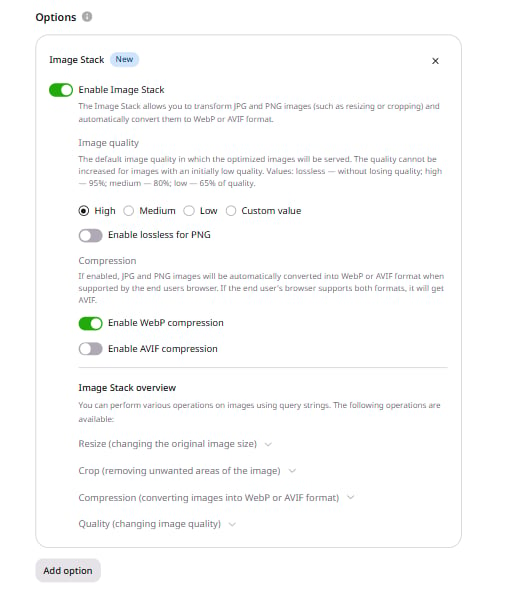
Use compression via query parameters
1. Open the website source code. 2. Find the URLs of the images to convert. 3. Add a query string to each image URL:value is one of:
webp— converts to WebP formatavif— converts to AVIF formatavif,webp— converts to WebP or AVIF based on browser support:image.jpg?fmt=avif,webp
Check HTTP headers
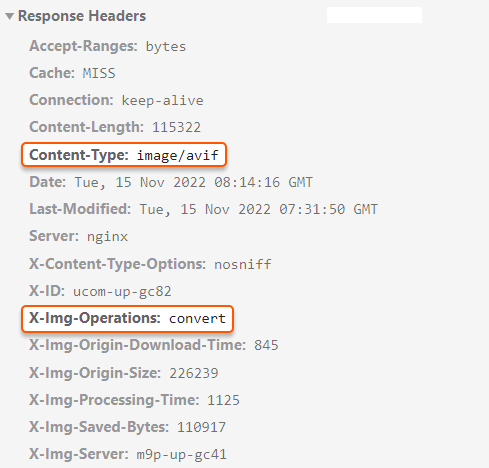
After converting, an image does not change its URL or extension. Use the HTTP response headers to verify the conversion. TheX-Img-Operations header reflects all the conversions performed. If the value includes convert, the image format has been converted.
The Content-Type header shows the compression format. The value image/webp or image/avif confirms the image is in the new format.
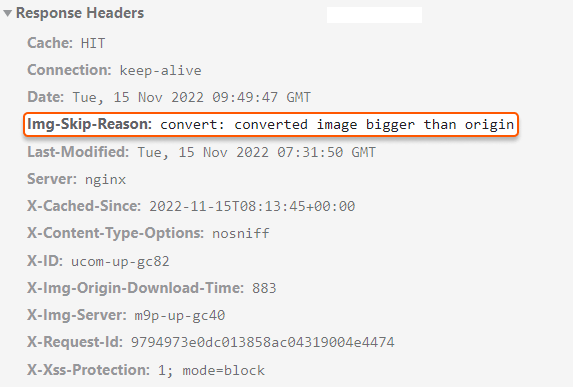
X-Img-Operations header contains no convert value and the CDN returns the image with original quality, inspect the Img-Skip-Reason HTTP header for the skip reason. The value converted image bigger than origin value means the configured quality exceeds the source image quality — lower the quality setting in Change image quality.