Files users have not requested within 36 hours will be removed from the CDN servers’ cache, regardless of the feature settings.
ETag header for previous and current versions do not match, CDN servers load a new version and cache it for the time specified in the feature. If the values match, the storage time of the file in the cache is extended for the specified time.
Configure CDN caching
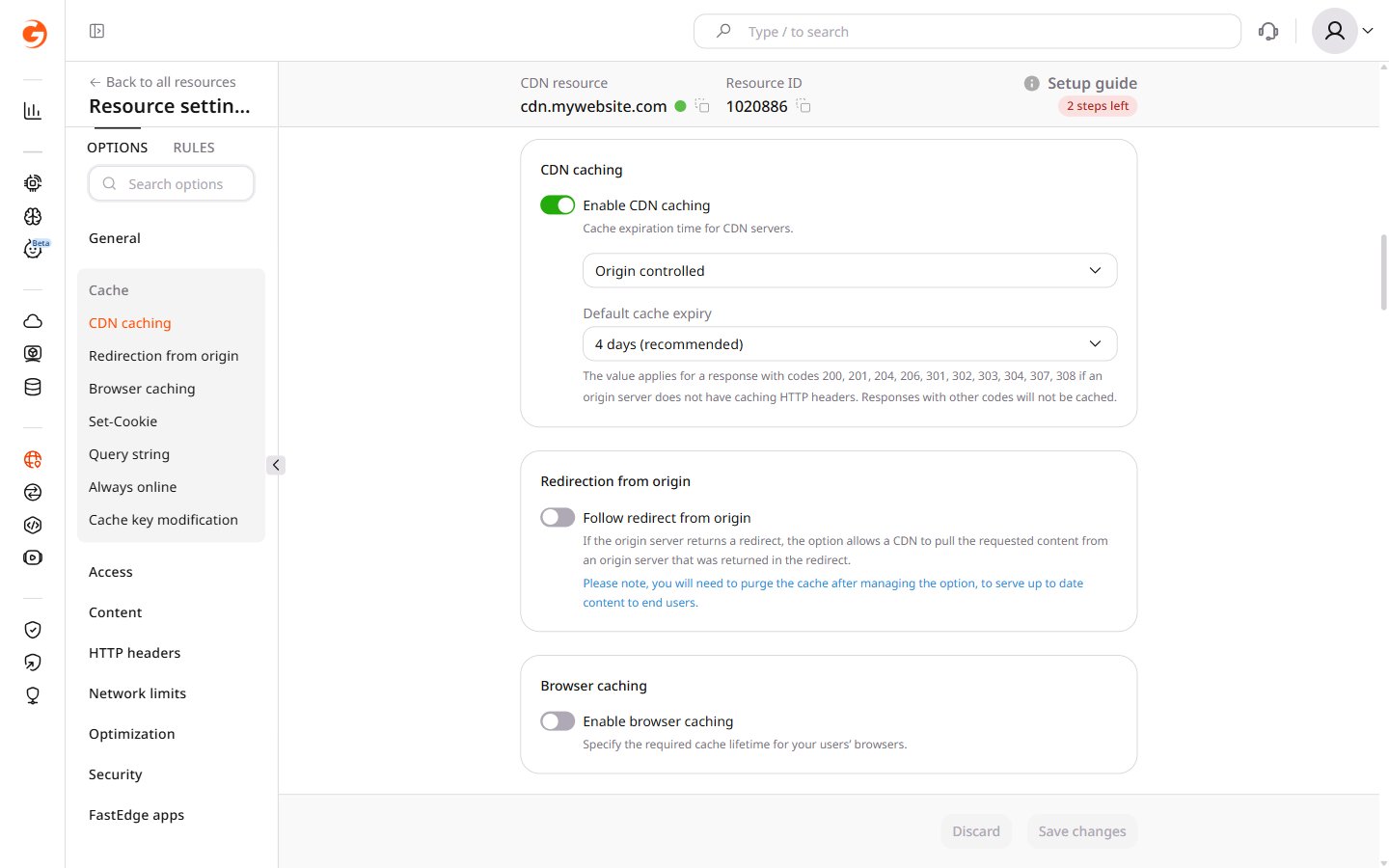
The CDN caching feature has two options: Origin controlled (enabled by default) and CDN controlled. Select one to set the caching time either in the origin server’s HTTPCache-Control header or in the CDN settings.
Origin controlled
Set theCache-Control header on the origin server, then configure the fallback cache expiry in the portal.
1. Depending on the web server (Apache or Nginx), add the Cache-Control header with the max-age and public parameters to the .htaccess (for Apache) or nginx.conf (for Nginx) file.
The following Apache configuration caches .gif and .ico files (the public parameter) for 4 days (max-age=345600 in seconds):
Cache-Control header is configured.
For Origin controlled mode, CDN servers cache responses with codes 200, 201, 204, 206, 301, 302, 303, 304, 307, and 308. Responses with other codes are not cached.
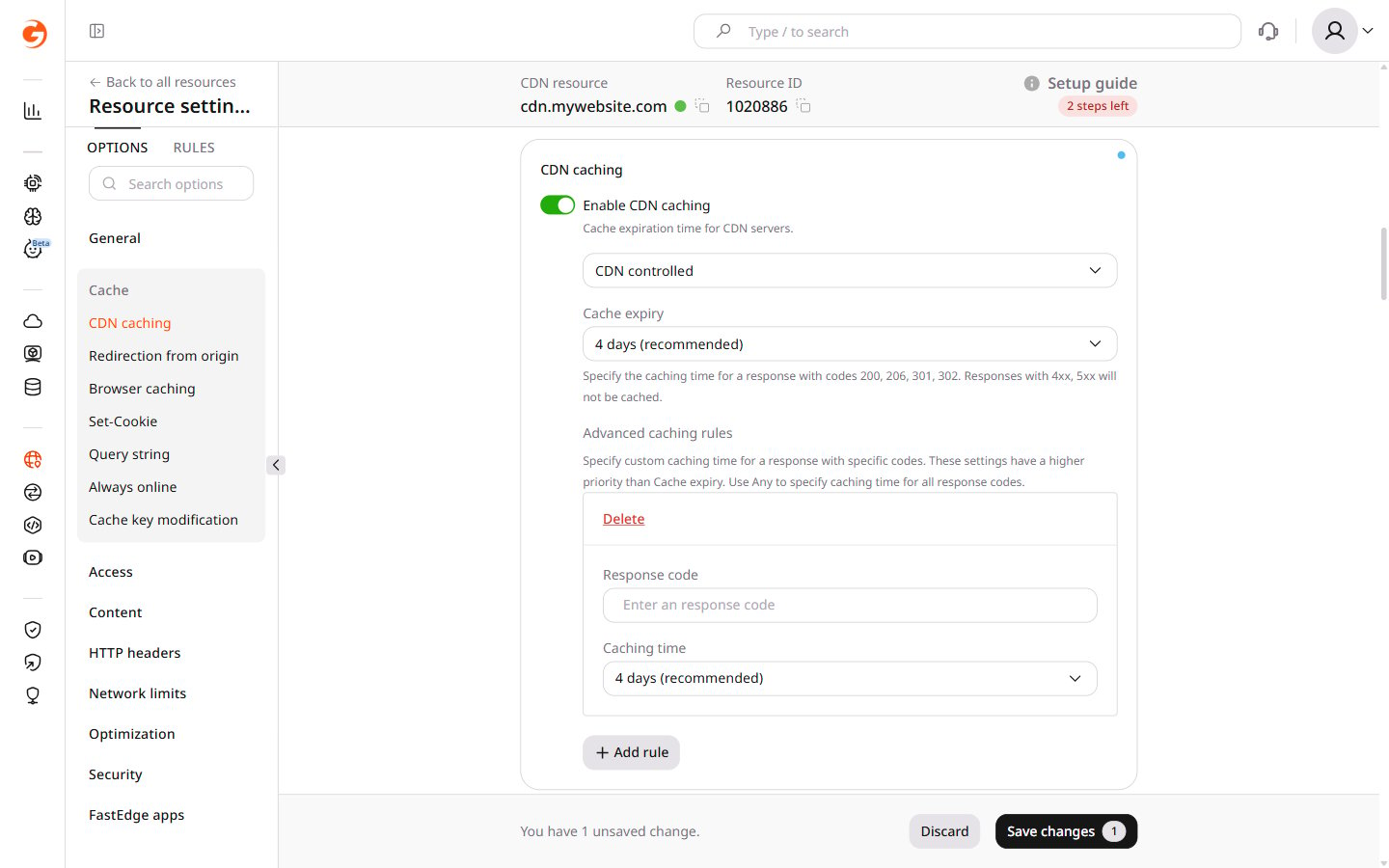
CDN controlled
CDN caching can be configured at two levels:- For the whole resource
- At the advanced caching rule level in the resource
- Enable CDN caching for the whole resource
- Enable CDN caching via advanced caching rules
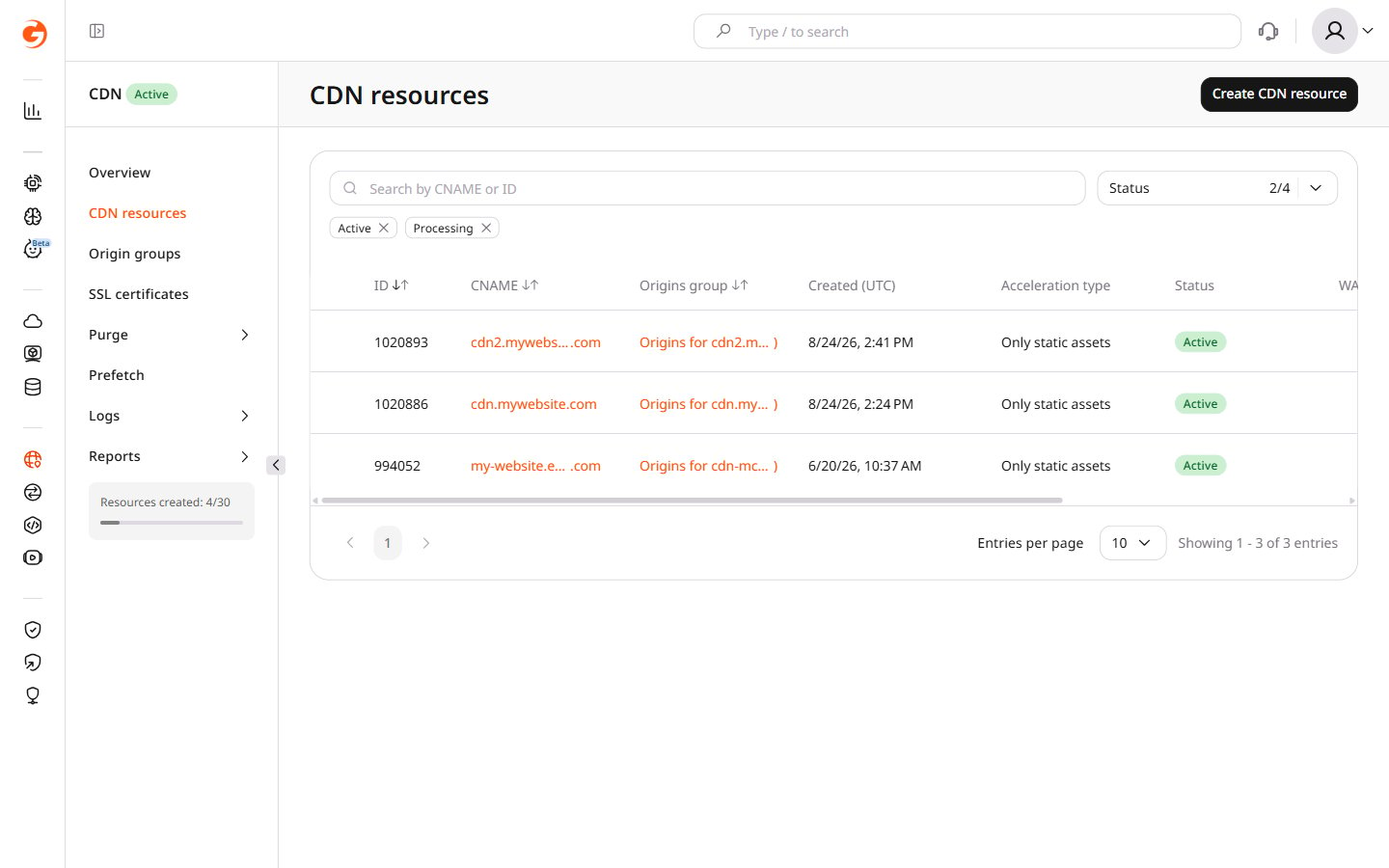
1. In the Customer Portal, navigate to CDN > CDN resources.2. Click the CNAME of the required resource to open its settings.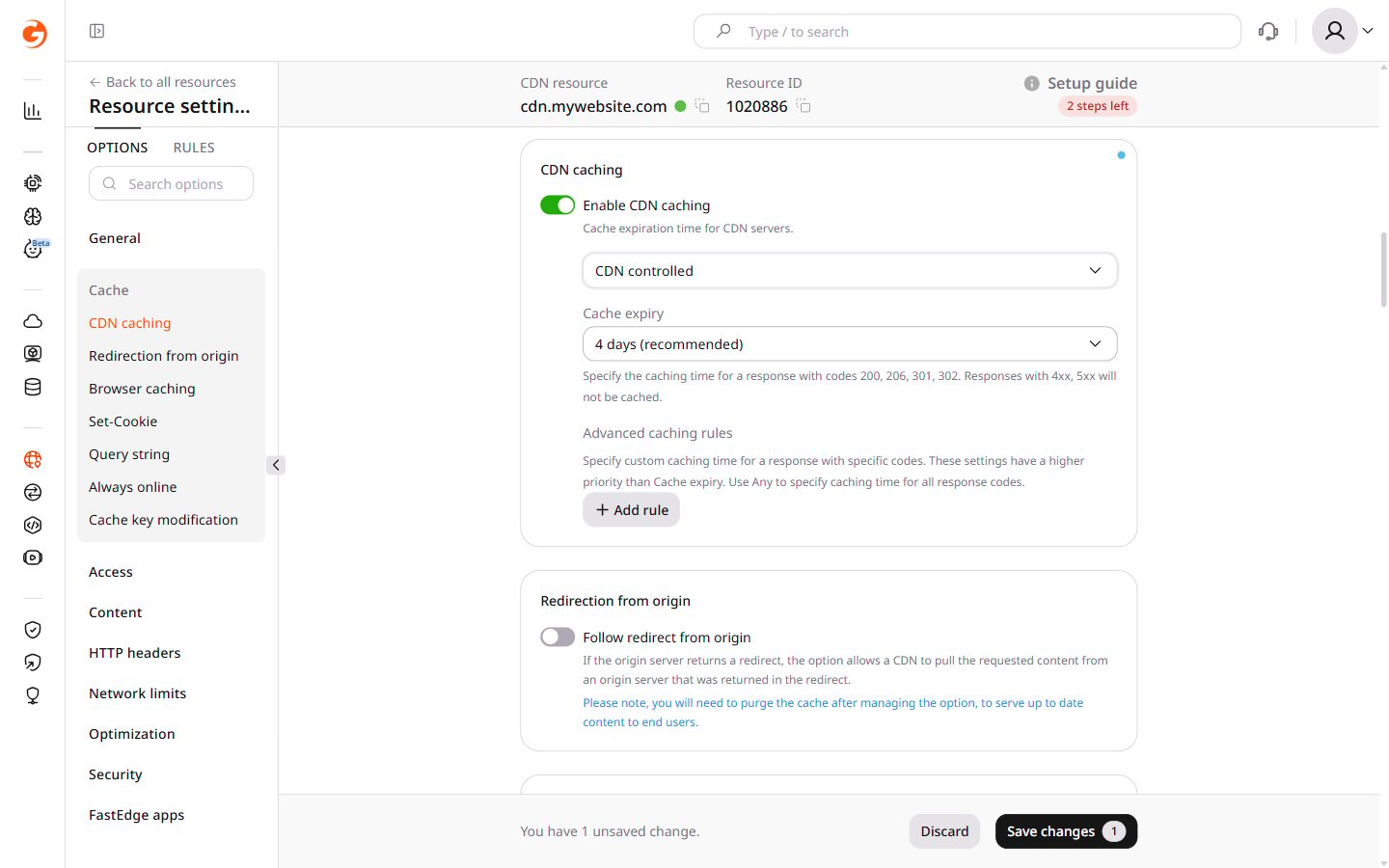
Check CDN caching settings
To verify that CDN caching is working correctly, inspect HTTP response headers using cURL or browser DevTools.Check through cURL
Run a cURL request against a CDN-delivered URL and inspect the HTTP response headers. 1. Open a terminal (macOS) or command prompt (Windows). 2. Run the following command:http://cdn.testdomain.com/css/style.css is the URL of a file delivered via CDN.
The output includes HTTP response headers. The headers relevant for diagnosing cache behavior are described in the caching HTTP headers section.
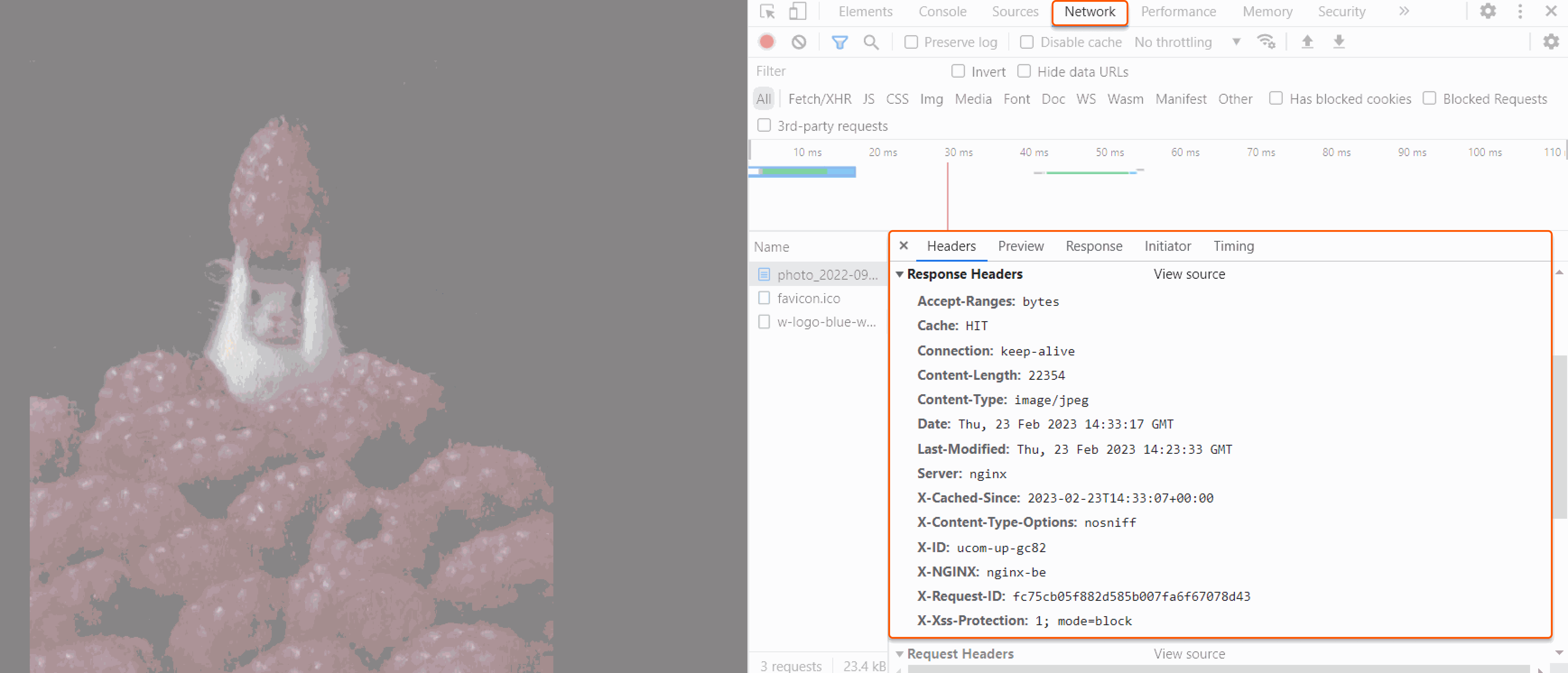
Check with DevTools in a browser
Use browser DevTools to inspect the HTTP response headers for a CDN-delivered file. 1. Open a web browser. 2. Navigate to the website. 3. Right-click and select Inspect to open DevTools. 4. Select the Network tab. 5. Refresh the page. 6. Select any file from the list that is delivered via CDN. 7. On the Headers tab, review the response headers. The key cache-related headers are described in the section below.